
This outlines How To Schedule A Price Level Change in Back Office.
IMPORTANT
Keep in mind that for a temporary Price Level change (for example, for a Public Holiday), another Price Level change will need to be scheduled, to ensure that Price Levels are changed back to the normal trading Price Level required for the selected Location. Refer HERE for an example.
How To Schedule A Price Level Change? ▲ ▼
How To Add A New Schedule? ▲ ▼
In Back Office:- Select the Scheduled Price Levels option in the Touch Settings menu, to open the Scheduled Price Levels screen.
- Select the Add option to open the Price Level Changes screen.
- In the Price Level Changes screen:
- Enter an appropriate description for the Price Level change in the Description field.
- Select from the Location drop-down list the Location in which the change is to take effect.
- Select either a Date or Days on which the change is to take effect.
- Enter the time At which the change is scheduled to commence on the selected Date/Days.
- Select from the Price Level drop-down list the Price Level to change to.
- Select Save to save the changes and exit the screen.
Notes ...
Also, if Price Levels require changing in more than one Location, then schedules will also need to be created for each one.
- Once saved, ensure a Full Update is sent to all the Touch devices in the selected Location. Refer HERE for more information.
How To Reschedule An Existing Schedule? ▲ ▼
In Back Office:
- Select the Scheduled Price Levels option in the Touch Settings menu, to open the Scheduled Price Levels screen.
- Select one of the schedules listed in the grid.
- Select the Edit option to open the Price Level Changes screen.
- In the Price Level Changes screen:
- Change the schedule as required.
- Select Save to save the changes and exit the screen.
- If the selected schedule was previously run, then the following prompt will be displayed
Notes ...
If the selected schedule was previously run, then the following prompt will be displayed to confirm that the Last Run date/time is reset to 1/01/1970 12:00 AM to flag it as not having been run before.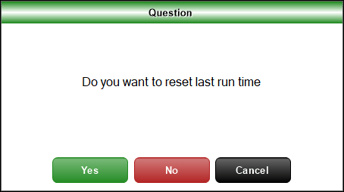
- Once saved, ensure a Full Update is sent to all the Touch devices in the selected Location. Refer HERE for more information.
End of article ▲