
This outlines How To Execute A Swiftpos Software (SSS) Script in Back Office.
Subjects ▲ ▼
About ▲ ▼
What To Consider? ▲ ▼
-
Always ensure a backup exists before running any SSS script.
When Is It Used? ▲ ▼
Used to run a selected Swiftpos Software Script (.SSS file). This should ONLY be done when instructed by Swiftpos Support. The script would normally be designed as an "SQL Stored Procedure" that is run against the current SQL Database.
Notes ...
Only scripts issued by Swiftpos Software will work with this option. Any 3rd party scripts will fail to execute.
How To Execute Swiftpos Software (SSS) Script? ▲ ▼
In Back Office:
- Select the Execute Swiftpos Script option in the Miscellaneous section of the SQL Tools menu.
- The SQL Server Login screen is displayed.
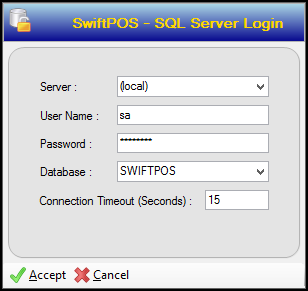
- Confirm/Enter the login details and select Accept.
- A Browse for SQL Script screen is displayed.
- Locate and select the downloaded SSS script (.SSS) file. Then select Open.
- A Run Script popup will be displayed prompting for possible input parameters.
- Enter input parameters (if required). Input parameters are those rows in the grid that require a value for the script to run. Normally, the rows with the text "In" in the Direction column. Then select OK.
- The script will execute and is considered completed when the Run Script popup disappears.
End of article ▲