
This outlines the How To Configure A Special/Promotion in Back Office.
Subjects ▲ ▼
About ▲ ▼
What Is It? ▲ ▼
A Special/Promotion generally refers to selected Items/Products being sold at a discounted price for a limited time period.
What Is Required? ▲ ▼
- Items/Products that are active and flagged as active in at least one Location must already exist and have pricing configured in Back Office.
- For Special/Promotion pricing to automatically be activated and then deactivated at the configured Start/End dates in Touch, the Service Monitor service will need to be running.
- Ensure the Send Full Update option is selected in the End of Day Option screen. to ensure that any changes made to Special/Promotion configurations in Back Office are sent to Touch terminals as part of the end of day process.
When Is It Used? ▲ ▼
Specials/Promotions are mainly used by Venues to offer patrons discounts on Items/Products that are being promoted for a limited time period.
How To? ▲ ▼
How To Configure A Special/ Promotion? ▲ ▼
In Back Office, do as follows:
- Review About and ensure the steps outlined HERE are addressed.
- Select the Specials/Promotions option from the Products menu to open the Specials/Promotions screen.
- Select the New option in the footer section to open the Promotion Edit screen.
- Enter an appropriate name for the Happy Hour in the Happy Hour Name field in the header section. For example. This Week's Specials.
- If required, Specials/Promotions can be grouped using the Group option.
- Ensure the Enabled option is selected.
- Select the days of the week in which it will be activated. For example, Monday, .
- Select/Enter the Start/End dates within which it will be active. For example, 03/11/2025 to 09/11/2025.
- Select/Enter the Start/End Buy Period dates. This is used to facilitate the ordering of stock intended for the Special/Promotion. Refer HERE for more information. For example, 20/10/2025 to 02/11/2025.
- Using the Select Locations option to open the Locations screen, select the Locations in which it will be applied.
Notes ...
By default, all Locations are selected.
- Add the Items/Products that will be discounted while the Special/Promotion is active. Items/Products can be added either:
- Once all Items/Products have been added and their Promo Pricing checked and confirmed, select the Save option to save the changes.
- Ensure a Full Update is sent to the required Touch terminals that will be offering patrons Happy Hour discounts. Refer HERE for more information.
How To Add Items/Products Manually? ▲ ▼
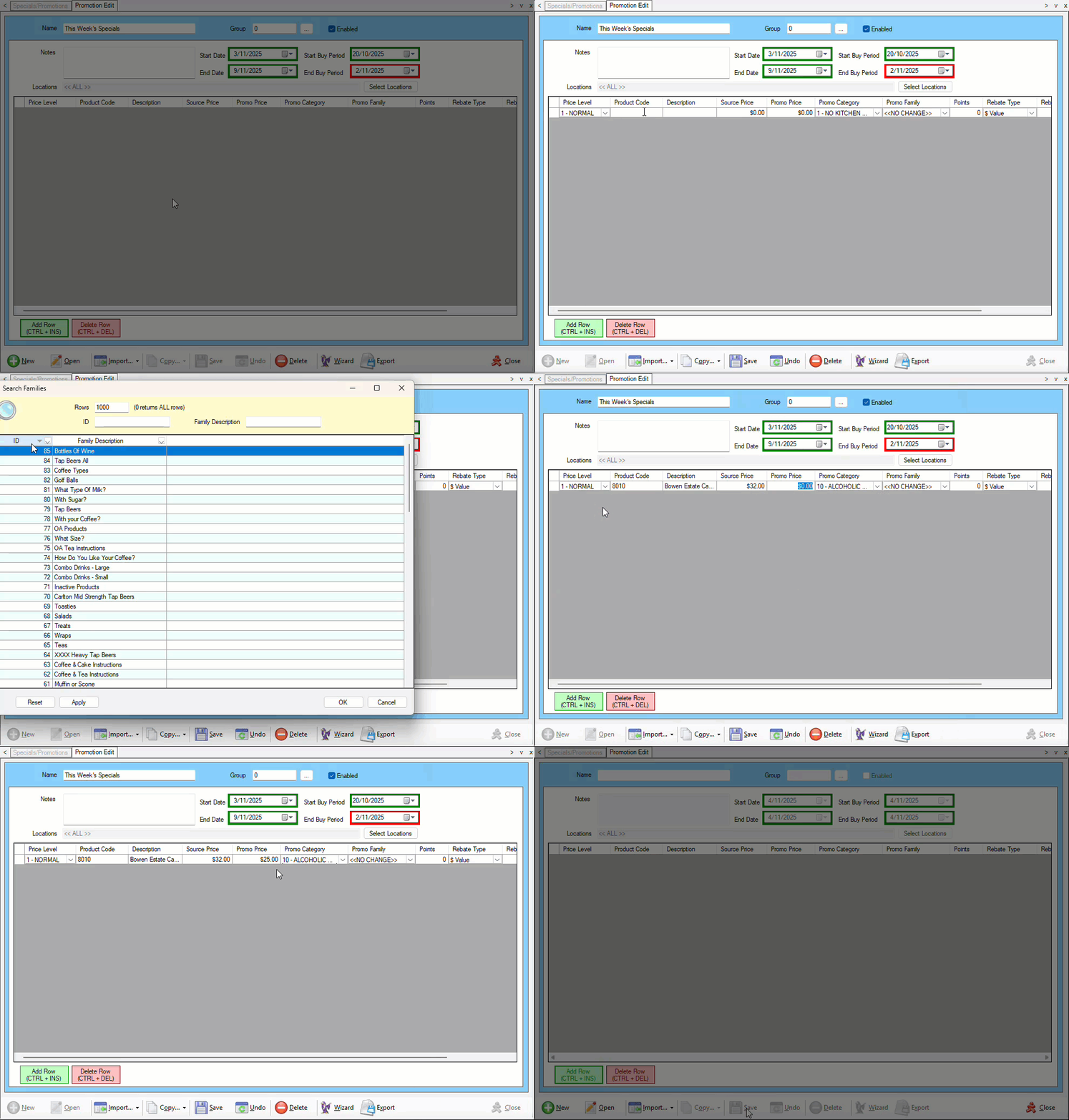
Example of manually adding an Item/Product to a Special/Promotion and pricing it accordingly. This will need to be repeated for all Items/Products that will be discounted while the Special/Promotion is active.
How To Add Items/Products Using The Wizard? ▲ ▼
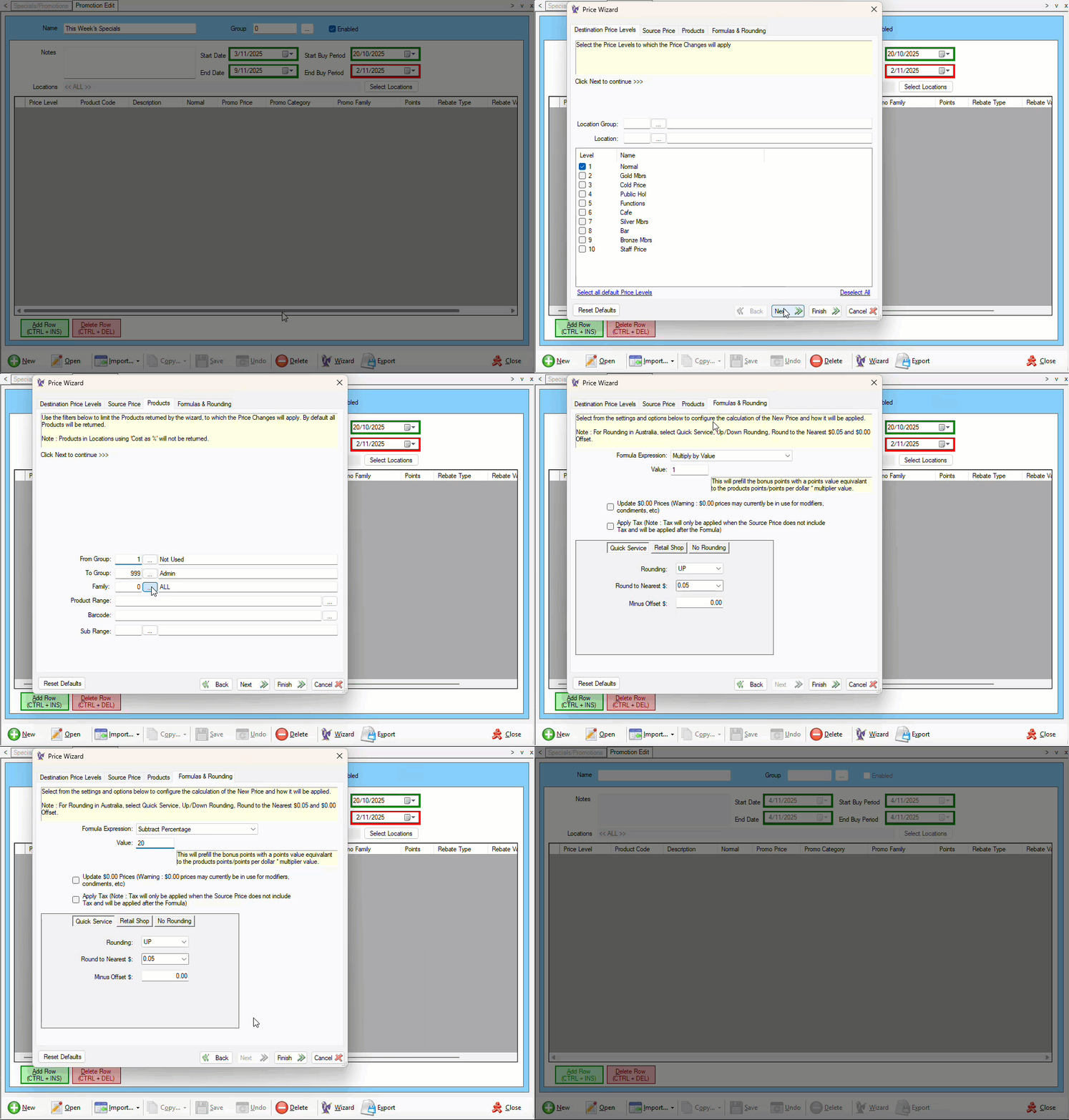
Example of adding Items/Products to a Special/Promotion using the Wizard.
End of article ▲