
This outlines the How To Configure A Happy Hour in Back Office.
Subjects ▲ ▼
About ▲ ▼
What Is It? ▲ ▼
A Happy Hour generally refers to an hour in a day in which selected beverages are sold in house at a discounted price.
What Is Required? ▲ ▼
- Items/Products that are active and flagged as active in at least one Location must already exist and have pricing configured in Back Office.
- For Happy Hours pricing to automatically be activated and then deactivated at the configured Start/End times in Touch, the Service Monitor service will need to be running.
- Ensure the Send Full Update option is selected in the End of Day Option screen. to ensure that any changes made to Happy Hour configurations in Back Office are sent to Touch terminals as part of the end of day process.
- Ensure all Touch terminals are set to the same regional settings to ensure Happy Hours are activated and deactivated at the correct times across all Touch terminals.
When Is It Used? ▲ ▼
Happy Hours are mainly used by Venues to attract patrons by offering them discounted drinks (only served in house) for an hour early on in the evening (normally sometime between 5pm and 7pm) in the hope that they stay and continue their patronage once the Happy Hour has ended.
How To? ▲ ▼
How To Configure A Happy Hour? ▲ ▼
In Back Office, do as follows:
- Review About and ensure the steps outlined HERE are addressed.
- Select the Happy Hour Set-up option from the Products menu to open the Happy Hour Set-up screen.
- Select the New option in the footer section to open a blank version of the Happy Hour Set-Up screen.
- Enter an appropriate name for the Happy Hour in the Happy Hour Name field in the header section. For example. Happy Hour - Friday Night.
- Ensure the Happy Hour is enabled option is selected.
- Select the days of the week in which it will be activated. For example, Friday.
- Select/Enter the Start/End times within which it will be active. For example, 17:30:00 PM to 18:30:00 PM.
- Select/Enter the From/To date range within which it will be active. For example, 03/01/2025 to 26/12/2025, being from the 1st Friday of the year to the last Friday of the year.
- Using the Select Locations option to open the Locations screen, select the Locations in which it will be applied.
Notes ...
By default, all Locations are selected.
- Add the Items/Products that will be discounted while the Happy Hour is activated. These are usually beverages that are served in house. Items/Products can be added either:
- Once all Items/Products have been added and their Happy Hour Pricing checked and confirmed, select the Save option to save the changes.
- Ensure a Full Update is sent to the required Touch terminals that will be offering patrons Happy Hour discounts. Refer HERE for more information.
How To Add Items/Products Manually? ▲ ▼
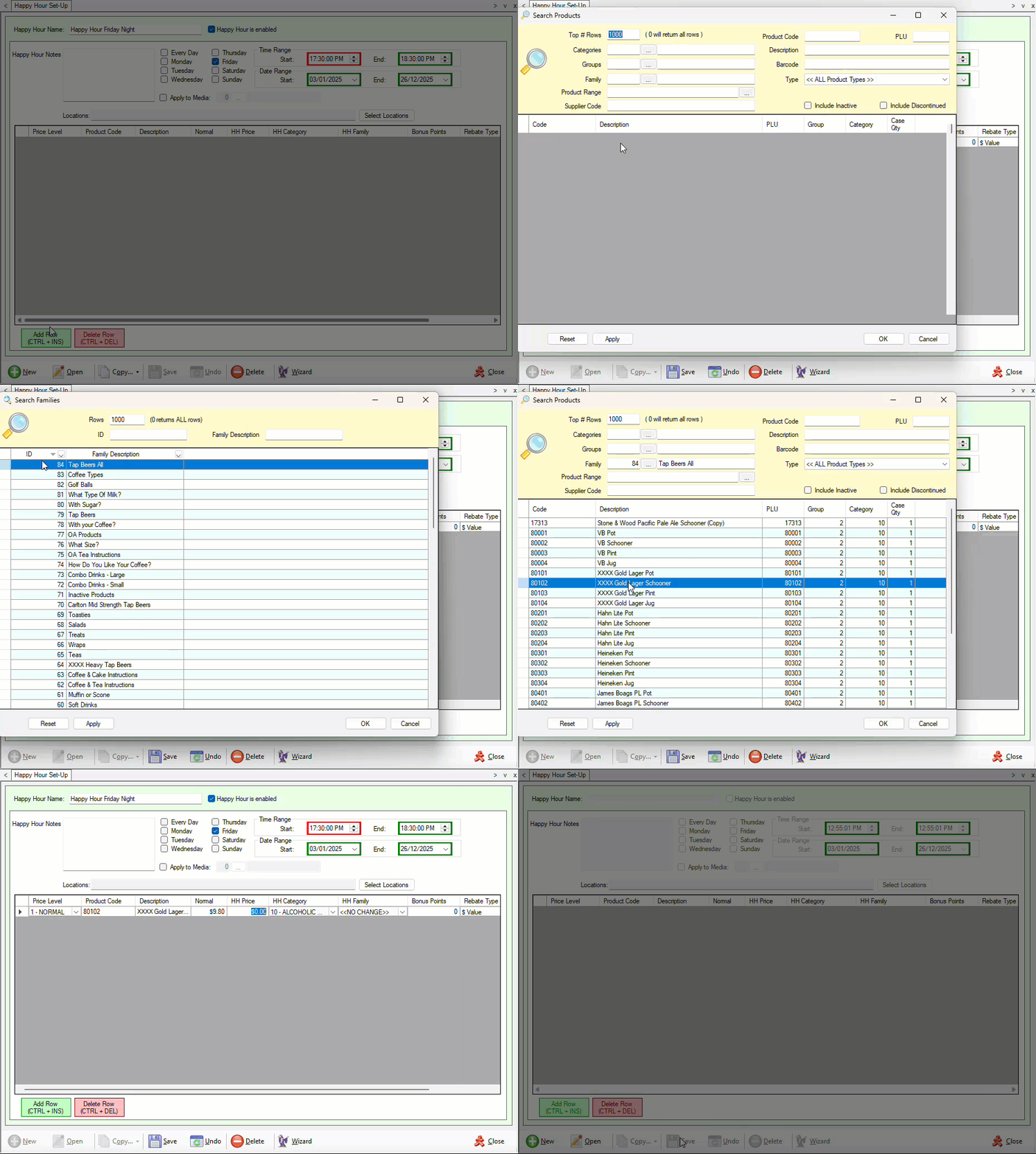
Example of manually adding an Item/Product to a Happy Hour and pricing it accordingly. This will need to be repeated for all Items/Products that will be discounted during the Happy Hour.
How To Add Items/Products Using The Wizard? ▲ ▼
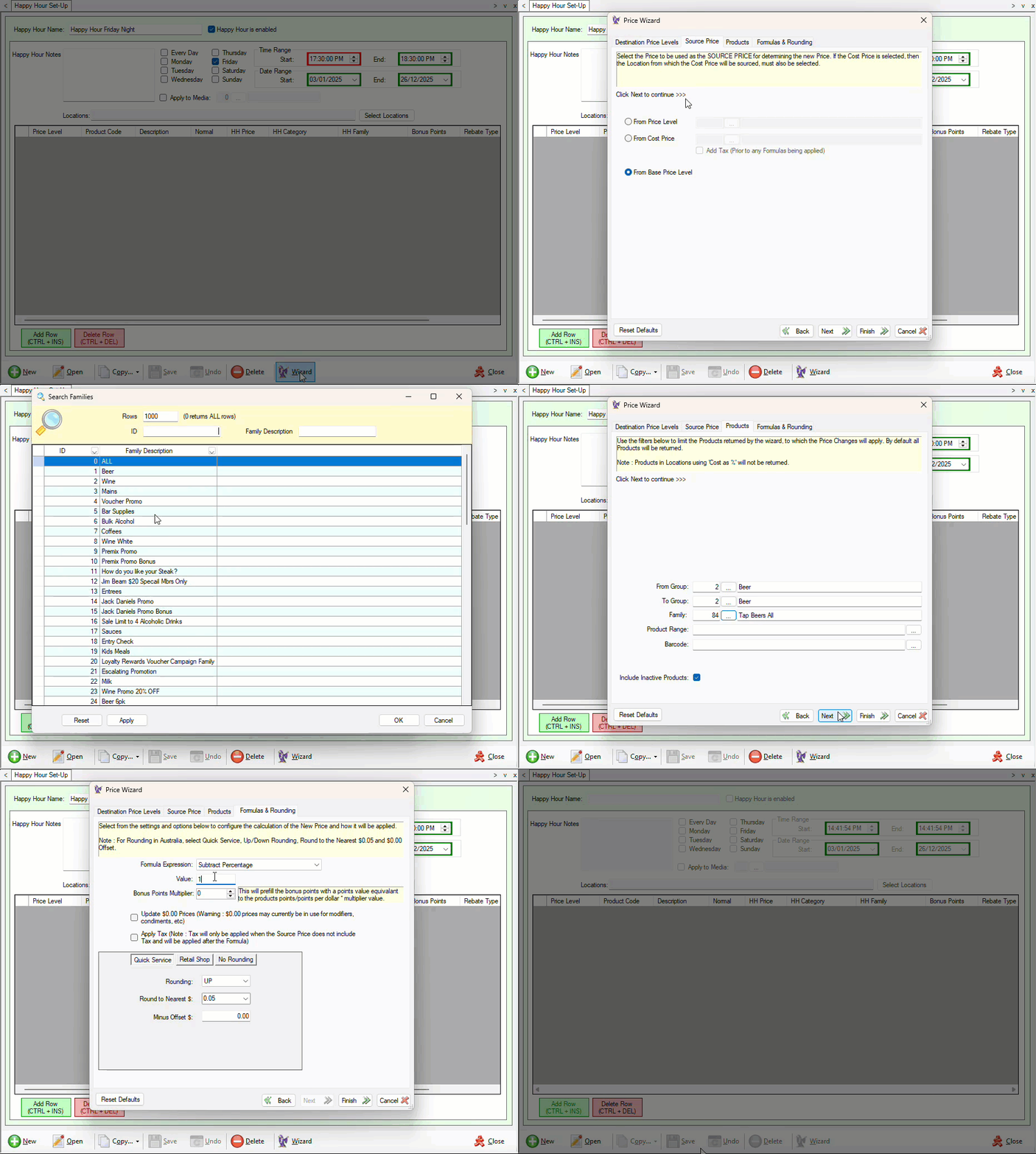
Example of adding Items/Products to a Happy Hour using the Wizard.
End of article ▲