
This outlines How To Add a Touch Training Device in Back Office.
Subjects ▲ ▼
About ▲ ▼
What Is It? ▲ ▼
A Touch Training Device is a Touch Device that is reserved for Training Use Only and will not be considered as one of the Licensed devices covered by the Swiftpos Registration. It will also not record sales. Touch Training devices are provided at no extra Licensing cost and are designed to configure and test Keyboard layouts in Swiftpos Back Office prior to activating them across active Swiftpos Touch devices.
What Is Required? ▲ ▼
- The appropriate Clerk Security Group permissions required to access Devices in Back Office.
- Touch Training Device DO NOT require a POS Terminal licences as they will NOT record any sales.
How To? ▲ ▼
How To Add A Touch Training Device? ▲ ▼
Do as follows:
- Access Devices in Back Office.
- Select the New option in the footer section to add a row to the grid. This will display the New Device Record prompt to prompt for the entry of a Device ID.
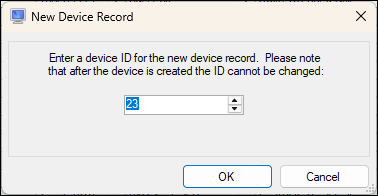
- Enter an ID of between 999901 - 999999 and select OK.
- In the Device column, enter an appropriate name for the new Device. For example, Training POS.
- In the Type column, select from the drop-down list the Touch type. Refer to Device Types for more information.
- In the Location column, ensure the Location in which the Touch Training Device is going to operate in is selected from the drop-down list.
- Select Save to save the new Touch Training Device.
End of article ▲