
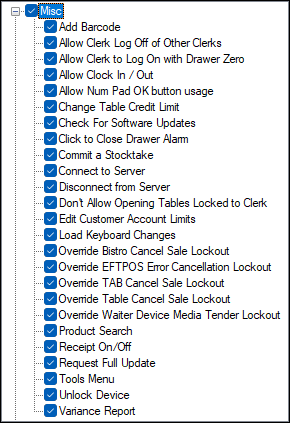
To access, expand the Misc option listed in the Clerk Security Items screen. Allows for the selection/deselection of the listed Touch POS Miscellaneous options to ensure authorisation is granted/withdrawn for the selected Clerk Security Group.
MISC ▲ ▼
- Add Barcode
Authorises the addition of unrecognised barcodes to Product Records which are active in their Location. - Allow Clerk Log Off of Other Clerks
When using Fast Clerk Mode, allows Clerks to log off other Clerks who are logged into Touch POS devices. - Allow Clerk to Log On with Drawer Zero
When using Fast Clerk Mode, allows Clerks to login without assigning themselves to a Cash Drawer, meaning at the end of each sale it'll ask what Drawer they want the sale to contribute too. - Allow Clock In / Out
Authorises the use of the in-built Time Clock function to Start/End Shifts and Start/End Breaks. - Allow Num Pad OK button usage
Authorises the entry of a number and select the OK option to perform a PLU Lookup. Suggested for retail Venues who have PLU's printed on labels. - Change Table Credit Limit
Authorises the changing of the credit limits against Tables and TABs. - Check for Software Update
Authorises Software Updates to be applied when they are not set to automatically apply after X number of seconds of no activity. - Click to Close Drawer Alarm
Authorises the disabling of the alarm that is triggered when the cash drawer is left open for too long. - Commit a Stocktake
Authorises the commitment of a stocktake, to ensure it is sent to Back Office. - Connect to Server
Authorises the ability to connect of a Touch POS device from an Offline status to an Online status. - Disconnect from Server
Authorises the ability to disconnect of a Touch POS device from an Online status to an Offline status. If auto-reconnect is configured, the Touch POS device will reconnect itself after the configured retry period. - Don't Allow Opening Tables Locked to Clerk
Prevents the re-opening of a Table when the Table has been locked. Tables may require reopening in order to be able to print a Guest Bill. - Edit Customer Account Limits
Authorises the editing of credit limit against a Member/Account. - Load Keyboard Changes
Authorises pending Keyboard updates to be applied. If auto-apply updates is configured, the Touch POS device will apply the updates automatically after the configured period. - Override Bistro Cancel Sale Lockout
Authorises the cancellation of a Bistro Table. This can only be done if there are no pending order/sale items currently against the Bistro Table Number. - Override EFTPOS Error Cancellation Lockout
Allows the lockout option on an EFTPOS device to be overridden, ensuring staff are able to abort/cancel an EFTPOS transaction. The Require Clerk Authorisation for EFTPOS Error Cancellation authorisation option may also need to be considered. - Override TAB Cancel Sale Lockout
Authorises the cancellation/clearing of an open TAB. This will void all order/sale items on the TAB. - Override Table Cancel Sale Lockout
Authorises the cancellation/clearing of an open Table. This will void all order/sale items on the Table. - Override Waiter Terminal Media Tender Lockout
Authorises the finalisation of a Table/TAB from a "Waiter Only" Touch POS device. - Product Search
Authorises the searching of items/products that are active in the Location (irrespective of whether they have been added to the keyboard or not). - Receipt On/Off
Authorises the toggling of the Receipt On/Off option (irrespective of the options configured against the Finalise (#2-30) POS Keys). - Request Full Update
Authorises the requesting of a full update to be sent to the Touch POS device. - Tools Menu
Allows access to select the Tools option in the top right-hand corner of the Touch POS screen, which allows access to a menu of tools and configuration options. There are further security options which allow for controls of some of the individual Tool menu options below. - Unlock Terminal
Allows access to unlock a Touch POS device which has been locked manually via the Tools menu or when a Print Reports (End of Shift/Z Read) process has been run. Locked Touch POS devices mean the devices cannot be used for transacting until they are unlocked. - Variance Report
Authorises the printing/generating of a Variance report when doing a stocktake from a Touch POS device.
End of article ▲