
Subjects ▲ ▼
About ▲ ▼
When Is It Used? ▲ ▼
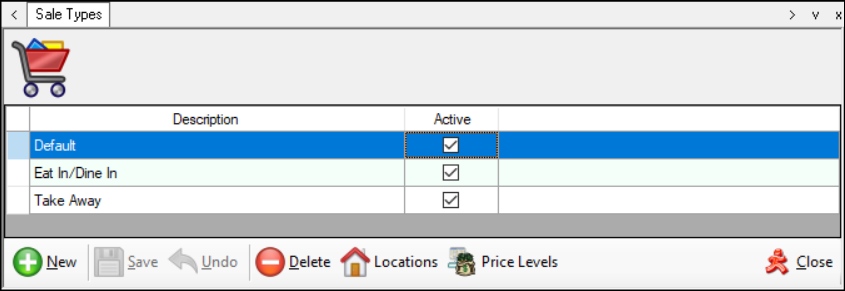
Used to setup custom Sale Types in Back Office, which can then be selected when commencing an Order/Sale in Touch. When Sale Types are configured, these are used in conjunction with the Sale Type POS Key (#960) in Touch.
Screens ▲ ▼
Default Price Levels Screen ▲ ▼
Sections ▲ ▼
Grid Section ▲ ▼
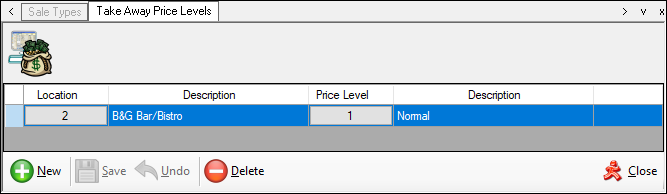
Lists the Location and Price Level combinations to which, when configured, the selected Sale Type will be applied to. In the case of the above screenshot, that would be the Take Away Sale Type.
Footer Section ▲ ▼
Use the options available to edit/manage the Locations/Price Level combinations for the selected Sale Type.
Sale Types Screen ▲ ▼
Sections ▲ ▼
Grid Section ▲ ▼
Lists the Sale Types along with their Description and Active indicator.
Noteworthy
- Description - The Default entry is by default available and CANNOT be deleted. It is used as the default, when additional Sale Types either:
- Have NOT been configured for a Venue, since they are NOT required.
- HAVE been configured and have NOT been invoked in Touch by selecting the Sale Type POS Key (#960).
Footer Section ▲ ▼
- New - Select to add a new Sale Type.
- Save – Select to save the changes made.
- Undo – Select to undo changes made.
- Delete - Select to delete the selected Sale Type.
- Locations - Select to display the Locations screen to select one or more Locations in which the selected Sale Type will be available for selection.
- Price Levels - Select to display the Default Price Levels screen to view the Location/Price Level combinations that have been configured for the selected Sale Type in Touch.
End of article ▲