
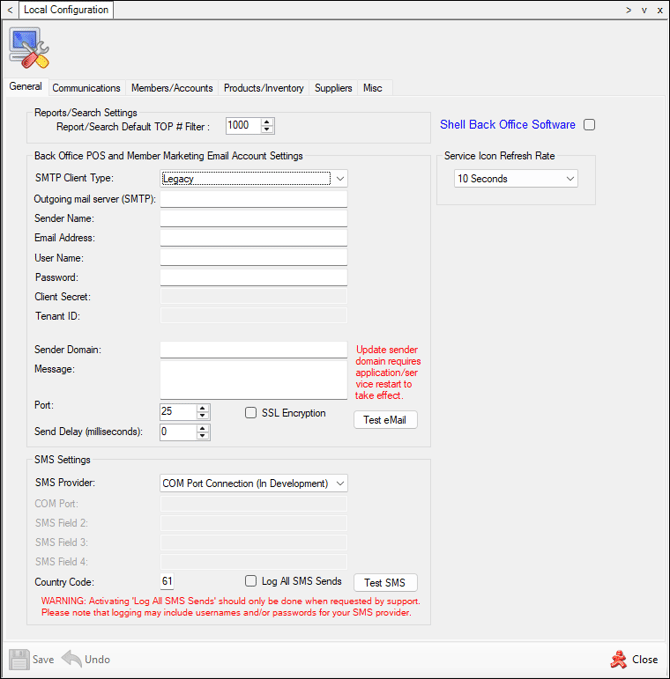
Used for setting preferences that are specific to the server Swiftpos is installed on. It is entirely possible for each server that has Swiftpos installed, to use different settings.
Tabs ▲ ▼
General Tab ▲ ▼
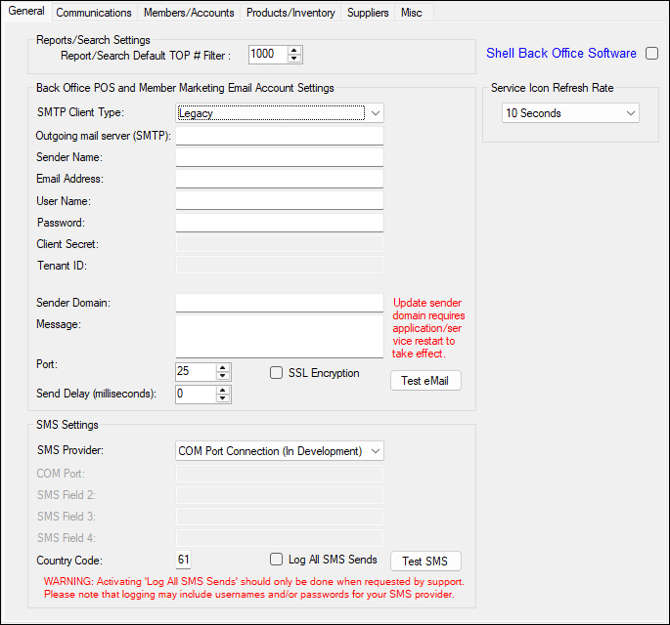
Sections ▲ ▼
- Report/Search Settings
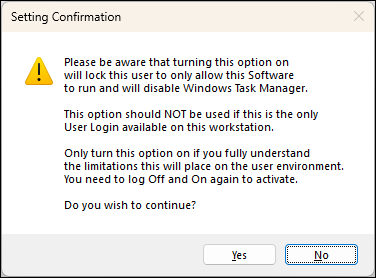
- Shell Back Office Software - Select to enable. Prior to enabling the following prompt will be displayed to confirm the enabling action being taken.
- Back Office POS and Member Marketing Email Account Settings
- Service Icon Refresh Rate
- SMS Settings
Report/Search Settings Section ▲ ▼

- Report/Search Default TOP # Filter - Displays/Enter the number of data records to be returned when a search of the Swiftpos database is done. This number is displayed in various Back Office screens that provide search filters. For example, the Products Records screen and the Search Transactions. It is recommended to set this value to 50 for Swiftpos databases that are not located on the local PC. If, however, the Swiftpos database is stored locally this number can be significantly higher. For example, 1000.
Notes ...
An unreasonable setting can have adverse consequences on performance.
Back Office POS and Member Marketing Email Account Settings Section ▲ ▼
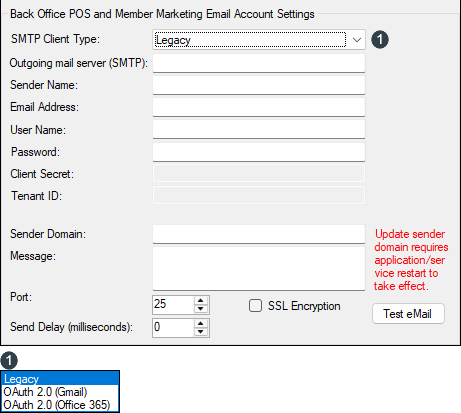
Used to configure the Email settings for Back Office Basic Invoicing and Member Marketing. Email settings for Batch Reports are configured HERE
- Outgoing mail server (SMTP) - Displays/Enter the SMTP Host/IP address. For example, mail.iinet.net.au.
- Sender Name - Displays/Enter the sender's name. For example, Swiftpos Support.
- Email Address - Displays/Enter the sender's email address. For example, support@swiftpos.com.au.
- User Name/Password - Displays/Enter the ISP Username and Password if required. Leave blank if your ISP does not require this.
- Client Secret - Displays/Enter the Client Secret provided.
- Tenant ID - Displays/Enter the name of the Swiftpos Back Office database to which connection is required.
- Sender Domain - Displays/Enter the fully qualified Domain name for the sending of email alerts, etc.
- Message - Displays/Enter the default message that will be sent out as part of the body of emails sent.
- Port - Displays/Enter the Port number. For example, 25.
- SSL Encryption - Select to enable.
Notes ...
From our testing, SSL works on port 25, not 465, as Gmail advertise in their info page.
- Send Delay (milliseconds) - Displays/Enter the delay time before an email is sent. Recommend a setting of between 50 - 100 milliseconds.
Notes ...
This feature was introduced to avoid insufficient system storage messages being generated when sending emails. Affected mainly Telstra business clients.
- Test Email - Select to send a test email to a specified email address, using the SMTP settings configured.
Service Icon Refresh Rate Section ▲ ▼
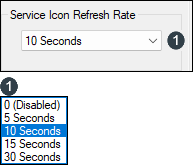
- Select from the drop-down list the refresh rate required. The default is 10 seconds. The settings selected will affect the rate the status of the Services icons are refreshed.
Notes ...
Venues using low spec hardware would be advised to disable this or select the highest refresh rate. Refreshing does consume CPU resources.
SMS Settings Section ▲ ▼
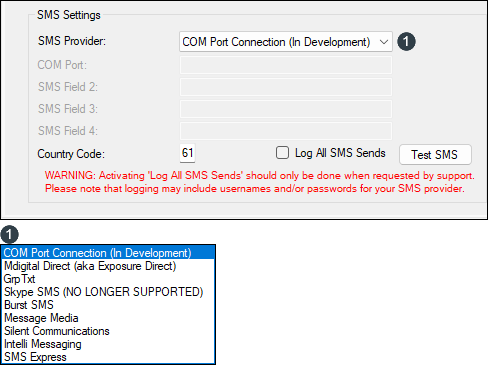
Used for the Member Marketing feature to enable the sending of SMS messages to Customer/Members.
- SMS Provider - Select from the drop-down list one of the SMS providers the Venue has an account with. SMS providers not in listed may require additional development at a cost.
Notes ...
Once one of the above SMS providers have been selected then complete the remaining settings specific to the selection made.
- Country Code - Displays/Enter the telephone area Country Code.
- Log All SMS Sends - Select to ensure all SMS sends are logged.
Notes ...
This should only be selected when requested by Swiftpos Support.
Communications Tab ▲ ▼
Notes ...
Use the PDE2000 option for PDE2000 or PDE2000B software running in the PDE.
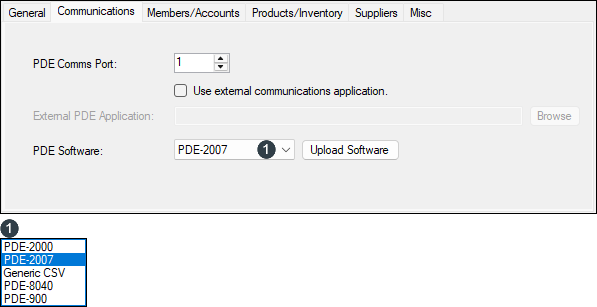
- PDE Comms Port - Displays/Enter the Comms Port the PDE is plugged into.
- Use external communication application - Select to use if your PDE requires proprietary software to be able to send and receive data in Swiftpos. This is the case for some PDE's which use a USB cradle to connect to the computer.
- External PDE Application - Select the browse button to locate the external PDE application file (.exe file).
- PDE Software - Select from the drop-down list of available versions of PDE software that is compatible with Swiftpos. The available options are PDE2000, PDE2007 and Generic CSV. The title at the bottom of the PDE screen can be used to determine the version of the software. If the title reads Task-Manager or Swiftpos PDE then it's the PDE2000 software. If it reads PDE 2007 then it's obviously the PDE2007 software. The difference between the 2 applications is that PDE2000 has a separate application for point of sale and price checking features whereas PDE2007 contains these features and the other stock related features in a single application. Generic CSV Is used to export a Barcode and Product description list to 3rd Parties.
Notes ...
If the incorrect setting is selected a file format related error may appear when downloading data from the PDE.
Members/Accounts Tab ▲ ▼
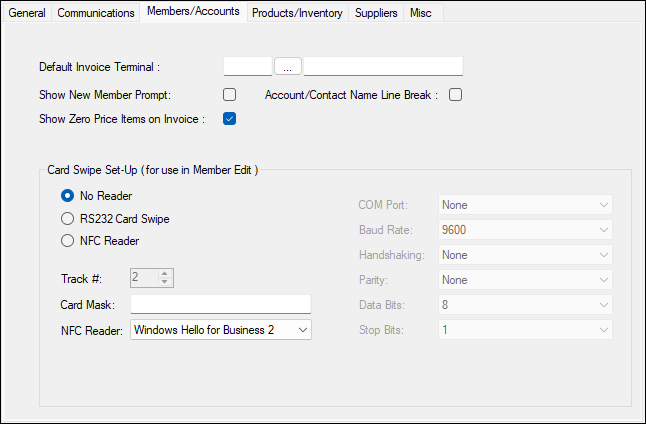
- Default Invoice Terminal - Select to open the Search Terminals screen to nominate a Terminal to be used as the default for Basic Invoicing.
- Show new Member Prompt - Select to display a prompt requesting to confirm the addition of a new Customer/Member on a Card Swipe. If you were adding Customer/Members from another system, you can use their card to swipe in here.
- Show Zero Price Items on Invoice - Select to ensure zero $ items are printed on a Tax Invoice.
- Account/Contact Name Line Break - Select to ensure a line break is inserted between the Contact Name and Account Name when printing addresses. The following reports are examples of it's use:
- Debtors Statement
Examples of the Account address printed on the Debtors Statement 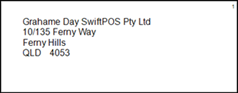
With option selected 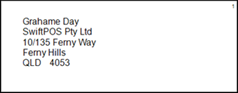
With option NOT selected - Tax Invoice [Statement]
- Debtors Statement
- Wholesale Invoice Format - Select to ensure the Wholesale format is used when previewing/printing Invoices.
- Show Discount in Basic Invoicing - Select to ensure the Wholesale Discount and Discount Type columns are visible in Basic Invoicing.
- Card Swipe Set-Up - Select to use for recalling Customer/Members details via an RS232 card swipe mounted on the PC. Once selected, set the appropriate settings to ensure the card swipe is correctly installed. This feature is used where you need to duplicate Member details with the same information that was already encoded on a card via a Gaming system. Site specific Clubs.
- RS232
- COM Port - 1
- Baud Rate - 9600
- Handshaking - None
- Parity - None
- Data Bits - 8
- Stop Bits - 1
- Track #
- Card Mask
- NFC Reader
- Track - 2
- Card Mask - Can set to filter numbers from the NFC Chip. ('-' to ignore characters, 'X' to include) For testing use ###############X to return the full RFID Card.
- NFC Reader - Select the Swiftpos NFC reader connected to the computer.
Products/Inventory Tab ▲ ▼
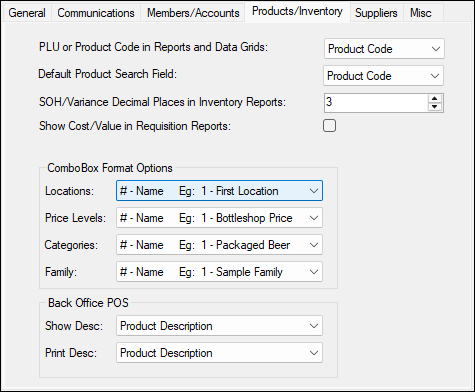
Sections ▲ ▼
Product/Inventory Options Section ▲ ▼
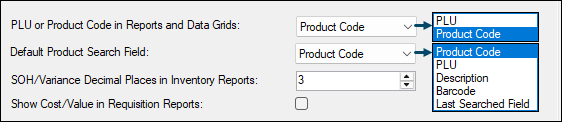
-
PLU or Product Code in Reports and Data Grids - Select from the drop-down list the fields which will appear in reports and data grids (such as Inventory Transfers, etc).
- Default Product Search Field - Select from the drop-down list the fields which will be used as the default for positioning the cursor when the Product Search screen is opened again:
- SOH/Variance Decimal Places in Inventory Reports - Select to configure the number of decimal places to be displayed when viewing selected Inventory Reports.
- Show Cost/Value in Requisition Reports - Select to enable and ensure the Cost/Value is reported in Requisition reports. The Cost is the Location cost, and the Value is calculated using the Location's default price.
ComboBox Format Options Section ▲ ▼
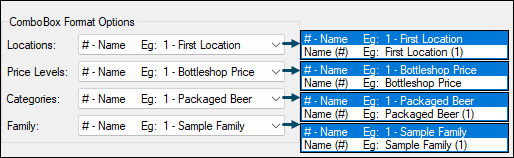
- Locations - Select from the drop-down list the preferred format to be used when selecting from lists of Locations.
- Price Levels - Select from the drop-down list the preferred format to be used when selecting from lists of Price Levels.
- Categoriess - Select from the drop-down list the preferred format to be used when selecting from lists of Categories.
- Family - Select from the drop-down list the preferred format to be used when selecting from lists of Families.
The format selected will generally apply when, for example, expanding a cell in a grid to select a Family. For example, as is the case in Happy Hours and Specials/Promotions.
Back Office POS Section ▲ ▼
-
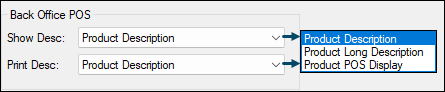
Show Desc - Select from the drop-down list the preferred item/product descriptions to appear in Back Office screens.
- Print Desc - Select from the drop-down list the preferred item/product descriptions to appear in reports.
Suppliers Tab ▲ ▼
Purchase Order
-
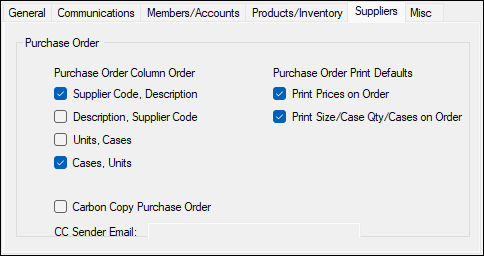
Purchase Order Column Order - Select from the following the order in which the relevant columns are to appear when the Purchases Order screen is opened:
-
- Supplier Code, Description
- Description, Supplier Code
- Units, Cases
- Cases, Units
- Purchase Order Print Defaults
- Print Prices on Order - Select to set the default status (Checked or Unchecked) of the Print Prices option.
- Print Size/Cases Qty/Cases on Order - Select to ensure these are printed on Purchases Orders.
Misc Tab ▲ ▼
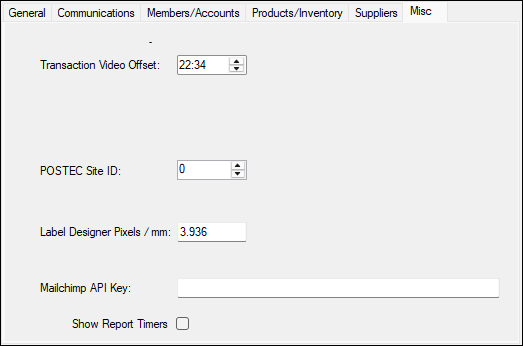
- Transaction Video Offset - Select to allow the offset of Sales Transaction times when viewing video recordings using the GeoVision interface for Swiftpos. When a video recording of a Sales Transaction is requested, the time that the Sales Transaction was tendered is recorded and the time the video recording of the same Sales Transaction is displayed. If these times are slightly out of sync then using this setting, one can simply set an offset in minutes and seconds. This will effectively cause Swiftpos to request a video recording for the Sales Transaction time minus a specified number of minutes and/or seconds.
- POSTEC Site ID - Displays/Enter the Postec Site ID.
Notes ...
The ID entered here must be the same as in Focus Forecourt Configuration > General Properties, otherwise the Fuel Reports will not generate.
- Label Designer Pixels / mm - Displays/Enter the number of pixels per mm. The default is set to 3.936.
Notes ...
A value of 3.92 may provide more accurate results.
- Mailchimp API Key - Displays/Enter the Mailchimp API Key to enable the uploading of Member Marketing Lists. An API Key will need to be generated for each Mailchimp account. For more information re API Keys, Login to Mailchimp and navigate to Account > Extras > API Keys. Member Marketing lists can be uploaded from HERE.
End of article ▲