
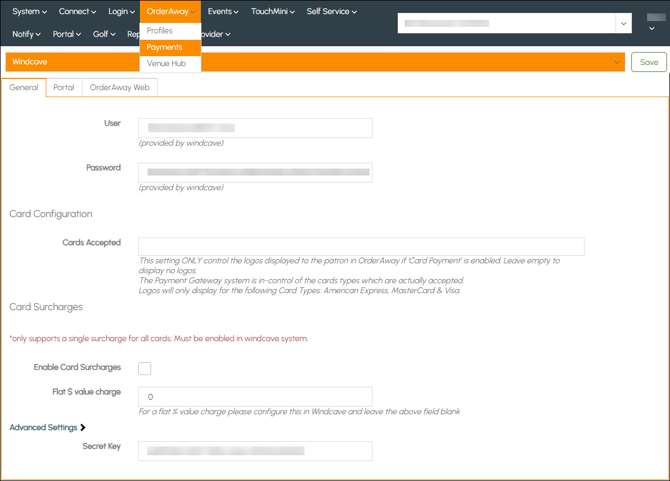
This provides information relating to the Windcave payment provider available in Orderaway.
Subjects ▲ ▼
About ▲ ▼
What Is It? ▲ ▼
Windcave is an omnichannel payment gateway that provides secure and compliant payment solutions for both online (ecommerce) and in-store transactions. Originally known as Payment Express, Windcave supports various payment methods, including credit and debit cards, and offers integrations with point-of-sale (POS) systems and online platforms to process payments globally and ensure security.
- Increased Sales. Our partners experience increases in sales and order values.
- Daily Settlement. Say hello to transparent calculations and daily settlements straight into your bank account.
- No Fraud Risk. We take all the risk, both credit and fraud. ...
- Simple and Ethical Pricing
What Is Required? ▲ ▼
Venues will be required to contact Windcave and create a merchant account to receive their own unique Windcave User ID and Key (password).
When Is It Used? ▲ ▼
Windcave allows a patron to pay via a range of options, including Mastercard, Visa, American Express, UnionPay, Diners Club, Apple Pay or Google Pay wallets. Some payment cards will require additional information to be supplied by the Venue during the onboarding process. For example, an AMEX Venue ID is required if a Venue is going to offer American Express as a payment option. For Windcave’s merchant fee break down, refer to the Swiftpos Orderaway Reseller Pricing Explained document and the associated sales collateral from Windcave
How To? ▲ ▼
How To GET STARTED? ▲ ▼
Do as follows:
- Configure The Currency:
The currency for a Venue only needs to be configured for Venues that are located in a country outside of Australia. Please ignore this setup if the Venue is in Australia as Windcave’s default currency is Australian Dollars.
For all approved currencies supported by Windcave and Swiftpos, refer HERE for more information. If still unsure, please contact your authorised Swiftpos Reseller.
To configure an approved currency for Orderaway, do as follows:
- In Venue Manager:
- Select the Secure Pay option from the Payment options listed in the drop-down list at the top.
- Select the General Tab.
- Select the appropriately approved Currency from the Currency drop-down list.
- Select the Save option to ensure all changes are saved.
- In Venue Manager:
Notes ...
Setting the currency in the Secure Pay's General tab will also set it for Windcave as well.
- Configure Windcave:
How To Test? ▲ ▼
For demonstration and testing purposes, Windcave test settings are available for use. The demonstrating or testing of the payment workflow using the test settings will appear, from the user’s perspective, to be the real thing. Payments can be tested using Credit Cards (manually entered), APPLE PAY, or GOOGLE PAY wallet cards.
IMPORTANT
When payments are made using the Windcave test settings below:
- APPLE PAY or GOOGLE PAY wallet cards – Payments will NOT be processed. Use of a Windcave test account is made which does NOT debit any payments.
- Simulating manual card entry transactions should use the credit card details below.
To test Windcave use the following settings:
- In the Orderaway Web tab, ensure the Enable option is selected.
- When demonstrating/testing and simulating entry of Credit Card details, use the following details:
- Card Number - 4111 1111 1111 1111
- Expiry - Any future date
- CSV - 123
Screens ▲ ▼
Windcave Screen ▲ ▼
Tabs ▲ ▼
Notes ...
DO NOT FORGET to select the Save button to ensure all changes are saved.
General Tab ▲ ▼
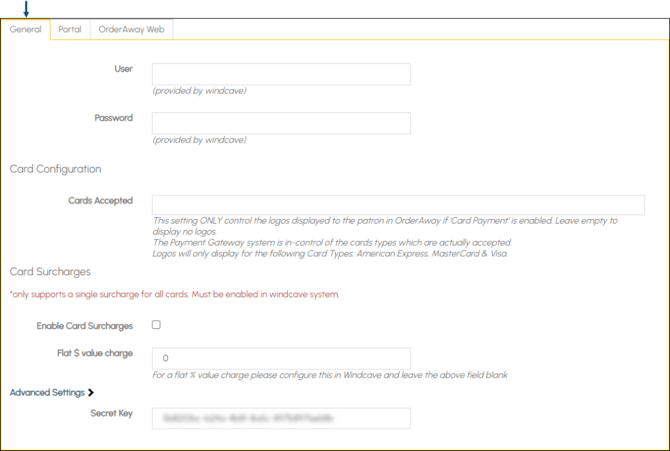
- User – Enter the User ID provided by Windcave.
- Password – Enter the Key (password) provided by Windcave.
- Card Configuration – This setting ONLY controls the logos displayed to the patron in Orderaway if 'Card Payment' is enabled. Leave empty to display no logos.
The Payment Gateway system is in-control of the cards types which are actually accepted. Logos will only display for the following card types:- American Express
- MasterCard
- Visa
- Card Surcharges
- Enable Card Surcharges - Select to enable.
- Flat $ value charge - Enter the fixed dollar value that is to be charged as the surcharge. For a flat % value charge, ensure this is configured in Windcave and leave this field blank.
- Advanced Settings
- Secret Key – DO NOT CHANGE THIS. The Secret Key will automatically be filled once the User and Password have been confirmed.
Portal Tab ▲ ▼
DO NOT USE. This will be removed in the future.
Orderaway Web Tab ▲ ▼
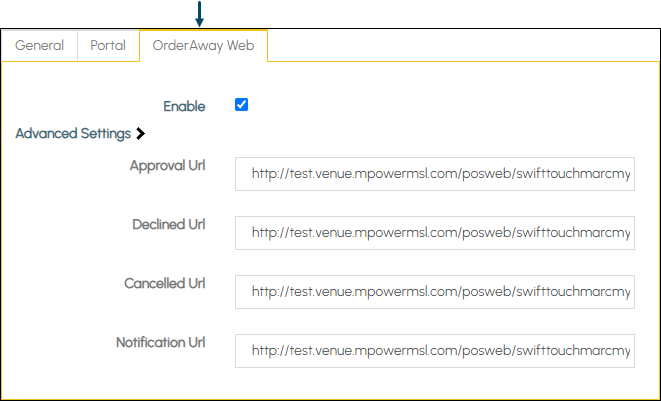
- Enable – Select to activate the Windcave Payment portal for use with Orderaway.
- Advanced Settings - When using the new domain URL (Orderaway.com.au), then ensure the URLs above are changed to reflect the Orderaway Location name (as highlighted in red).
End of article ▲