
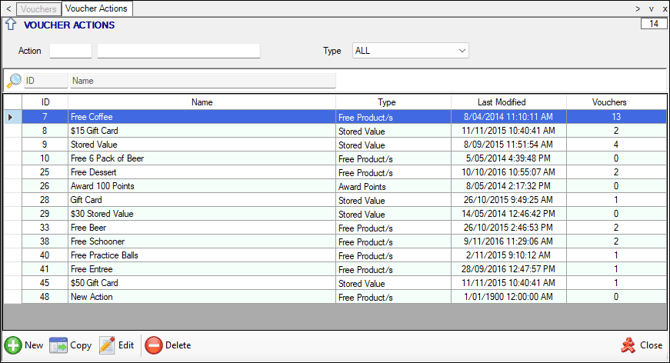
This provides information about the Voucher Actions screen in Back Office.
Subjects ▲ ▼
About ▲ ▼
What Is Required? ▲ ▼
- Swiftpos v10+
What To Consider? ▲ ▼
- When making use of Multi Use Vouchers, the action to be taken when a Voucher is redeemed, can be changed at any time as long as a full update is sent to Touch POS devices.
When Is It Used? ▲ ▼
Used to configure the actions to be taken when a Voucher is redeemed.
Screens ▲ ▼
Voucher Action Edit Screen ▲ ▼
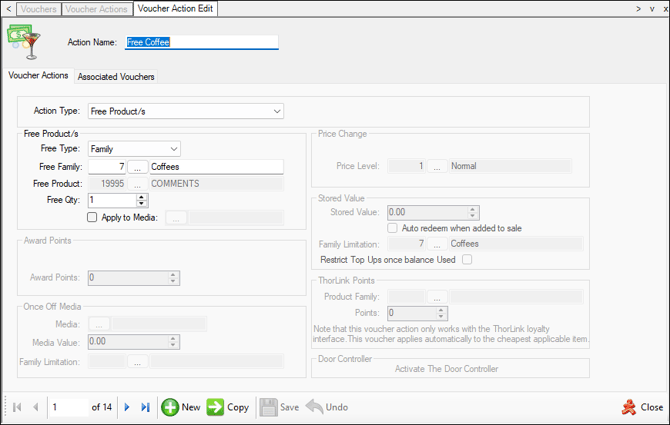
To access, select the either the New or Edit options in the footer section of the Vouchers screen in Back Office. Used to configure the actions to be taken when a Voucher is redeemed.
Tabs ▲ ▼
Voucher Actions Tab ▲ ▼
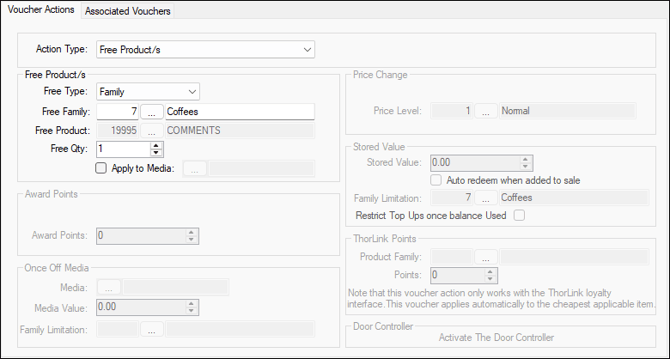
Used to configure the actions to be taken when a Voucher is redeemed.
Sections ▲ ▼
- Action Type
- Free Product/s
- Price Change
- Stored Value
- Award Points
- Thorlink Points
- One Off Media
- Door Controller
Action Type Section ▲ ▼
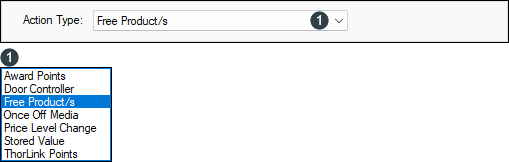
Used to select the type of action to be taken when the Voucher is redeemed.
-
Action Type - Select from the drop-down list on of the available action types.
Free Product/s Section ▲ ▼
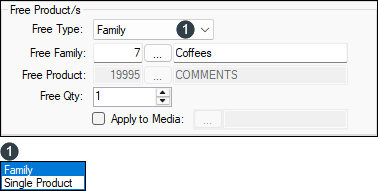
This section will only be enabled if the Free Product/s option is selected against the Action Type option HERE. Used to configure the settings to enable the giving away of items/products for free when the Voucher is redeemed.
- Free Type - Select from the drop-down list one of the following:
- Family - Select to ensure the Voucher can be used with a Family of items/products.
- Single Product - Select to ensure the Voucher can be used only with a specific item/product.
- Free Family - Select the select option to open the Search Families screen to locate and select a Family of items/products that will be given away for free.
Notes ...
Items/Products in the selected Family will be displayed in Touch POS, in alphabetical order for easy selection. The Background/Font colour and Font size used to display the items/products can be configured HERE.
- Free Product - Select the select option to open the Search Products screen to locate and select an item/product. The selected item/product will be added automatically to the order/sale when the Voucher is added in Touch POS.
- Free Qty - Displays/Set the quantity of items/products that will be considered free when the Voucher is redeemed.
- Apply to Media - Select checkbox to enable the selection of the select option to open the Search Media screen to locate and select the Media that will be allocated to the Voucher redemption transaction.
Price Change Section ▲ ▼
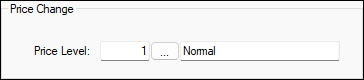
This section will only be enabled if the Price Level Change option is selected against the Action Type option HERE. Used to trigger a change in the Price Level when the Voucher is redeemed. Once redeemed items/products added to the order/sale will be priced at the selected Price Level.
- Price Level - Select the select option to open the Search Price Levels screen to locate and select a Price Level.
Stored Value Section ▲ ▼
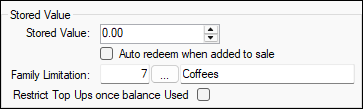
This section will only be enabled if the Stored Value option is selected against the Action Type option HERE. Used to configure the Stored Value settings required when redeeming a Stored Value Voucher.
Notes ...
If using a stored value, no other actions can be applied simultaneously.
- Stored Value - Displays/Set the preset value to be applied to the Voucher. This value will be reduced by the value of purchases each time the Voucher is redeemed. The Voucher can be re-printed (in Touch POS) to show the current balance. Generally used with Gift Cards.
Notes ...
If set to zero, then the value can be set at the time the Voucher is issued in Touch.
- Auto redeem when added to sale - Select to ensure the balance of a Stored Value Voucher is automatically redeemed when it is added to an order/sale that already has items/products. Refer HERE for more information.
- Family Limitation - Select to open the Search Families screen and optionally select a Family. This will ensure that the Voucher can only be used in conjunction with items/products assigned to the selected Family.
- Restrict Top Ups once balance Used - Select to restrict the topping up of a Stored Value Voucher once the entire balance has been used.
Notes ...
This does not restrict Top Ups of the Stored Value Vouchers while they still have a balance.
Award Points Section ▲ ▼
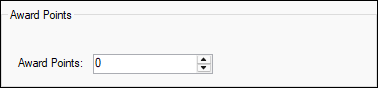
This section will only be enabled if the Award Points option is selected against the Action Type option HERE. Used to award loyalty points when the Voucher is redeemed.
- Award Points - Displays/Set the Loyalty Points to be awarded when the Voucher is redeemed. When selected the POINTS System PLU (19991) is added to the order/sale.
Thorlink Points Section ▲ ▼
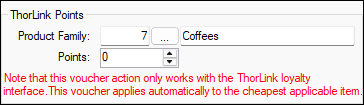
This section will only be enabled if the Thorlink option is selected against the Action Type option HERE. Used to reward loyal Members once they have attained a specific points balance and exchange their points with a Voucher.
- Product Family - Select the select option to open the Search Families screen to locate and select a Family of items/products.
- Points - Displays/Set the number of points required to ensure the Voucher is awarded.
Notes ...
This Voucher action only functions with the Thorlink interface and will be applied to the cheapest applicable item/product. The Member's points are removed once the Voucher is issued.
One Off Media Section ▲ ▼
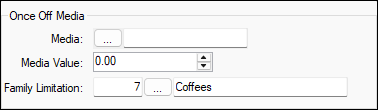
This section will only be enabled if the One Off Media option is selected against the Action Type option HERE. Used to ensure the redemption of Talkbox Stored Value vouchers are limited to a once only redemption.
Notes ...
It is recommended to ensure the Suppress Voucher Return Prompt option is selected when using this option.
- Media - Select the select option to open the Search Media screen to locate and select the Media that will be allocated to the One Off Media redemption type transaction.
- Media Value - Displays/Set the value to be continued ...
- Family Limitation - Select the select option to open the Search Families screen to locate and select a Family.
Door Controller Section ▲ ▼

- Door Controller - Select to ensure a signal is issued to a Door Controller device to trigger the opening of a door/gate/turnstile/etc.
Notes ...
This feature is only available from a Reception Touch POS device.
Associated Voucher Tab ▲ ▼
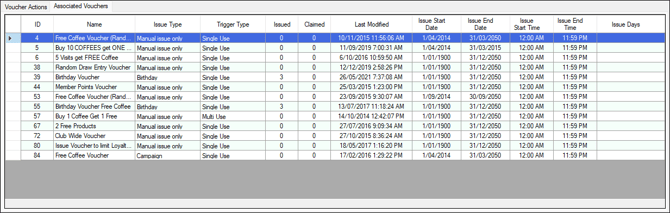
Lists all the Vouchers that currently use the selected action.
Voucher Actions Screen ▲ ▼
To access, select the Actions option in the footer section of the Vouchers screen in Back Office. Used to manage and view the actions that can be assigned to a Voucher and which are taken when a Voucher is redeemed.
Sections ▲ ▼
Header Section ▲ ▼

Used to limit the number of rows displayed in the grid section. Once all filters have been selected, select the Apply option to apply them. Otherwise, select the Reset option to clear all filters.
Find Section ▲ ▼

Used to facilitate the locating of a specific row listed in the grid section.
Grid Section ▲ ▼
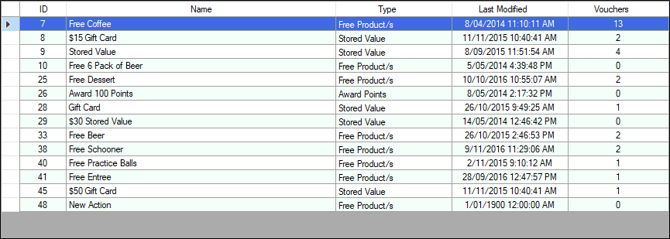
Lists the actions currently available along with their ID, Name, Type, Last Modified date/time and the number of Vouchers that currently make use of the action.
Footer Section ▲ ▼

- New - Select to add a new action.
- Copy - Select to copy the selected action and create a new one.
- Edit - Select a edit the selected action.
- Delete - Select to delete the selected action.
- Close - Select to exit.
End of article ▲