
Subjects ▲ ▼
About ▲ ▼
When Is It Used? ▲ ▼
Used to configure the POS Settings for Vending Products associated with 3rd Party Vending products, like Range Servant.
Screens ▲ ▼
Vending Products Screen ▲ ▼
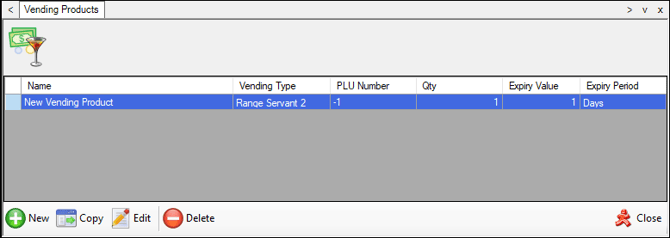
To access, select Vending Products option in the Vouchers/Discounts menu.
Sections ▲ ▼
Grid Section ▲ ▼
The grid displays a list of Surcharges along with their ID, Name, Start Date, End Date, Start Time, End Time, Auto Apply, Enabled and Web Enabled indicators.

- New - Select to add a Vending Product.
- Copy - Select to copy the selected Vending Product.
- Edit - Select to edit the selected row.
- Delete - Select a delete the selected row.
- Close - Select to exit.
Vending Product Screen ▲ ▼
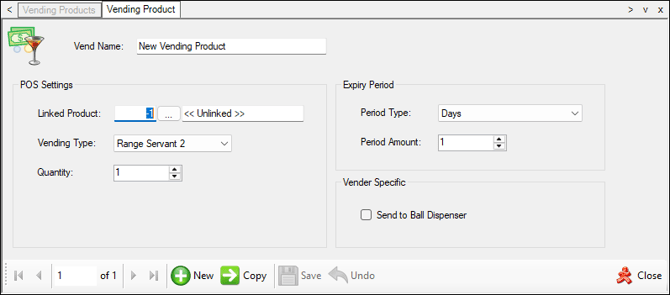
To access, select either the New or Edit options in the footer section of the Vending Products screen.

- Vend Name - Displays/Enter the name of the Vending Product.
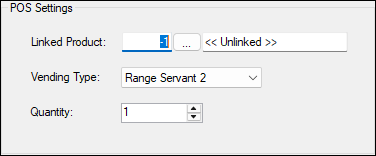
- Linked Product - Select to open the Search Products screen to select the Product that will considered as the Linked Product for this selected Vending Product.
- Vending Type - Select to from the drop-down list the appropriate Vending Type.
- Quantity - Displays/Set the default number to be dispensed when sold.
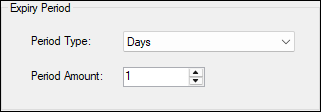
- Period Type - Select from the drop-down list the expiry period.
- Period Amount - Displays/Set the number of periods to expire in.
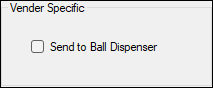
- Send to Ball Dispenser - Select to enble.

- New - Select to add a Vending Product.
- Copy - Select to copy the selected Vending Product.
- Save - Select to save changes.
- Undo - Select to undo changes made.
- Close - Select to exit.
End of article ▲