
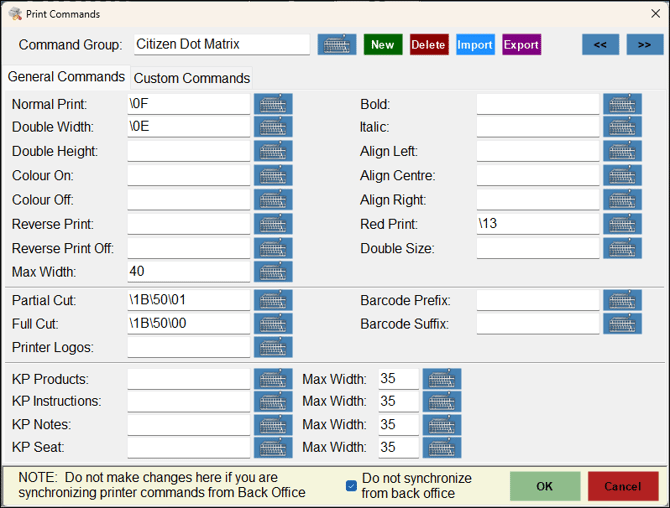
To access, select the Printer Codes option in the Printing Devices screen. For example, HERE.
Subjects ▲ ▼
- About
- Downloading Of Tickets And Logos
- Epson Printer Commands
- Printer Commands
- Printing Barcodes On Tickets Using Esc/POS Printing Commands
- Screens
- Star Printers
About ▲ ▼
What To Consider? ▲ ▼
- For sites with multiple Touch terminals, it is recommended to manage all Printer Commands in Back Office.
When Is It Used? ▲ ▼
Used to configure printer commands when printing dockets and receipts in non-graphical (Esc/POS) printing mode. Printer commands are configured for each type of printer, to perform functions such as paper cuts, bold text, text alignment, etc.
Downloading Of Tickets And Logos ▲ ▼
Print the logo on an Epson TM88-IV Printer - \1d\28\4c\06\00\30\45\30\30\01\01
Tickets are normally 420 pixels wide and the height of the Voucher will determine the amount of memory that is used in the Printer. To install the logos in the printer's VRAM you must make them BMP files with 4bit greyscale. Normal 8bit graphics will not download to the VRAM.
Epson Printer Commands ▲ ▼
|
HEADER |
|
\1B\61\01 \1B\21\20 Samford Bar & Grill \1B\21\00 135 Ferny Way FERNY HILLS QLD 4055 Telephone +61-7-3351-8777 Facsimile +61-7-3351-8167 ---------------------------------------- \1B\61\00 TAX INVOICE..... |
|
FOOTER |
|
---------------------------------------- Date: <DDMMMYY> Time: <HH:MM> Terminal: <Term_ID> ~V Clerk: <Clerk_ID> <Clerk_Name> ~E Member: <Mem_ID> ~E <Mem_Name> \1B\61\01 \1B\21\20THANK YOU FOR YOUR CUSTOM\1B\21\00 \1D\68\64\1D\77\02\1D\66\01\1D\48\02 \1D\6B\04<Rct_#>\00 \1B\61\00 \1D\56\00 \1b\21\00 |
|
LEGEND
\1B\61\01 = Centre Justification \1B\21\20 = Expand Print On \1B\21\00 = Expand Print Off \1B\61\00 = Left Justification |
Barcode Setup
Height
\1D\68\n
[Description] Selects the height of the Barcode.
n specifies the number of dots in the vertical direction.
[Default] n = 162 (64 is a good size for Receipt)
Width
\1D\77\n
[Description] Set the horizontal size of the Barcode.
[Default] n = 3 (2 works well)
Select font for Human Readable Interpretation (HRI) characters
\1D\66\n
[Description] Selects a font for the HRI characters used when printing a Barcode.
n selects a font from the following table:
|
n |
Font |
|
0, 48 |
Font A (12 x 24) |
|
1, 49 |
Font B (9 x 17) |
[Details] HRI indicates Human Readable Interpretation. HRI characters are printed at the position specified by \1B\48\n.
[Default] n = 0
Select printing position for HRI characters
\1D\48\n
[Description] Selects the printing position of HRI characters when printing a Barcode. n selects the printing position as follows:
|
n |
Printing position |
|
0, 48 |
Not Printed |
|
1, 49 |
Above the Barcode |
|
2, 50 |
Below the Barcode |
|
3, 51 |
Both above and below the Barcode |
[Details] HRI indicates Human Readable Interpretation. HRI characters are printed using the font specified by \1D\66\n.
[Default] n = 0
Print Barcode
\1D\6B\n
n = 4 for Code39 Barcode
\00 after <Rct_#> tells the Epson Printer that this is the end of the Barcode data (NULL Char)
Printing Barcodes On Tickets Using Esc/POS Printing Commands ▲ ▼
Use these settings on any Epson compatible printer to print Code39 Barcode font;
Barcode prefix: \1D\6B\04\2A
Barcode suffix: \2A\00
Example for the Voucher : {BARCODE PREFIX}*1000*{BARCODE SUFFIX} Will print a scan able Barcode for ?1000? That could be a Product in a Family that is tied to a Mix n Match Promotion or could be a Member Number 1000 Once you use a Member you could tie it to a Member Campaign or a Mix n Max Promotion.
Star Printers ▲ ▼
It would depend if the printer is set to Star mode or Epson mode also. Check DIP switch settings to confirm that.
Use the following codes if your printer is in "Star" mode :
Expanded Print ON \OE
Expanded Print OFF \14
Bold ON \1B\45
Bold OFF \1B\46
Red Print (printer model dependent) \1B\34
End Red Print (printer model dependent) \1B\35
Feed Lines \1B\61
Cut Paper \1B\64\01
Centre Text \1B\1D\61\01
Left Justify \1B\1D\61\00
Use the following codes if your printer is in "ESC\POS Mode? :
Expanded Print ON \1B\21\20
Expanded Print OFF \1B\21\00
Bold ON \1B\21\08
Bold OFF \1B\21\00
Red Print (printer model dependent) \1D\42\01
End Red Print (printer model dependent) \1D\42\00
Feed Lines \1B\64\n*
Cut Paper \1D\56\01
Centre Text \1B\61\01
Left Justify \1B\6l\00
Screens ▲ ▼

- Command Group - Enter an appropriate name for the printer command group.
- New - Select to add a printer command group which can be assigned to any printer.
- Delete - Select to delete the selected printer command group.
- Import/Export - Select to import/export a printer command group from/to an XML file.
- >>/<< - Move forwards/backwards to view other Printer Command Groups.
Notes ...
Do not select Instructional Categories, as these automatically print after the item/Product is printed.
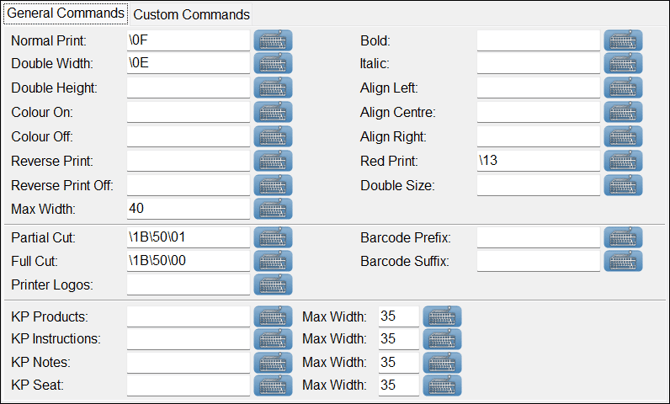

- Do not synchronise from Back Office - Select to NOT synchronise Printer Commands settings with the Back Office.
End of article ▲