
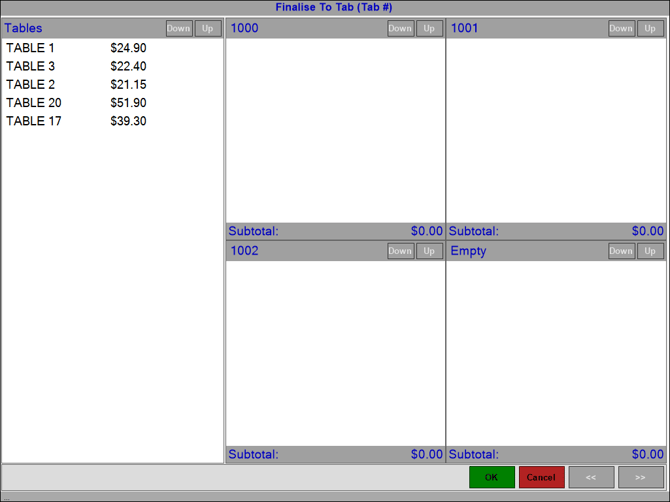
To access, select the Finalise To TAB (#45) POS Key.
Subjects ▲ ▼
About ▲ ▼
When Is It Used? ▲ ▼
Used when wanting to finalise one or more Tables to a TAB.
How To? ▲ ▼
Sections ▲ ▼
Tables Section ▲ ▼
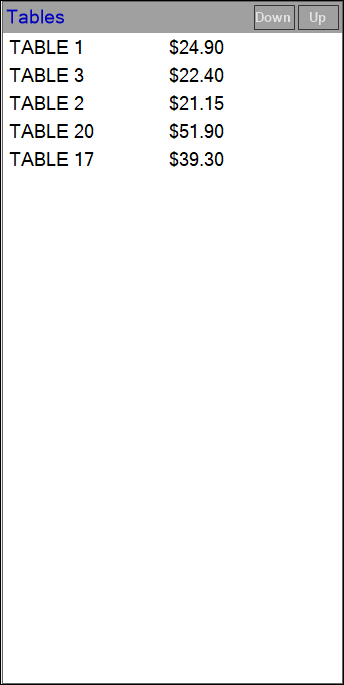
Lists the Tables that are currently open, and from which one or more Tables can be selected to finalise to a TAB.
Notes ...
To select all Tables listed in this section, select the header part of the Tables section.
TAB Section ▲ ▼
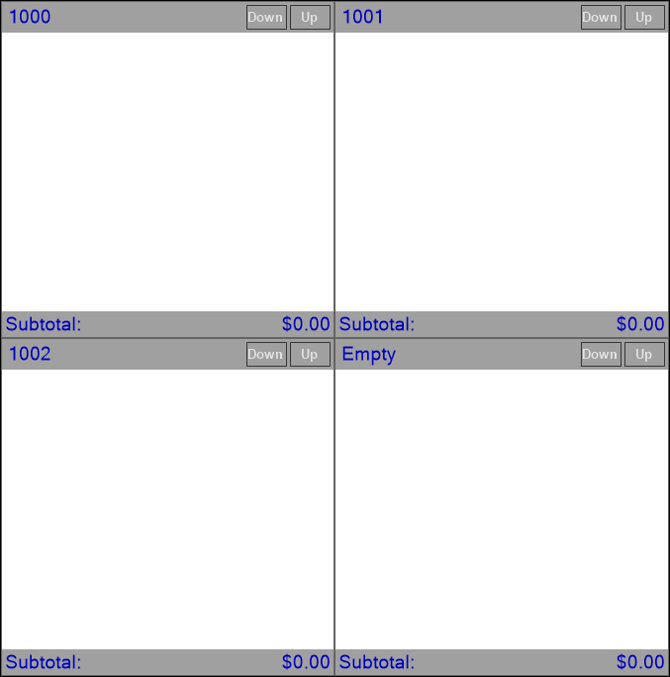
Displays the TABs currently open. If more than 4 TABs are open then use the navigation options in the footer section, to view all TABs.
Notes ...
To select a TAB, select the header part of one of the TABE displayed in this section.
Notes ...
The Subtotal value displayed will not include any Member Campaign discounts, as these are removed when the TAB is saved, and re applied when the TAB is reloaded into the sales grid.
Footer Section ▲ ▼

- << / >> - Navigation option used to view the TABs if there are more than 4 TABs available.
End of article ▲