
Subjects ▲ ▼
About ▲ ▼
When Is It Used? ▲ ▼
Used to select Categories and assign them to KVSs and/or printers.
Examples ▲ ▼
Only items sold in the Selected Categories that have the Triggered option selected, will activate the order being sent to the Printer/KVS.
What does this mean?
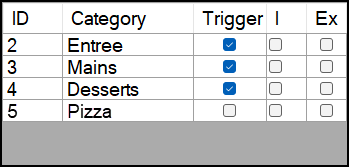
For example, if a Venue has two kitchen printers. One in the main kitchen and one in the pizza preparation area. The main kitchen printer is configured to print when orders are submitted for items in the ENTREES, MAINS and DESSERTS Categories, then the Selected Categories will look as follows for the main kitchen printer.
Notes ...
The PIZZA Category is listed but not triggered. The main kitchen printer would only include the items for the preparation area printer if they were included in the same order.
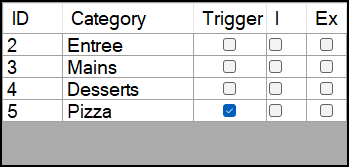
The pizza preparation area printer is configured to print when orders are submitted for items in the PIZZA Categoriy, then the Selected Categories will look as follows for the main kitchen printer.
Notes ...
The ENTREES, MAINS and DESSERTS Categories are listed but not triggered. The pizza preparation area printer would only include the items for the main kitchen printer if they were included in the same order.
Screens ▲ ▼
Categories ▲ ▼
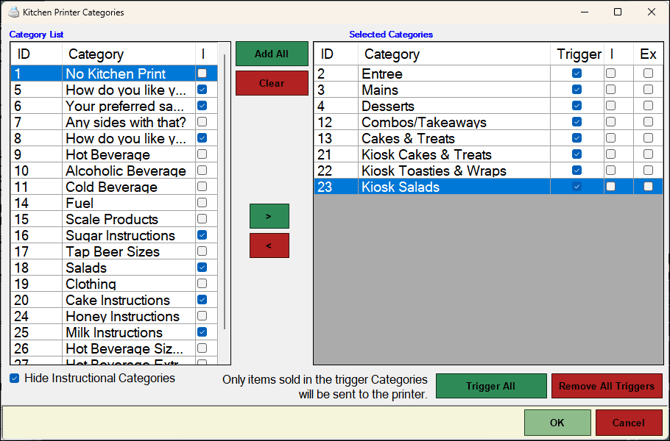
To access, select the Categories option in the footer section of the Kitchen Printer screen.
Sections ▲ ▼
Category List Section ▲ ▼
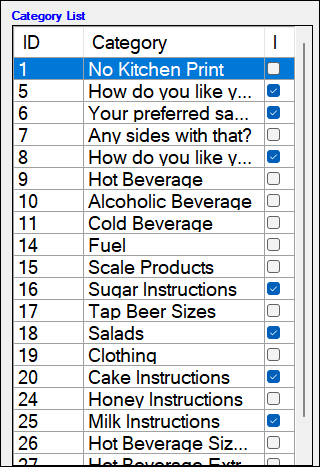
Lists all the Categories that are currently not selected along with their ID, Name and Instructional indicator.
- Instructions - Toggle select to hide/show Instructional Categories in the grid above.
Buttons Section ▲ ▼
- Add All - Select to add all Categories from the Category List and move them to the Selected Categories List.
- Clear - Select to remove all Categories from the Selected Categories list.
- >/< - Select to either add/remove the selected Category to/from the Selected Categories list.
Selected Categories Section ▲ ▼
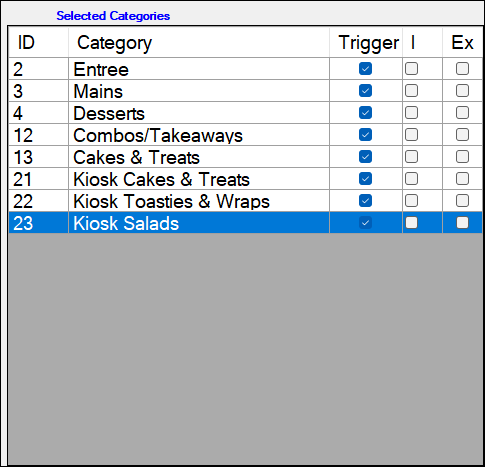
List all Categories that have been selected along with their ID, Category name, Trigger indicator, I (Instructional indicator), Ex (Exclude from printing indicator).
Notes ...
When it comes to Combos, ensure that all the Categories are selected for all the items used in Combos.
- Trigger - Select to ensure items assigned to the associated Category, when sold will be sent to the kitchen/order printer or KVS. If unselected, this will ensure that when items in the associated Category are sold in Touch, they will also be sent to the kitchen/order printer or KVS, when sold in the same order/sale as items that are assigned to Categories that have the Trigger option selected. Refer HERE for more information.
- I (Instructional indicator) - Displays a tick when the associated Category is an Instructional Category.
- Ex (Exclude from printing indicator) - Select to ensure printing of Products assigned to the associated Category will NOT print. Useful when Kitchens have multiple printers and each required only specific Products to be printed. For example, there could be a pass printer, a grill printer, a salad printer, pizza printer, dessert printer etc. The chefs in these different areas are only interested in the information that is relevant to their area.
Footer Section ▲ ▼

-
Hide Instructional Categories - Toggle select to hide/show instructional Categories in the Category List section.
- Trigger All - Select to ensure all Categories listed in the Selected Categories section are triggered.
- Remove All Triggers - Select to ensure all Categories listed in the Selected Categories section are no longer triggered.
End of article ▲