
Subjects ▲ ▼
About ▲ ▼
What Is Required? ▲ ▼
- Touch will need to be installed and operational.
- Ensure the pager system has been added as a peripheral to Touch. Refer HERE for more information.
What Is Supported? ▲ ▼
The following is a list of pager system types that are currently supported:
- Boomerang
- BTG NP14
- Holman
- LRS (Long Range System)
- Secom NotifyMe
- Unipage
What To Consider? ▲ ▼
- To triggering pagers from multiple Touch POS devices, the following will need to be considered:
- An ethernet to RS232 converter will be required for RS232 type pagers.
- A virtual com port will need to be setup on each Touch POS device that will trigger a pager.
When Is It Used? ▲ ▼
Used to connect a pager system to Touch.
How To? ▲ ▼
Screens ▲ ▼
Paging System Screen ▲ ▼
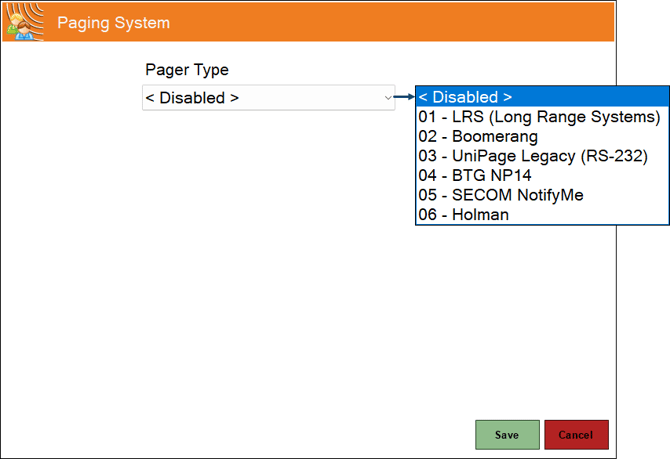
To access, select the Pager System option from the Peripheral Type drop-down list in the Add New Peripheral screen, and then enter an appropriate description for the pager system being added (For example, Boomerang) and select OK. The above screen will then be displayed. Used to configure/manage/view pagers in Touch.
- Pager Type - Select one of the following from the drop-down list of types available, to display it's configuration screen. Refer HERE for more information.
01 - LRS (Long Range System) Screen ▲ ▼
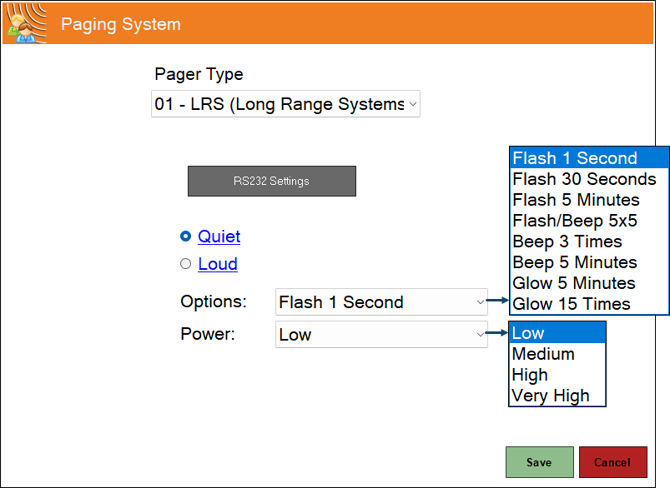
To access, select from the drop-down list HERE. Used to configure the settings for a LRS supplied paging system.
- RS232 Settings - Select to open the RS232 Settings screen and configure as required.
- Quiet/Loud - Select to set the volume of the pager.
- Options - Select from the drop down list the preferred alert mode.
- Power - Select from the drop down list the preferred power option.
02 - Boomerang Screen ▲ ▼
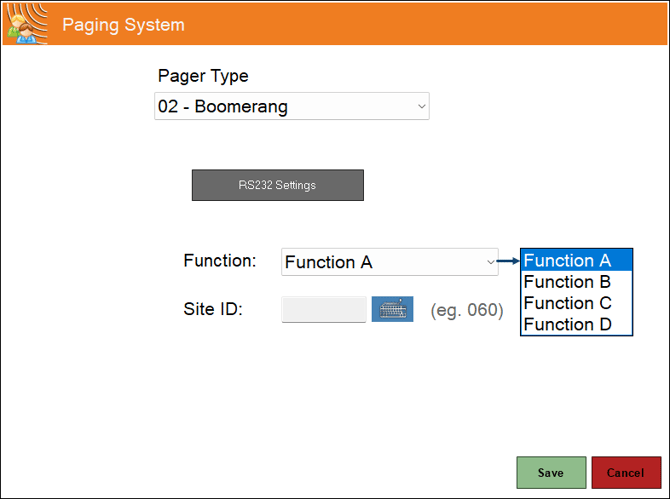
To access, select from the drop-down list HERE. Used to configure the settings for a Boomerang supplied paging system.
- RS232 Settings - Select to open the RS232 Settings screen and configure as required.
- Function - Select from the drop-down list one of the predefined functions. Refer to the supplier's manual.
- Site ID - Enter the Site ID. Refer to the supplier's manual.
03 - Unipage Screen ▲ ▼
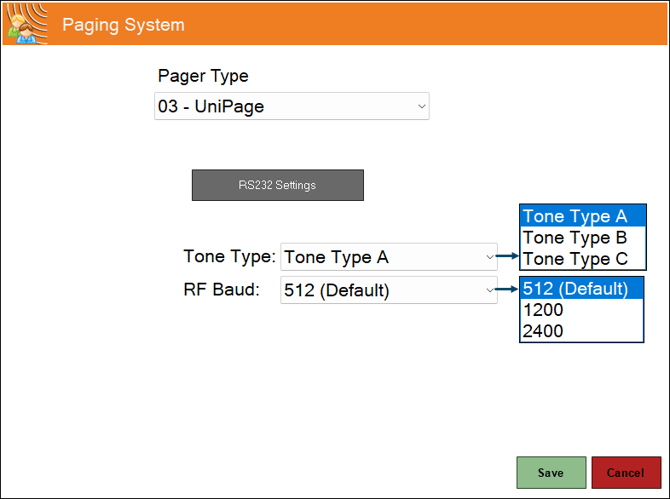
To access, select from the drop-down list HERE. Used to configure the settings for a UniPage supplied paging system.
- RS232 Settings - Select to open the RS232 Settings screen and configure as required.
Notes ...
The default baud rate is 19200 for the UniPage pager system.
- Tone Type - Select from the drop-down list one of the predefined Tone Types. Refer to the supplier's manual.
- RF Baud - Select from the drop-down list one of the Baud rates. Refer to the supplier's manual.
04 - BTG NP14 Screen ▲ ▼
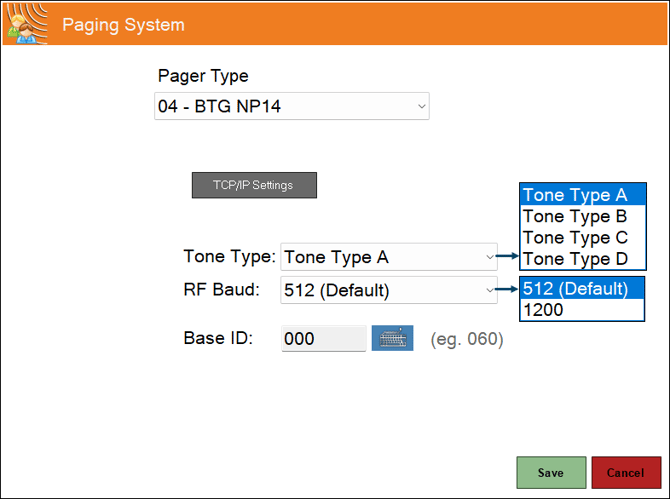
To access, select from the drop-down list HERE. Used to configure the settings for a BTG NP14 supplied paging system.
- RS232 Settings - Select to open the RS232 Settings screen and configure as required.
- Tone Type - Select from the drop down list one of the predefined Tone Types. Refer to the suppliers manual.
- RF Baud - Select from the drop down list one of the Baud rates. Refer to the suppliers manual.
- Base ID - Displays/Enter the Base ID.
05 - Secom NotifyMe Screen ▲ ▼
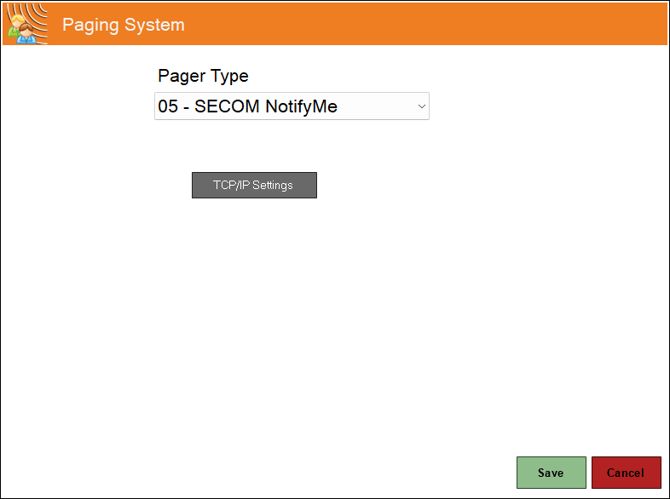
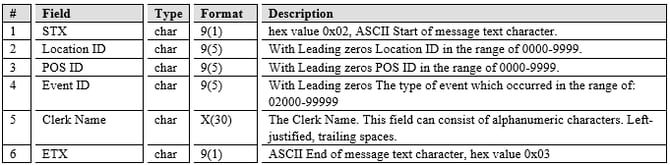
To access, select from the drop-down list HERE. Used to configure the settings for a SECOM NotifyMe supplied paging system (a generic ASCII IP paging peripheral).
- TCP/IP Settings - Select to open the TCP/IP Settings screen and configure as required.
These settings are also used for BTG pagers.
06 - Holman Screen ▲ ▼
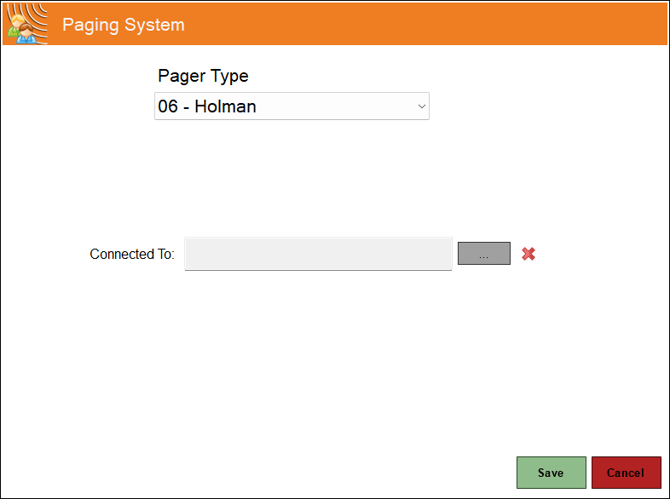
To access, select from the drop-down list HERE. Used to configure the settings for a Holman supplied paging system.
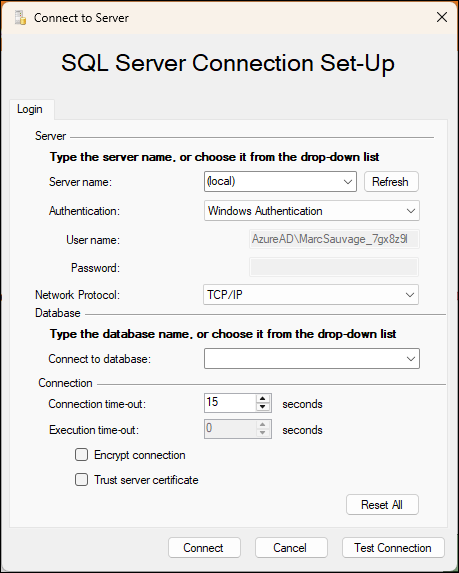
- Connected To - Select to open the SQL Server Connection Set-Up screen to configure the SQL connection details to connect to the database that contains the RunnerLog table. Generally, this is a site's own database and not the Swiftpos database. Test the connection to ensure it is successful.
End of article ▲