
This outlines how to Reopen A Closed Table using the Reopen Closed Table (#114) POS Key in Touch.
Subjects ▲ ▼
When Is It Used? ▲ ▼
It is used to reopen a Table that has already been finalised/paid for and retrieve all it's Items and display them in the sales grid.
How To Reopen A Closed Table? ▲ ▼
Do as follows:
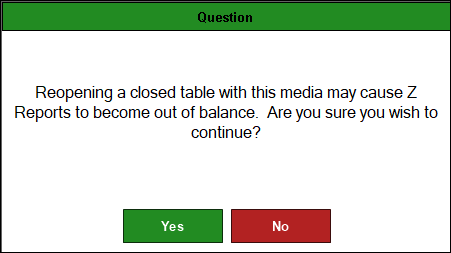
- At the Touch terminal select the Reopen Closed Table (#114) POS Key. The following warning prompt may be displayed when attempting to reopen a Table.
- This will open a copy of the Transactions search screen, with the exception of only showing closed Table transactions and an extra Reopen Closed Table button below the Preview option.
- Search and select the Table Transaction required to be reopened.
- Select the Reopen Closed Table button (located below the Preview button).
- If the Table is currently in use, then the following prompt will be displayed:
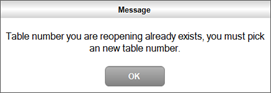
- Select OK to open a Numeric Keypad popup and enter a new Table number.
- The original Order/Sale Items will now appear in the sales grid in Touch and the original Order/Sale Items will be credited by generating a reversing transaction.
- The amount outstanding will display zeros, as this transaction was previously finalised.
- The Order/Sale can now be either changed or added to, as well as being either finalised/paid for, or saved to a Table by selecting the Table (#30) POS Key.
Notes...
The Media CANNOT be changed.
End of article ▲