
This outlines how to Cancel/Refund/Void a Blackhawk Digital Account Top Up using the Refund Mode (#1003) and the Top Up 3rd Party Account (#244) POS Keys.
When a customer/patron has Topped Up a Blackhawk Digital Account and for whatever reason, they have changed their mind and want a refund.
Subjects ▲ ▼
About ▲ ▼
What Are The Limitations? ▲ ▼
- A Blackhawk Account Top Up operation can only be cancelled/refunded/voided when:
- The Account's current balance is equal to the amount that was initially loaded on to the Account when it was originally Topped Up.
- The amount being entered is equal to the amount that was initially entered when the Account was Topped Up.
What Is Required? ▲ ▼
- Ensure the Refund Mode (#1003) POS Key is added to the appropriate Keyboard Layout via the Designer.
- Ensure a separate Top Up 3rd Party Account (#244) POS Key is added to the appropriate Keyboard Layout via the Designer with the following configured:
- Ensure it is given an appropriate Caption. For example, Refund A Top Up.
- Ensure the Prompt for Original Reference ID option is selected.
How To? ▲ ▼
How To Cancel / Refund / Void A Blackhawk Gift Card? ▲ ▼
Do as follows:
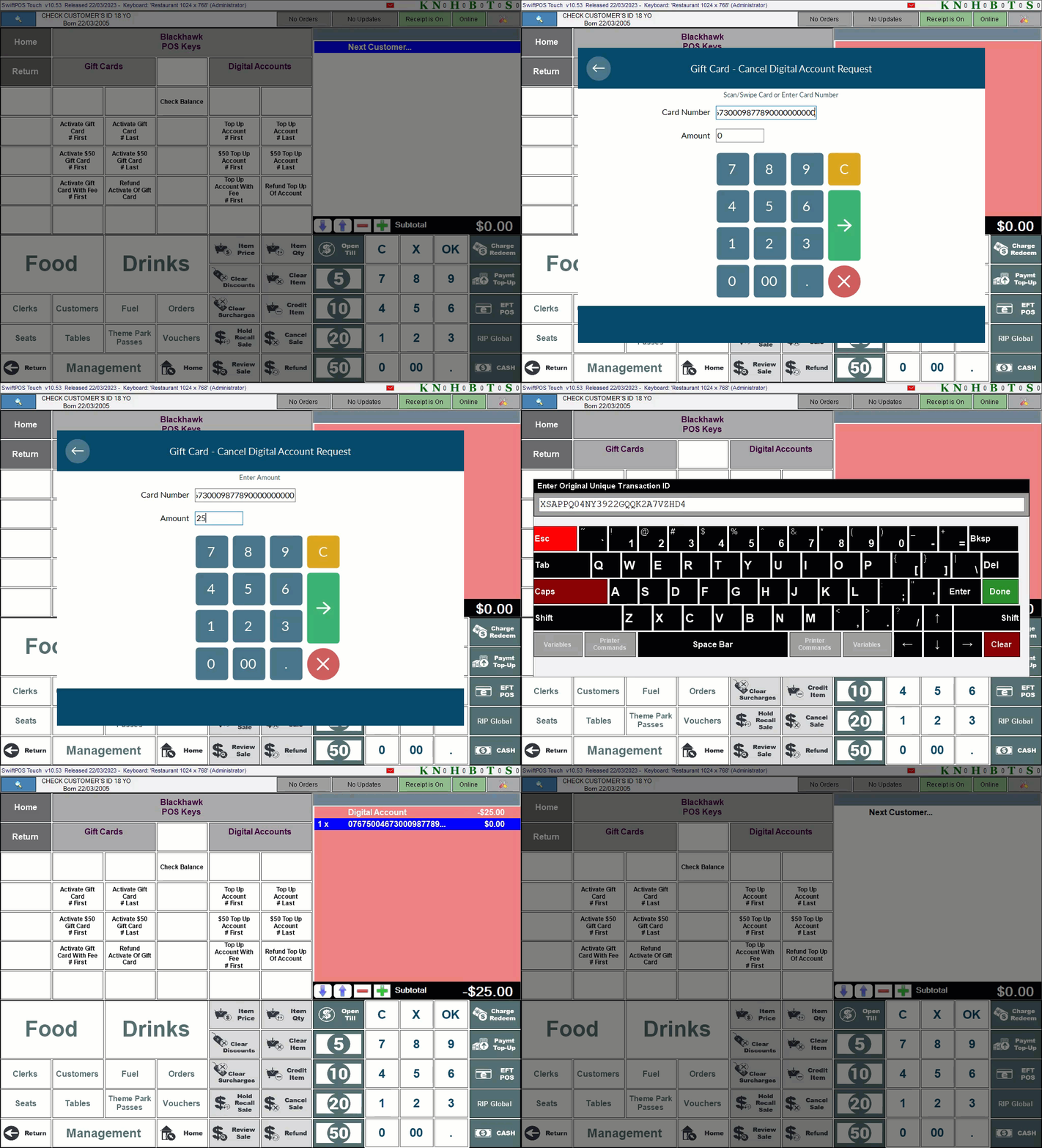
- Select the Refund Mode (#1003) POS Key in Touch
- If prompted select an appropriate reason for the refund.
- Select the Refund A Top Up (Top Up 3rd Party Account (#244)) POS Key that has the Preset Amount set to a value EQUAL TO ZERO.
- When the Gift Card - Cancel Digital Account Request screen is displayed, scan/swipe or enter the Gift Card Number.
- Select the green right arrow.
- Enter an Amount that is equivalent to the amount that was initially entered when Topping Up the Account.
- Select the green right arrow.
- When the Enter Original Unique Transaction ID prompt is displayed, enter the transactionUniqueId value. Information on where this value is sourced from can be found HERE.
- The Gift Card - Cancel Digital Account Request screen is displayed with an Approved confirmation message.
- Select OK.
- A Digital Account entry will appear in the sales grid with the Amount to be refunded displayed as a negative amount.
- Finalise the refund by selecting the Cash POS Key (as an example) and refund the customer/patron in Cash if that was the media selected.
- Check the Account's Balance.
End of article ▲