
This outlines the How To Apply A Discount using the Discount (#6) POS Key. Refer HERE for more information.
How To? ▲ ▼
How To Apply A Discount? ▲ ▼
Discounts can be applied in Touch as follows:
- To A Single Item
- Add items/products to the sales grid.
- Select an item/product in the sales grid.
Notes ...
If no item is selected and multiple items are listed in the sales grid, then the discount will be applied to the last item in the sales grid.
- To A Single Item continued ...
- Select the Discount (#6) POS Key.
- If the POS Key is configured as a Calculated Discount, then the Calculated Discount screen will be displayed. Use it to determine the discount to be applied and select OK to apply the discount.
- To A Sale
-
- Add items/products to the sales grid.
- Select the Subtotal (#300) POS Key.
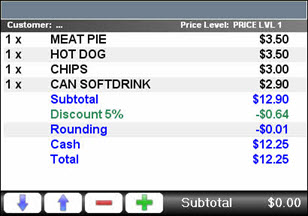
- Select the Discount (#6) POS Key. The discount will then be applied to the subtotal. For example:
-
Notes ...
- Any rounding resulting from a sale discount will be applied to the last item/product in the order/sale.
- Use the Multi Link (#999) POS Key to configure a POS Key that makes the application of a sale discount a one POS Key selection process, rather than selecting multiple POS Keys. Refer HERE for more information.
- If the POS Key is configured as a Calculated Discount, then the Calculated Discount screen will be displayed. Use it to determine the discount to be applied and select OK to apply the discount.
Examples Of Calculated Discounts ▲ ▼
Discount Based On The Selling Price Minus % Option ▲ ▼
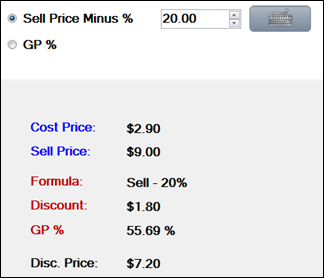
The discounted price is calculated as follows:
Sell Price - (Sell Price x Sell Price Minus %)
For example:
Discounted Price = $9.00 - ($9.00 x 20%)
Discount Based On The GP % Option ▲ ▼
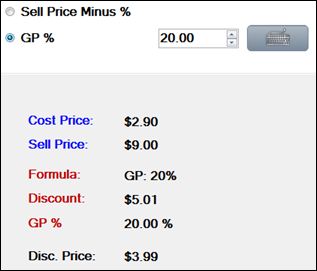
The discounted price is calculated as follows:
Sell Price - ((Cost Price / 1 - GP%) + GST)
For example:
Discounted Price = $9.00 - (($2.90 / 1 - 20%) + 10%)
End of article ▲