
Subjects ▲ ▼
About ▲ ▼
What Is Not Supported? ▲ ▼
- Sending Z-Reads to back office
- X-Reads / interim reads as a distinct report type
- Multi-currency
- Setting and recording float amount
- Scheduled Z-reads, z-reads will count from last committed z-read to now.
What Is Required? ▲ ▼
- Swiftpos 10.79.6+
- Clerk/Staff Members that will be performing Z Reads on Touchmini devices must have the Commit Z-Reads option selected in Clerks Security Groups.
What To Consider? ▲ ▼
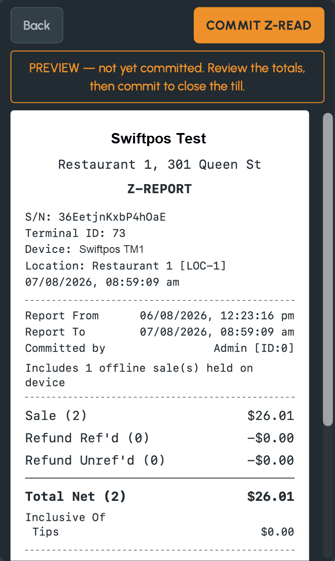
- Z-Read is fully functional offline. It uses sales stored on the device and will explicitly note the number of offline sales included in the report.
- Committing a Z-Read does not clear sales from the device.
- Multiple Z-Reads can be performed within a single trading period.
- Clerks/Staff without permission can preview the report but cannot commit it.
When Is It Used? ▲ ▼
Z-Read on Touchmini allows hawkers and mobile staff to cash out directly from their device without relying on back-office reporting. It aggregates all transactions held on the device (Cash, Card, Account Charge, Points Pay, and Refunds) into a Z-Report that can be previewed, committed, and printed.
Example ▲ ▼
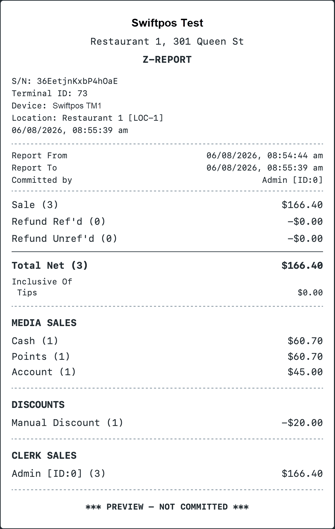
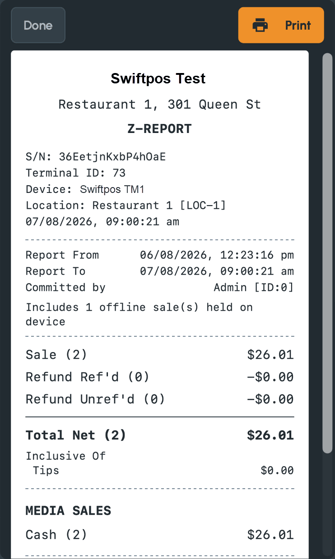
- Header: Business details, Device S/N, Terminal ID, Device Name, and Location.
- Report Period: Shows "Report From" (last commit or earliest transaction) and "Report To" (current commit time).
- Summary: Sale count/total, Refund Ref'd count/total, Refund Unref'd count/total, and Total Net.
- Breakdowns:
** Media Sales (Cash, Card, Account Charge, etc.)
** Card Scheme Net Totals (Visa, MasterCard, etc.)
** Adjustments (Discounts, Surcharges, Mix & Match deals by ID)
** Clerk Sales (per staff ID)
How To ? ▲ ▼
How To Perform A Z-Read? ▲ ▼
- Navigate to the Transactions screen.
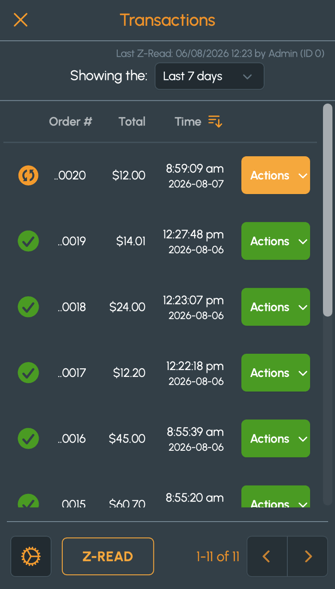
- Select the Z-Read option in the footer.
- Review the Z-Report Preview. The report is not yet committed.
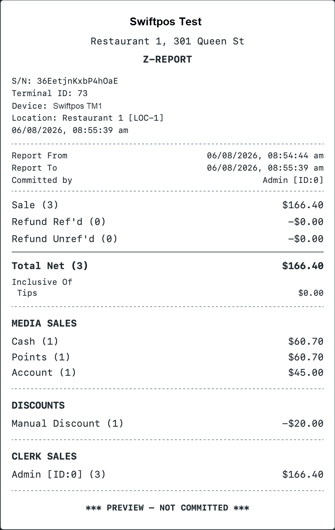
- Select the Commit Z-Read option and confirm the action in the dialog.
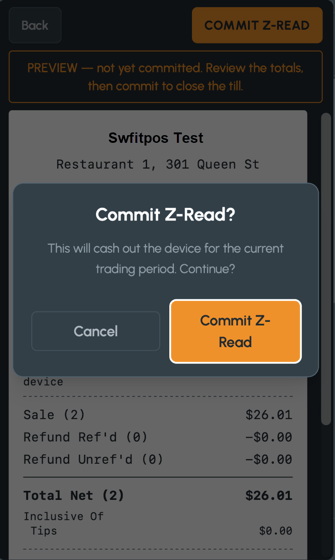
- The report status will change to "REPORT COMPLETE".
- Once committed, select the Print option to generate a thermal receipt via the on-device Android printer.
End of article ▲