
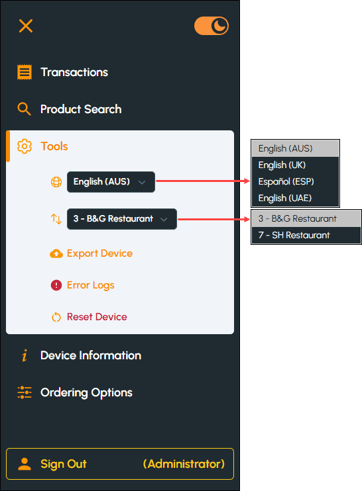
To access, select the Tools menu option from the Touchmini menu. Used to:
- Export device information for Support.
- Reset the device.
- Select a language.
- Transfer to another Location.
- View the error logs.
To exit the Tools menu option, select the Tools menu option again and the Tools menu will collapse.
Menu Options ▲ ▼
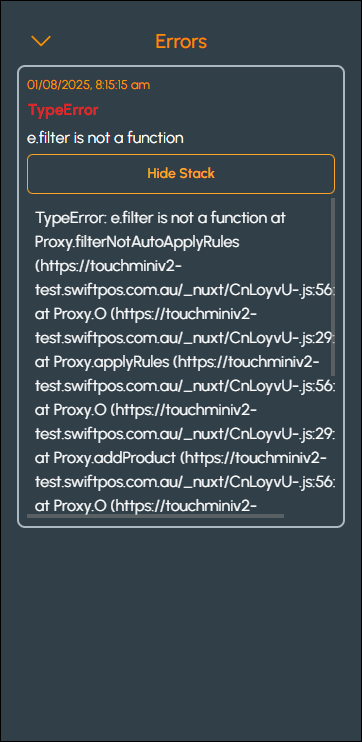
Error Logs Menu Option ▲ ▼
Select to display error logging information.
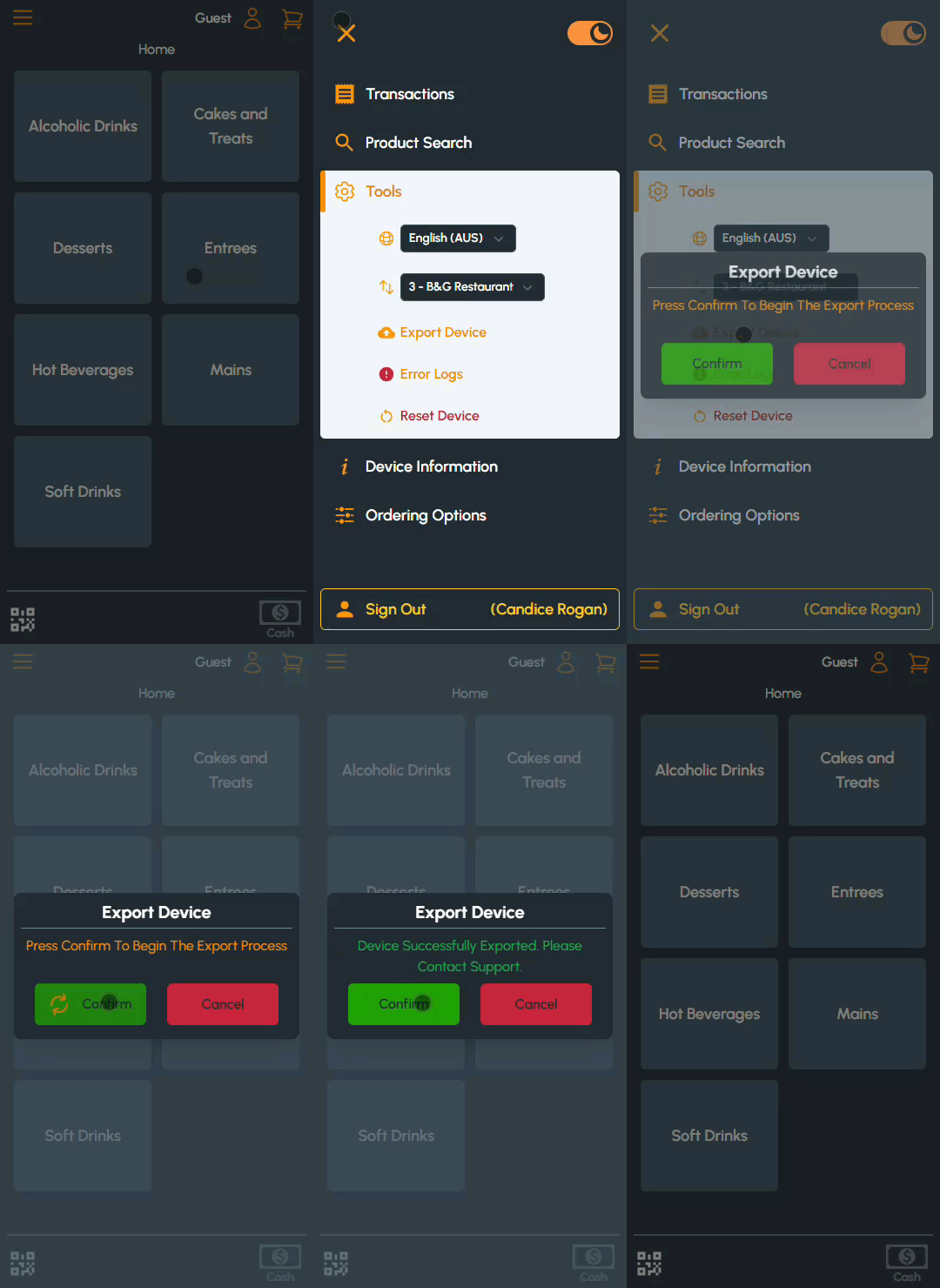
Export Device Menu Option ▲ ▼
Select to export device data for the purpose of assisting support consultants with troubleshooting issues. Generally, this is only used when requested by a support consultant.
Language Menu Option ▲ ▼
Select to set the default language for the Touchmini device. Select from the drop-down list one of the available languages listed.
Location Menu Option ▲ ▼
Select to transfer the Touchmini device to a new Location. Select from the drop-down list one of the available Locations listed. Refer HERE for more information.
Reset Device Menu Option ▲ ▼
Used to reset the device. Once resetting has been confirmed the device will be re-registered (Refer HERE for more information). That means, it will be allocated a unique Device ID and once enabled will be associated with a new Terminal in swiftpos Back Office. Once enabled and configured (Refer HERE for more information) in Venue Manager, the home menu will display automatically.
End of article ▲