

This outlines How To Redeem A Voucher in Touchmini v2.
Subjects ▲ ▼
About ▲ ▼
What Is Not Supported? ▲ ▼
- The scanning of a Voucher Barcode/QR code. Currently only the entry of a Voucher's Barcode number or Mapping String.
What Is Required? ▲ ▼
- Swiftpos v10.77+
- Touchmini v2.0.0.449+
- Touchmini operators must have sufficient authorisation in order to be able to redeem a Voucher. That is, the Clerk Security Group they are associated with, must have access to the following in the Clerk Group Permissions section of the Security Group Full Edit screen:
- Terminal Settings > Voucher Redemption
- The Enable Voucher Redemption option must be enabled in the Payments tab.
How To? ▲ ▼
How To Redeem A Voucher? ▲ ▼
A Voucher can be redeemed either with or without a Member in the sale. Also, a Voucher can be applied to a sale at any time during the sale is being made. That is, it can be applied before Items/Products are added to the sale, in between the addition of Items/Products to the sale, or at the end of the sale. To apply a Voucher to a sale and then redeem it, do as follows:
- Select the Checkout icon in the top right-hand corner of the screen.

- Select the Voucher icon in the top right-hand corner of the screen.

- Enter the Voucher's Barcode or Mapping String and select submit.
- If found and it is a valid Voucher, A Voucher Applied line will be added to the bottom of the sale with the Voucher's Barcode displayed. The Voucher's remaining balance of will also be displayed.
- If applying the Voucher at the start or during a sale, select the back arrow in the top left-hand corner of the screen to return to the previous menu and add Items/Products to the sale.
- Once all Items/Products have been added to the sale, select the Checkout icon again.
- Confirm the Voucher is still applied and visible in the sale.
- Select Cash to finalise the sale.
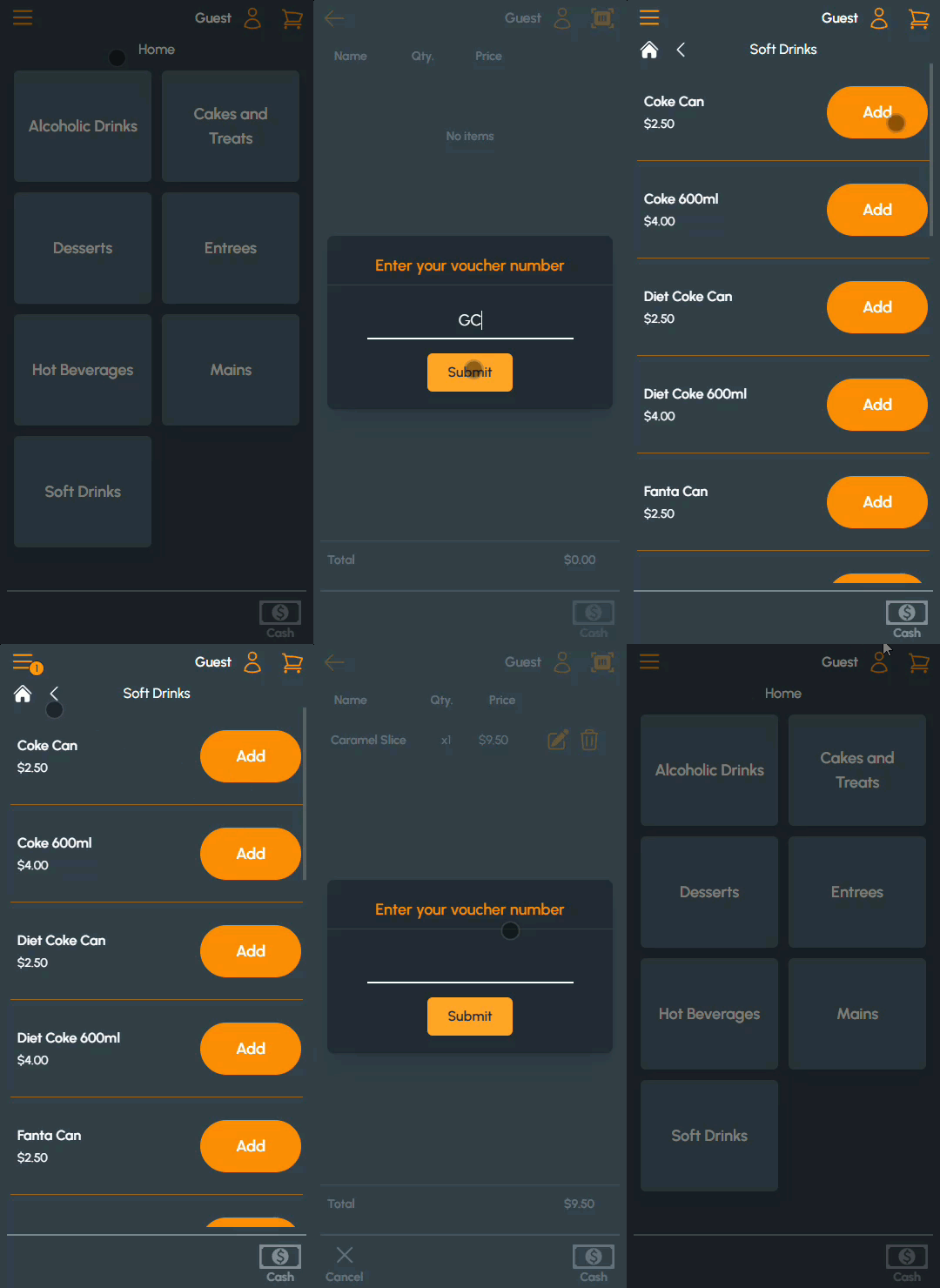
Example of the redemption of a Voucher as payment for a sale, by entering the Voucher's Mapping String and then the Barcode
End of article ▲