
This outlines How To Configure And Use Surcharges in Orderaway and Touchmini.
Subjects ▲ ▼
About ▲ ▼
What Is Required? ▲ ▼
- Swiftpos v10.72.8+
- Touchmini v2
- Ensure an item/product is created in Back Office that will be specifically assigned as the surcharge PLU.
- Refer HERE for more information.
- If the surcharge is to be restricted in it's application to a Family of items/products, the ensure the Family is created and configured appropriately.
- Ensure the Family's Web option is selected.
- Refer HERE for more information.
- A surcharge will need to be created in Back Office.
- Ensure the Auto Apply option is selected, when the surcharge is to be applied automatically.
- Ensure the surcharge is configured for the Locations in which it is going to be applied.
- Refer HERE for more information.
When Is It Used? ▲ ▼
Used when a surcharge configured in Back Office is to be applied to orders/sales placed via Orderaway and/or Touchmini. It provides Venues with the option of applying a surcharge to all orders/sales placed. For example, a Public Holiday surcharge. surcharges are only available in:
- Orderaway
- Touchmini
How To? ▲ ▼
How To GET STARTED? ▲ ▼
- Review About and ensure the steps outlined HERE are addressed.
- In Back Office:
- Create a new surcharge in Back Office by selecting the New option in the Surcharge Setup screen.
- Give the new surcharge an appropriate name. For example, 15% Public Holiday Surcharge.
- Ensure the Family option is set to the Family specifically created for the surcharge.
- Ensure the Assigned PLU option is set to an item/product that has been specifically created for the surcharge.
- Create a new surcharge in Back Office by selecting the New option in the Surcharge Setup screen.
-
-
- Ensure the Enabled option is selected.
- Ensure the Web Enabled option is selected.
- Ensure the Auto Apply option is selected, when the surcharge is to be automatically applied to an order/sale.
- Ensure the Date and Times have been configured appropriately.
- Ensure the any applicable Filters have been applied. Namely, Locations.
- Select Surcharge Value or Surcharge Percentage.
- Enter the required value.
- Save the surcharge.
- Test the surcharge in every applicable sales channel.
-
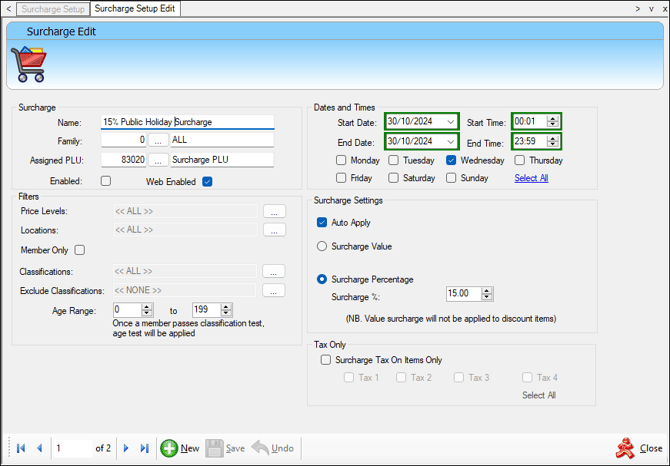
Example of the configuration of a surcharge to be made available to Orderaway and Touchmini
How Surcharges Appear In? ▲ ▼
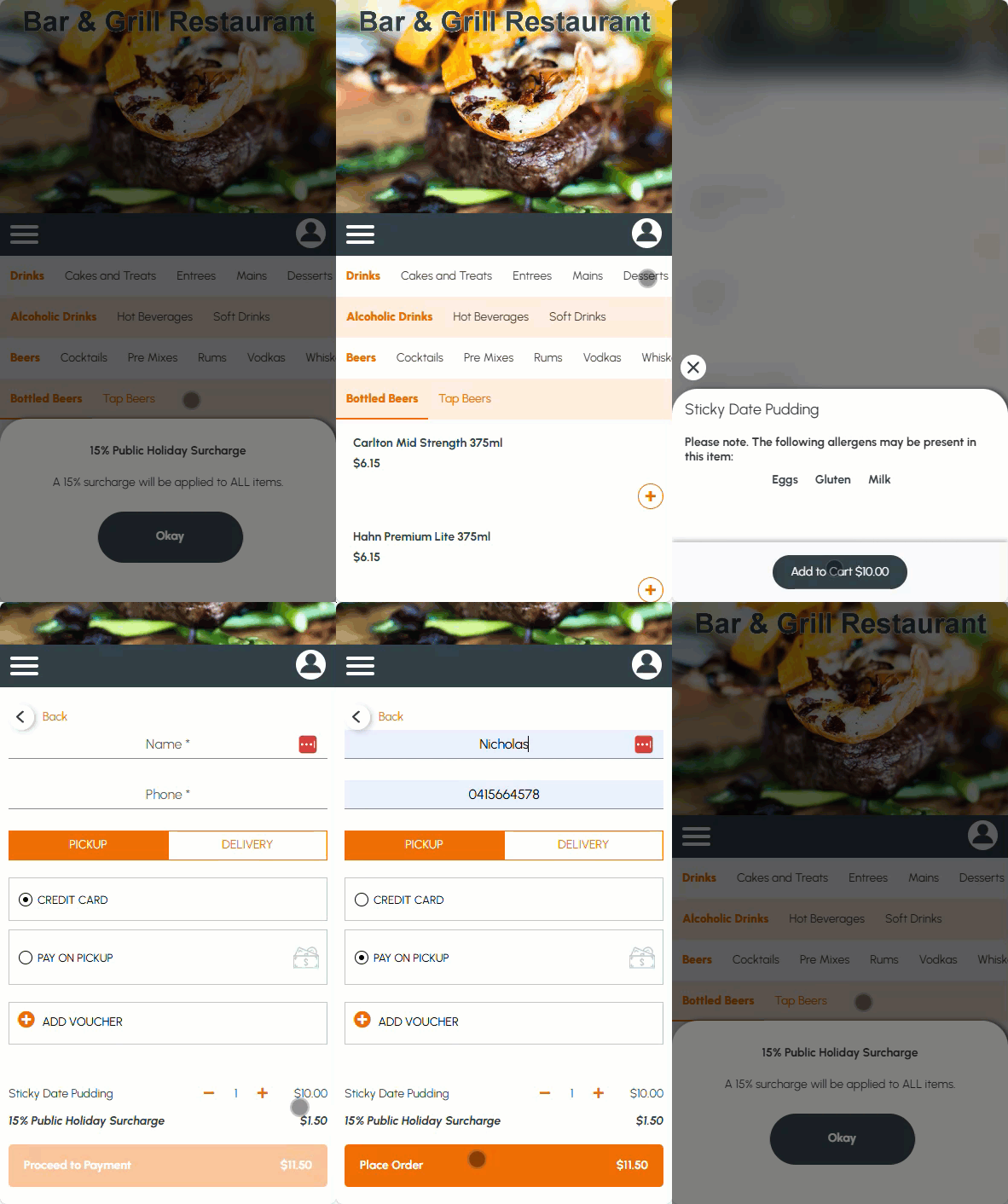
Example of surcharges being applied when using Orderaway v3 UI
Notes ...
The notification of a surcharge applying will appear every 2 hours.
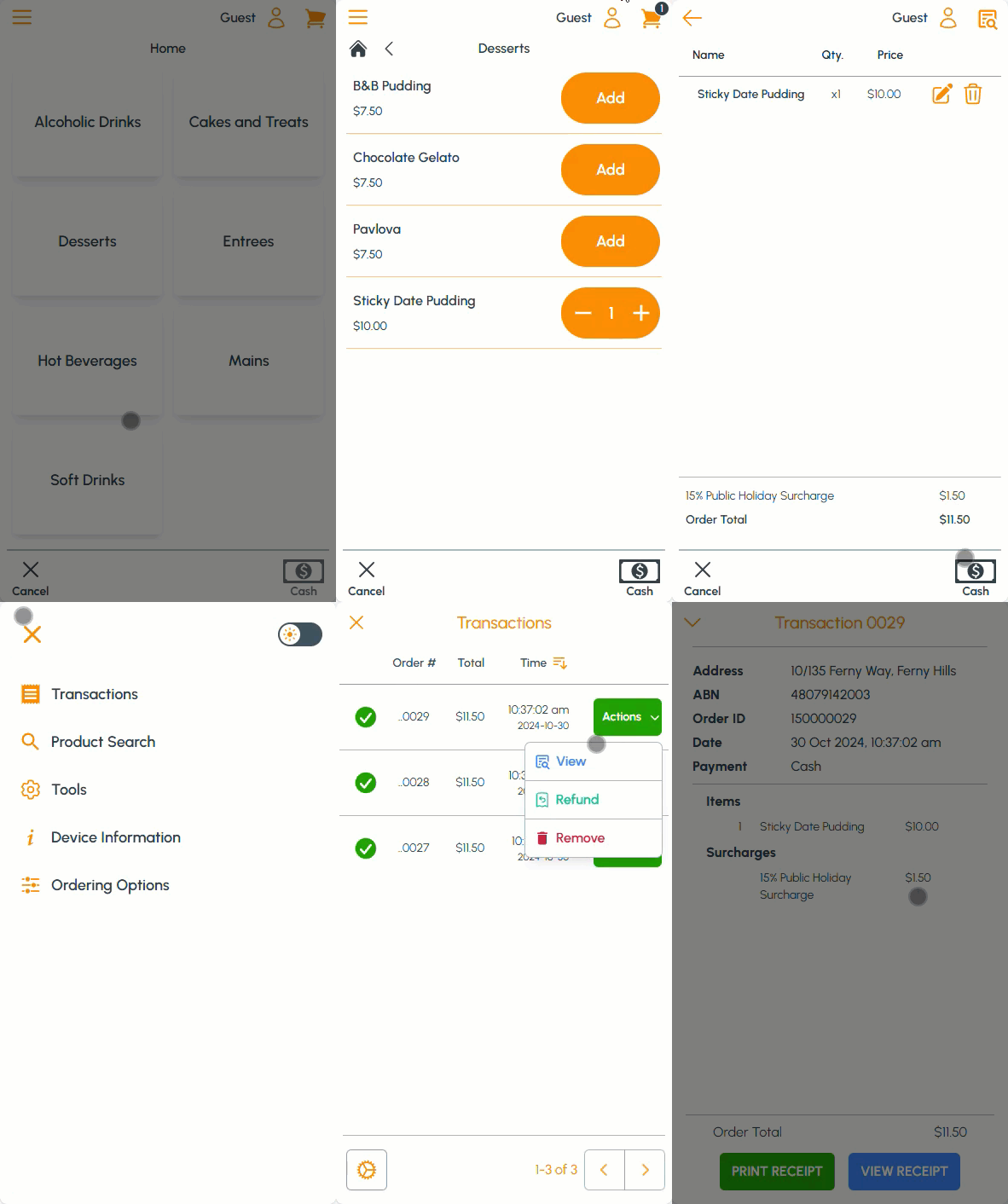
Example of surcharges being applied when using Touchmini
End of article ▲