
This outlines how to use the Cancel/Reset A Table in Touchmini.
Subjects ▲ ▼
About ▲ ▼
What Is The Difference? ▲ ▼
The differences between cancelling and resetting a Table are:
| Resulting Action | CANCEL | RESET |
| Unsubmitted items are removed | Yes | Yes |
| Submitted items are removed | No | Yes |
| Table is unlocked | Yes | Yes |
| Table is closed | No | Yes |
What To Consider? ▲ ▼
- Cancelling a table does not delete submitted orders.
- Resetting a table should be used with caution, as it removes all items without payment.
- Both actions ensure the table becomes available for use on another POS device.
- Discounts applied to unsubmitted items are removed when cancelling.
When Is It Used? ▲ ▼
Used to:
- Use Cancel Table when you want to exit the table without affecting saved orders.
- Use Reset Table when you need to completely clear and close a table.
How To ▲ ▼
How To Cancel A Table? ▲ ▼
- Open a Table.
- Select the Cancel option in the checkout screen.
- Confirm the action when prompted.
- Unsubmitted items are removed from the Table's order.
- Any associated discounts on unsubmitted items are also removed.
- Submitted items (Saved) remain on the Table's order.
- The Table is set to seated and unlocked from the POS device.
- Control is returned to the Table Selection screen.
With Only Submitted Items? ▲ ▼
- Open a Table.
- Select the Cancel option in the checkout screen.
- Confirm the action when prompted.
- No items are removed from the Table's order.
- Submitted items (Saved) remain on the Table's order.
- The Table is set to seated and Unlocked from the POS device.
- Control is returned to the Table Selection screen.
How To Reset A Table? ▲ ▼
- Open a Table.
- Navigate to the Order Option menu in the
- Select the Reset Table option.
- The following prompt will be displayed.
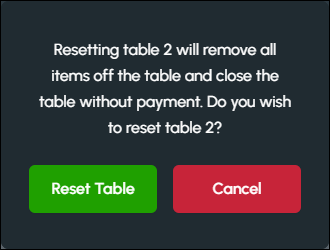
- Select the Reset Table option or the Cancel option to abort.
- All submitted items are removed from the Table's order.
- The Table is closed.
- The Table is now available to be allocated again.
End of article ▲