

This outlines the How To Issue A Call Away in Touchmini.
Subjects ▲ ▼
How To? ▲ ▼
How To Issue A Call Away? ▲ ▼
Do as follows:
- Select the Table icon in the top right-hand corner of the screen to display the available Tables. Refer HERE for more information.
- Select an available Table for which and Order is to be taken. For example, Table # 4.
- Add items/products to the Table.
- Submit the items/products to place the order.
- Select the Table again to open it.
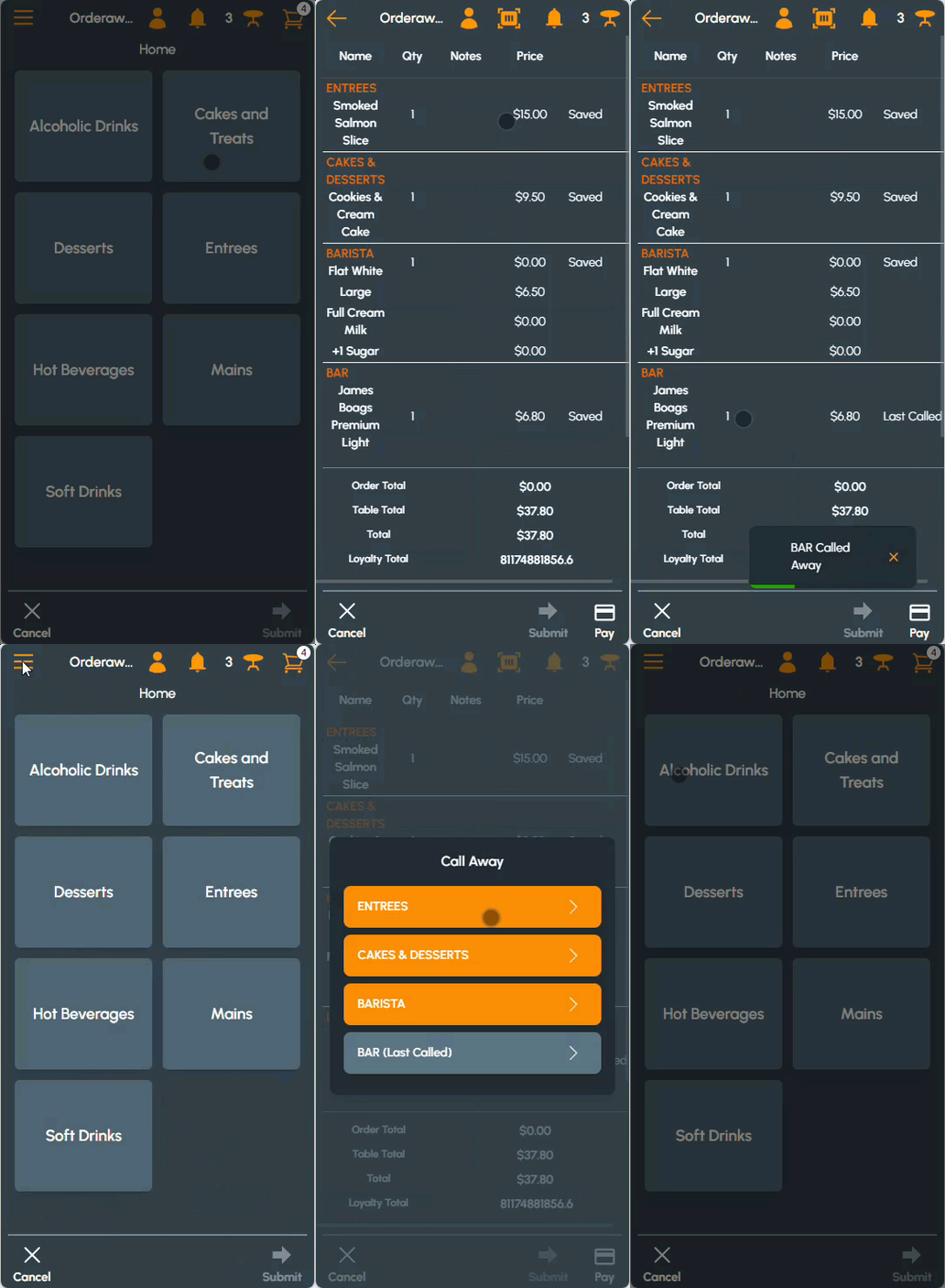
- Select the bell icon to display the Call Away prompt.
- Select from the list of available Print Groups the Print Group for which a Call Away is to be issued. For example, ENTREES.
Notes ...
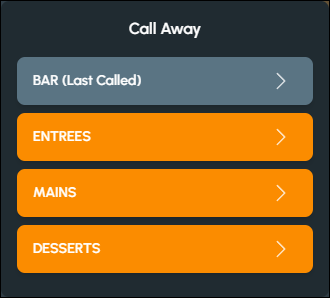
The last called away Print Group will be suffixed with the text (Last Called) and be highlighted in a different colour. For example:
- A message will be displayed confirming the Call Away. For example, ENTREES Called Away.
- Proceed to issue Call Aways for the remaining Print Groups, as is appropriate.
End of article ▲