
IMPORTANT
Touchmini v1 has reached it's end of life and will NO LONGER be enhanced/improved. It is now superseded by Touchmini v2.
This outlines How To Reset A Device using TouchMini. Refer to How To Reset A Device using TouchMini v2 for more information.
Subjects ▼
To Be Considered ▲ ▼
- This menu option DOES NOT support the transfer of TouchMini devices (between Locations) that are locked to one or more Event Areas (Suites).
What Is Required? ▲ ▼
- The device must be registered and enabled within a Location.
How To Reset A Device? ▲ ▼
- In TouchMini, select the Settings menu option. Refer to How To View Device Information for more information.
- Select the Reset Device button. The following confirmation prompt will be displayed:
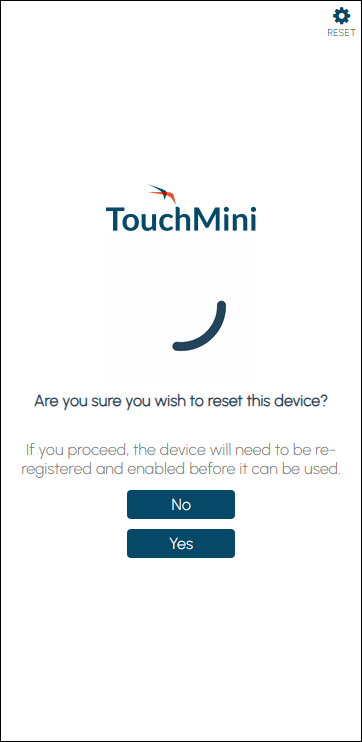
- Select the Yes button to proceed with resetting the device.
- Once reset, the following screen will be displayed:
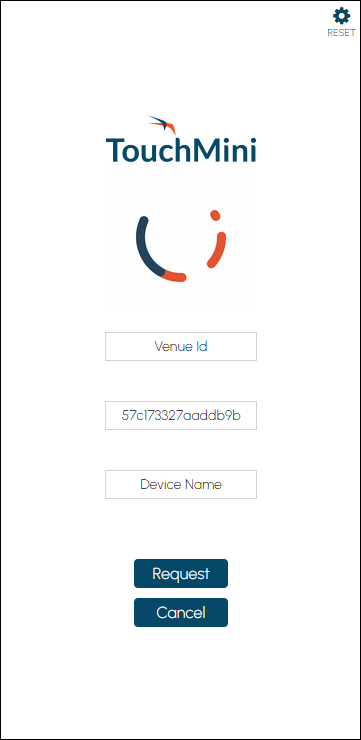
- The device can now be re-registered. Refer to How To Register A Device for more information.
- Once enabled and configured, select the Home button on the device. The Layout configured in the POS tab should now be displayed.
- The device should now be available to operate. Refer to How To Use TouchMini For The First Time for more information.
End of article. ▲