
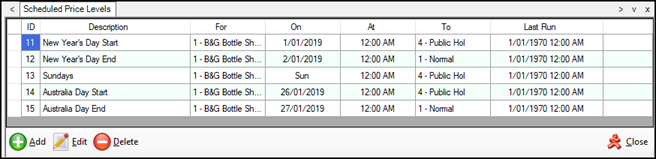
Used to schedule Price Level changes.
Subjects ▲ ▼
About ▲ ▼
What Is Required? ▲ ▼
- Swiftpos v10+
What To Consider? ▲ ▼
- This option is NOT the recommended for price changes associated with Happy Hours. We recommend the use of the Happy Hour Setup feature to schedule Happy Hour price changes.
- Price Level changes will also be posted in Menu Boards, Customer Facing Displays, Orderaway, Touchmini, etc to ensure the correct price is displayed.
When Is It Used? ▲ ▼
Used to schedule Price Level changes. This can be useful to Venue's that charge a surcharge on Public Holidays and/or Weekends.
Example? ▲ ▼
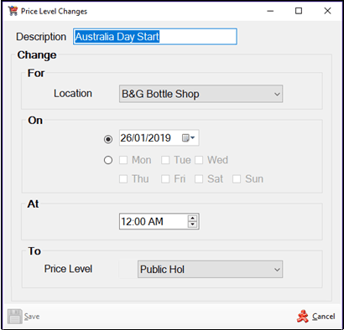
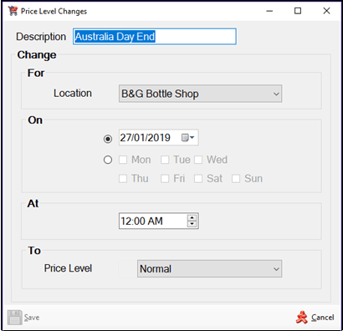
The following are examples of Price Level changes for the charging of a surcharge on a Public Holiday. In this case Australia Day.
| Schedule to start the price change | Schedule to end the price change |
 |
 |
Screens ▲ ▼
Price Level Changes Screen ▲ ▼
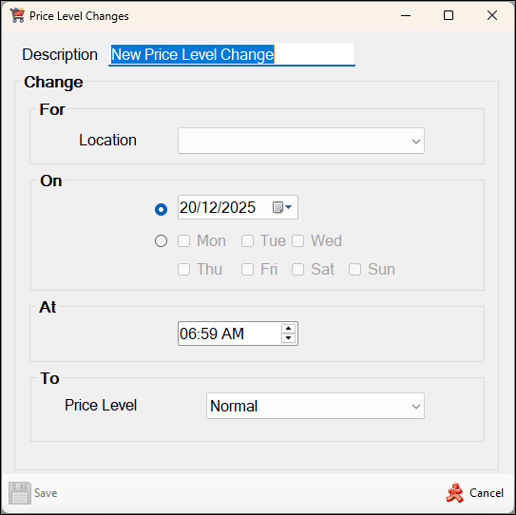
To access, select the Add option in the footer section of the Scheduled Price Level screen. Used to schedule a Price Level change.
Header Section
- Description - Displays/Enter the description for the price change.
Change Section
- For - Select from the drop-down list the Location for which the scheduled price change is applicable.
- On - Select either the:
- Date - Select from the drop-down calendar the date on which the price change is to take effect.
Notes ...
When using this option to schedule a Price Level change for a Public Holiday for example, another schedule will need to be created to ensure that prices are changed back to normal when the Public Holiday ends. Refer HERE for an example.
- On continued ...
- Days- Select specific days of the week to ensure the price changes take effect.
- At - Select the time at which the Price Level change is to take effect.
- To - Select from the drop-down list the Price Level to which prices need to be changed to, for each of the Price Levels listed.
Footer Section
- Save - Select to save the changes and exit.
- Cancel - Select to exit without saving the changes.
Scheduled Price Level Screen ▲ ▼
To access, select the Scheduled Price Level option in the Touch Settings menu. Used to schedule Price Level changes.
Lists the Price Level changes scheduled to date, along with their ID, Description, For (Location), On (Date/Days), At (Time), To (Price Level) and Last Run.
Notes ...
To edit an entry in the grid, double click a row. Rows displayed in the grid can be sorted by toggle selecting the column headings.
- Add - Select to open the Price Level Changes screen to add a new schedule.
- Edit - Select to edit the selected row.
- Delete - Select to remove the selected row.
- Close - Select to exit.
End of article ▲