
This provides an overview of the Stocktake Goods (#501) POS Key.
Subjects ▲ ▼
About ▲ ▼
What Is Required? ▲ ▼
- Swiftpos v10+
- Ensure this POS Key is added to the appropriate Keyboard Layout using the Designer. Refer HERE for more information.
- Ensure a PLU is created for each of the Locations for which Stock Levels are to be searched. This can be done by creating a Product/PLU in the Swiftpos Back Office and giving each of the PLUs created a description that is equivalent to their Location. Also, for each Location PLU created make sure all Locations are active in the Product Full Edit screen and the Location is configured to include the Location PLU created.
What To Consider? ▲ ▼
- If required, access to this POS Key can be restricted by the Clerk Security feature.
When Is It Used? ▲ ▼
Used to make do stocktaking and record stocktake counts in Touch.
How To? ▲ ▼
How To GET STARTED? ▲ ▼
- Review About and ensure the steps specifically outlined HERE have been addressed
- In Touch, select the Stocktake Goods (#501) POS Key to open the Stocktake Goods screen.
- Filter the Products listed in the grid, by either Category, Product Group or Family if required.
- To further limit the Products listed in the grid, filter either by Barcode, Product Description or PLU. Select which and then enter the Full/Partial Barcode/Product Description/PLU value to be filtered on.
- Select the Product in the grid for which a Stocktake count has been taken.
- In the Enter Counted Amount numeric keypad, enter the quantity counted.
- Select Enter.
- Once all Products have been counted and their Stocktake counts entered, Select the Reset option to clear all filters and enable the Commit button.
- Select Commit option.
Notes ...
Only items where a count is entered, will be committed.
- Once committed the Stocktake data will be sent to the Swiftpos Back Office and can be accessed Stocktake and Period End.
- Ensure the Stocktake data is committed in the Swiftpos Back Office.
- Release the Location for which the Stocktake was done. This is also done via the Stocktake and Period End menu option.
- SOH levels will now be updated against the Products counted.
Reports ▲ ▼
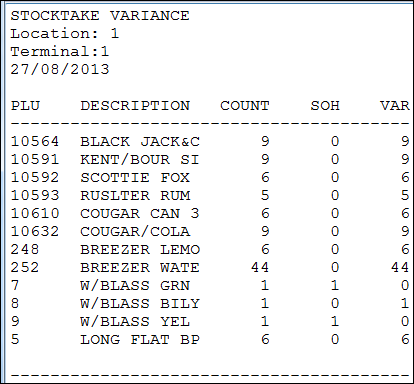
Sample of a Variance Report
Screens ▲ ▼
Stocktake Goods Screen ▲ ▼
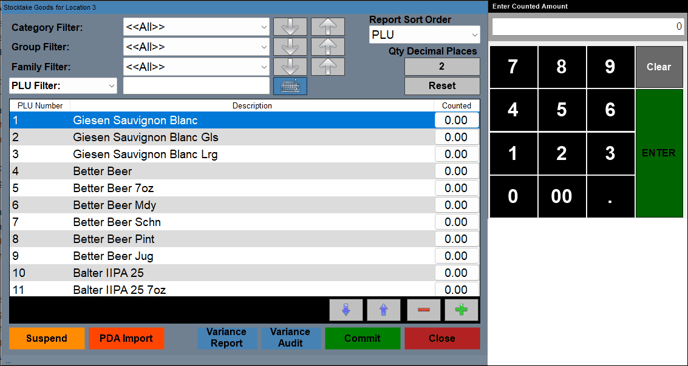
To access, select the Stocktake Goods (#501) POS Key in Touch. Used to do a Stocktake of Items/Products in Touch.
Header Section
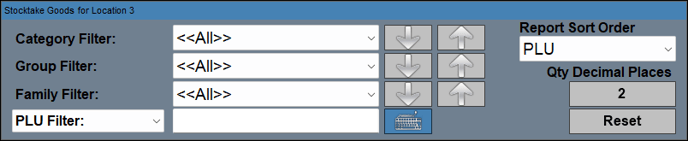
- Category Filter - Select the Category from the drop-down list, to ensure only those Products assigned to the selected Category are listed in the grid.
- Group Filter - Select the Product Group from the drop-down list, to ensure only those Products assigned to the selected Product Group are listed in the grid.
- Family Filter - Select the Family from the drop-down list, to ensure only those Products assigned to the selected Family are listed in the grid.
- PLU/Description/Barcode Filter Drop-Down List - Select from the drop-down list the appropriate option that will be used when filtering on the value entered into the field to the right.
- PLU/Description/Barcode Filter Value - Enter or select the Keyboard icon to enter the value to be filtered. The value entered can either be a full/partial PLU, Description or Barcode of a Product.
- Report Sort Order - Select from the drop-down list one of the following, to ensure the sort order of the Products when reported.
- Qty Decimal Places - Displays/Enter the number of decimal places allowed when entering the counted Stock.
- Reset - Select to ensure all filters are cleared.
Enter Counted Amount Section
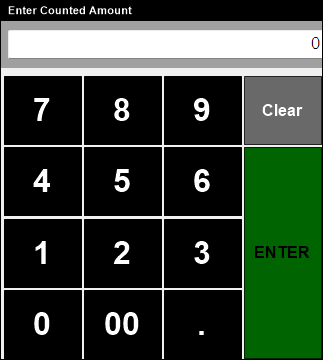
Used to enter the quantity of Stock counted, for the Product selected in the grid.
Grid Section
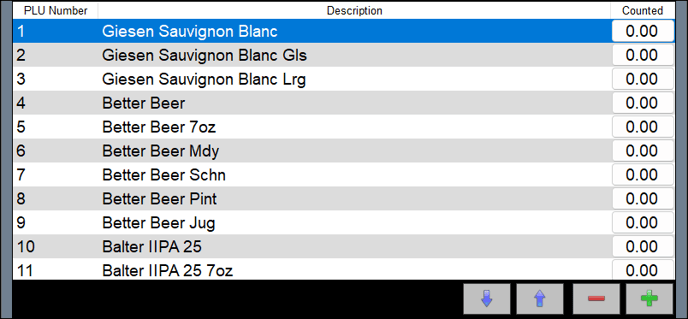
Lists the Items/Products to be counted along with their PLU Number, Description and Counted Quantity.
Footer Section

- Suspend - Select to suspend the current Stocktake and save the counts entered. Enables the Stocktake to be resumed at a later time.
- PDA Import - Select to import Stocktake counts recorded on a PDA. PDAs are useful when it comes to scanning cartons.
- Variance Report - Select to generate the Variance Report and print it on the Receipt printer. This report will report all Products that have not been counted and where the SOH is not zero, as well as for Products that have a Stock variance recorded as a result of the count for this Location.
- Variance Audit - Select to generate the Variance Audit Report and print it on the Receipt printer. This report will exclude recipe items and bring all Products back to the parent item based on the recipe quantity.
- Commit - Select to commit the Stocktake and ensure SOH levels are sent to the Swiftpos Back Office. If there is no stocktake in progress, then it will automatically lock the Location and post the stocktake in as a pending stocktake. If you post an additional stocktake then it will add to the existing stocktake that is currently held as a pending stocktake.
- Close - Select to exit.
Stocktake Goods Settings Screen ▲ ▼
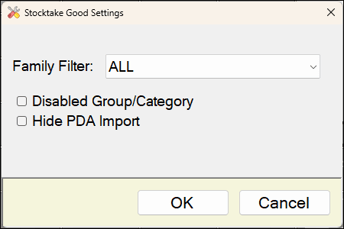
To access, with the Stocktake Goods (#501) POS Key selected in the Keyboard Designer, select HERE. Used to configure the Stocktake Goods (#501) POS Key for Touch.
- Family Filter - Select from the drop-down list the Family of Products to which Stocktakes will be restricted.
- Disabled Group/Category - Select to ensure the Category and Group filters are disabled.
- Hide PDA Import - Select to ensure the PDA Import options is disabled.
End of article ▲