
This outlines How To Configure For Age Confirmation in Orderaway.
Subjects ▲ ▼
About ▲ ▼
What Is Required? ▲ ▼
- Orderaway must already be implemented at the Venue and functioning as expected. That is, it must be installed and operational.
When Is It Used? ▲ ▼
Used when Venues wish to comply with the legal age of serving alcoholic beverages to patrons when placing Orders using Orderaway.
How To? ▲ ▼
How To Configure For Configure For Age Confirmation? ▲ ▼
- Access the Service tab. Refer HERE for more information.
- Ensure the Age Confirmation option is selected to display the options that need to be configured.
- Enter the text in the Header Text field that will appear in the header section of the age confirmation prompt. For example: Age Confirmation.
- Enter the text in the Body Text field that will appear in the body section of the age confirmation prompt. For example: You must be 18 years of age or older to order this item.
- Enter the number in the Required Age field in years a patron must, at least be, in order to order a restricted Product. For example, 18.
- Enter the ID of the Family in the Restricted Product Family field that represents the Family of Products that will require age confirmation prior to being ordered. For example, 37.
- DO NOT forget to select SAVE to ensure all changes are saved.
Patron's Experience ▲ ▼
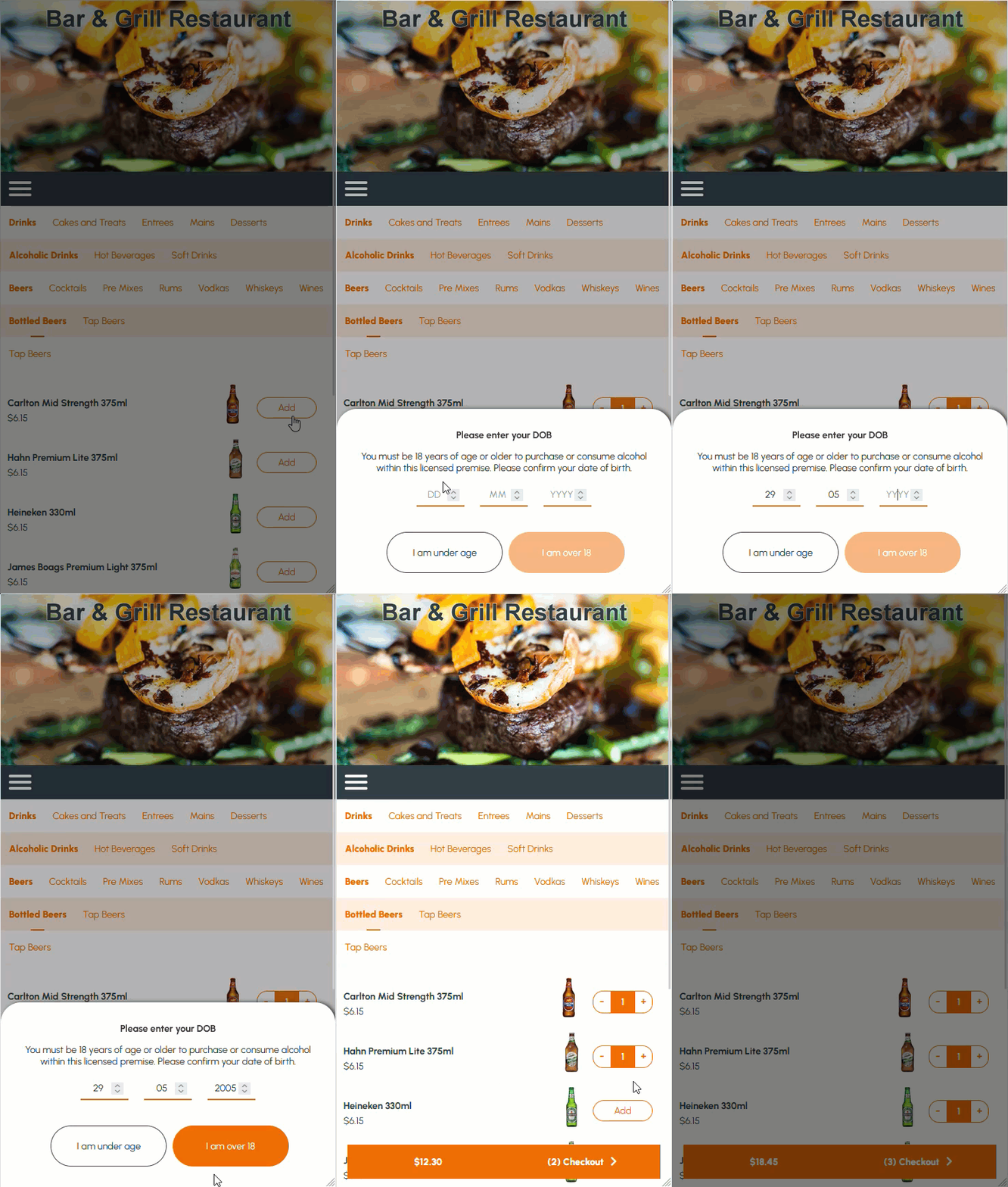
This is an example of what a patron will experience when the Age Confirmation option is selected and configured appropriately.
With the Date of Birth Mode selected
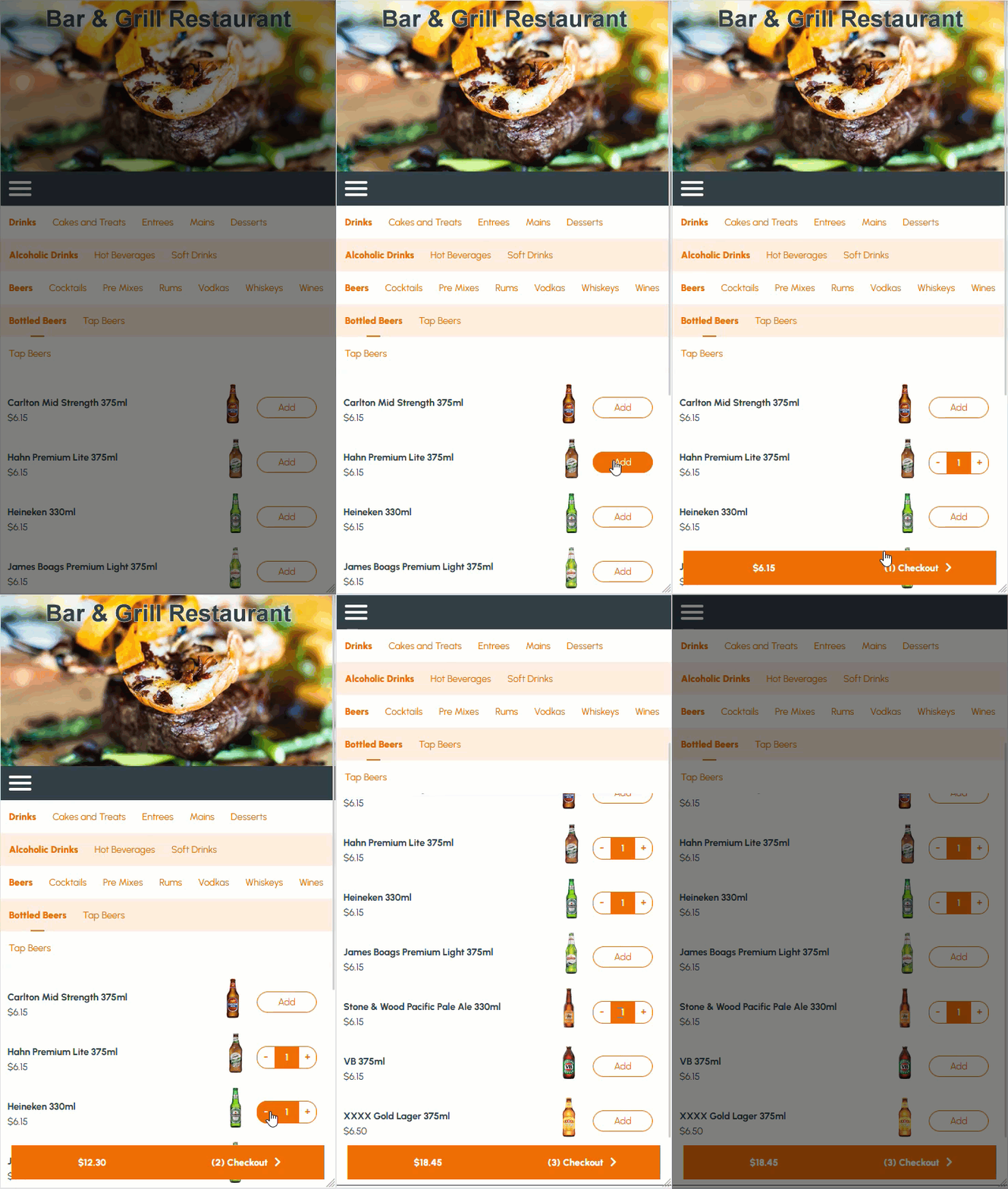
With the Yes/No Mode selected
End of article ▲