
This outlines How To Bump / Move Orders in Notify.
How To Bump / Move Orders? ▲ ▼
Orders can be bumped/moved as follows:
Individually ▲ ▼
- Select an order listed in any one of the Order Processing Steps (columns).
- Select the:
- Right arrow to bump/move the order to the NEXT processing step (that includes any Additional steps, if configured).
- Left arrow to bump/move the order back to the PREVIOUS processing step.
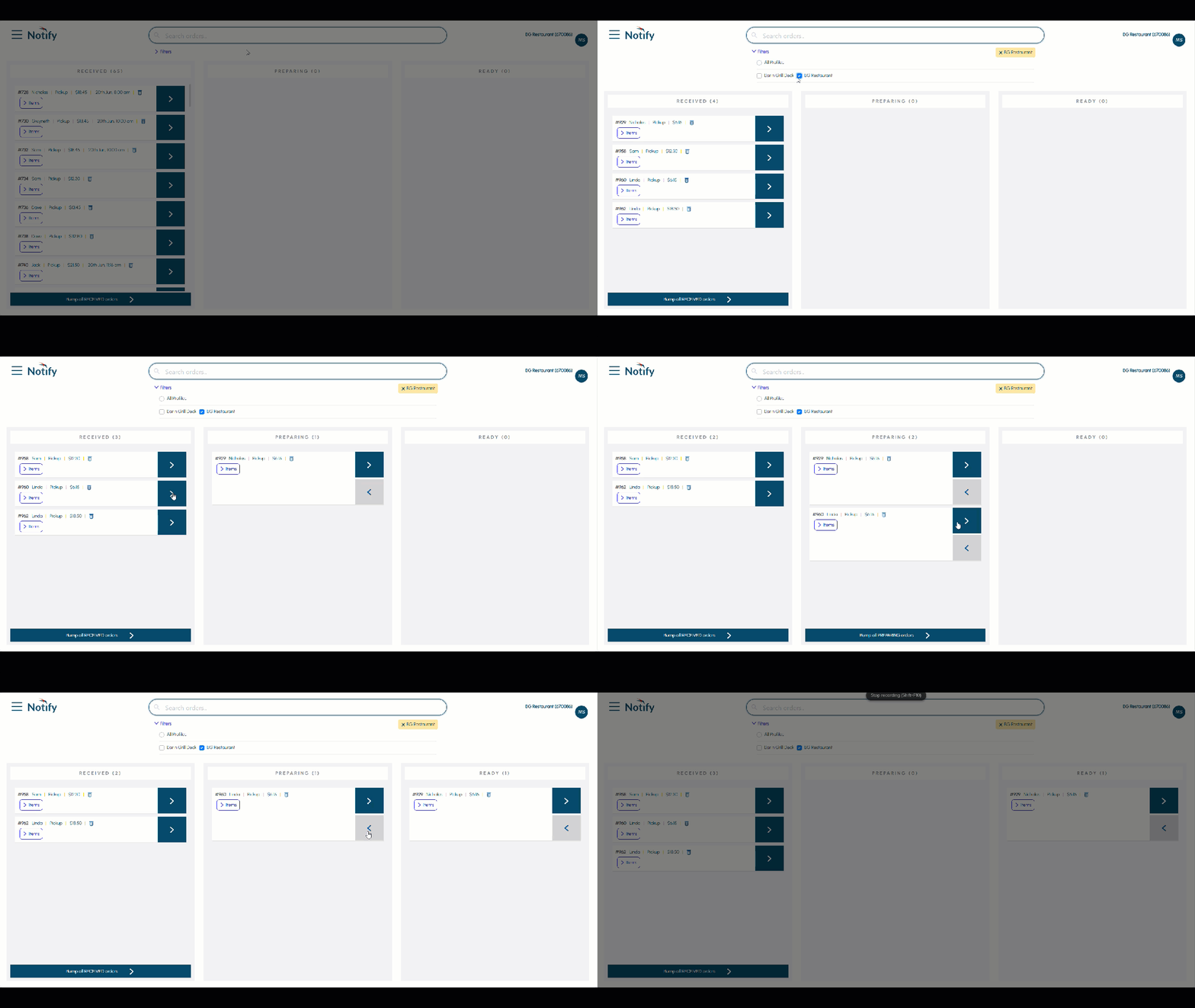
Notes...
If an order is selected in the last processing step (right most column) or in the last additional step of the last processing step and the right arrow is selected, a SMS notification (if configured) will be sent to the patron who submitted the order. The order will also be removed and will no longer be available to Notify.
Multiple ▲ ▼
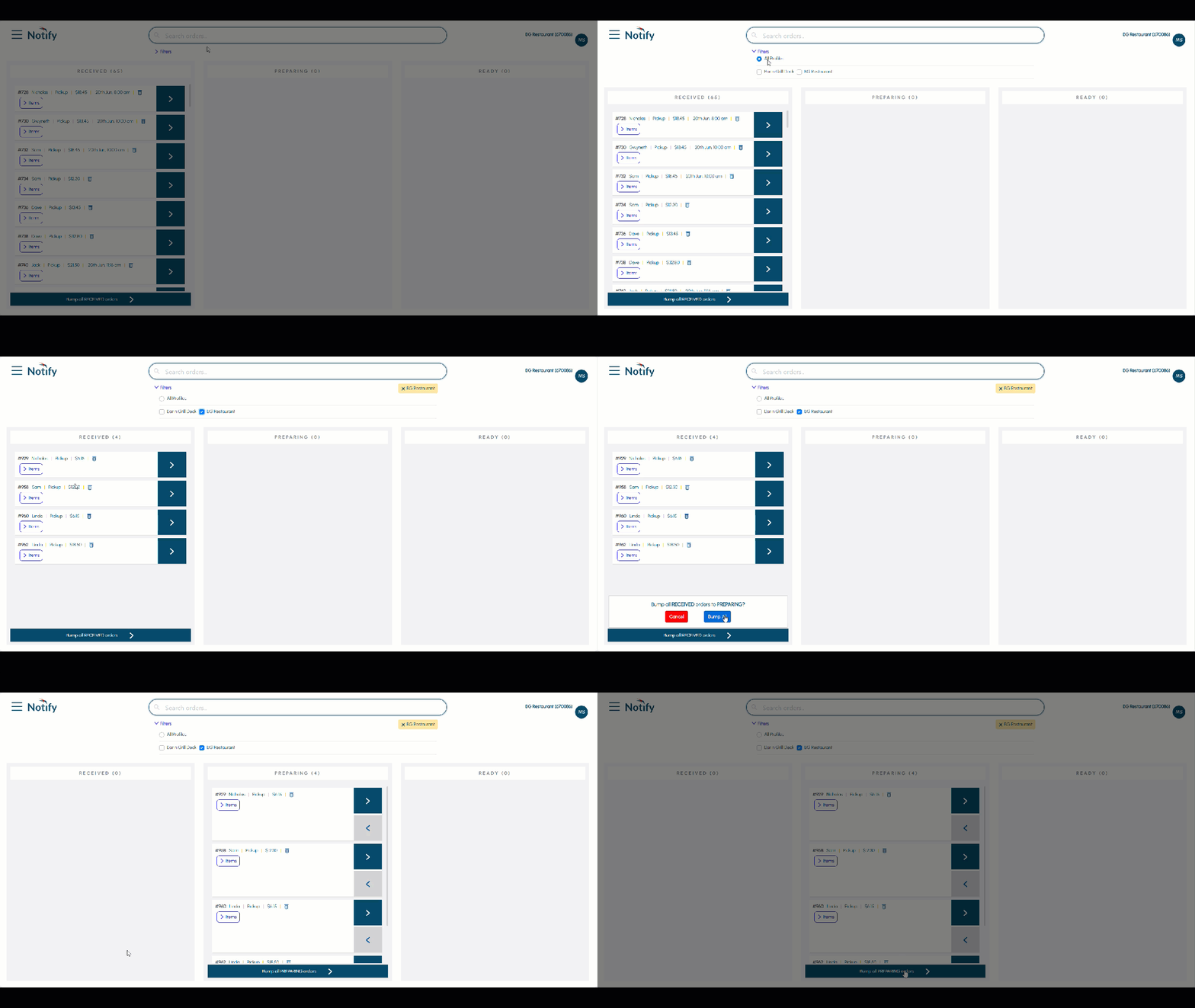
- Select the Bump all option displayed at the bottom of the processing step.
IMPORTANT
To ensure a Bump all option is displayed, ensure the Bump All option is enabled for the processing step in Settings.
- Once selected, a confirmation prompt will be displayed. Select the Bump All option to bump all the orders listed in the processing step to the next processing step. Otherwise, select the Cancel option.
Notes...
if a filter has been applied, then the Bump All option will only bump those orders that have been listed as a result of the filter.
End of article ▲