
This outlines How To Bump / Move Orders in Notify.
How To Bump / Move Orders? ▲ ▼
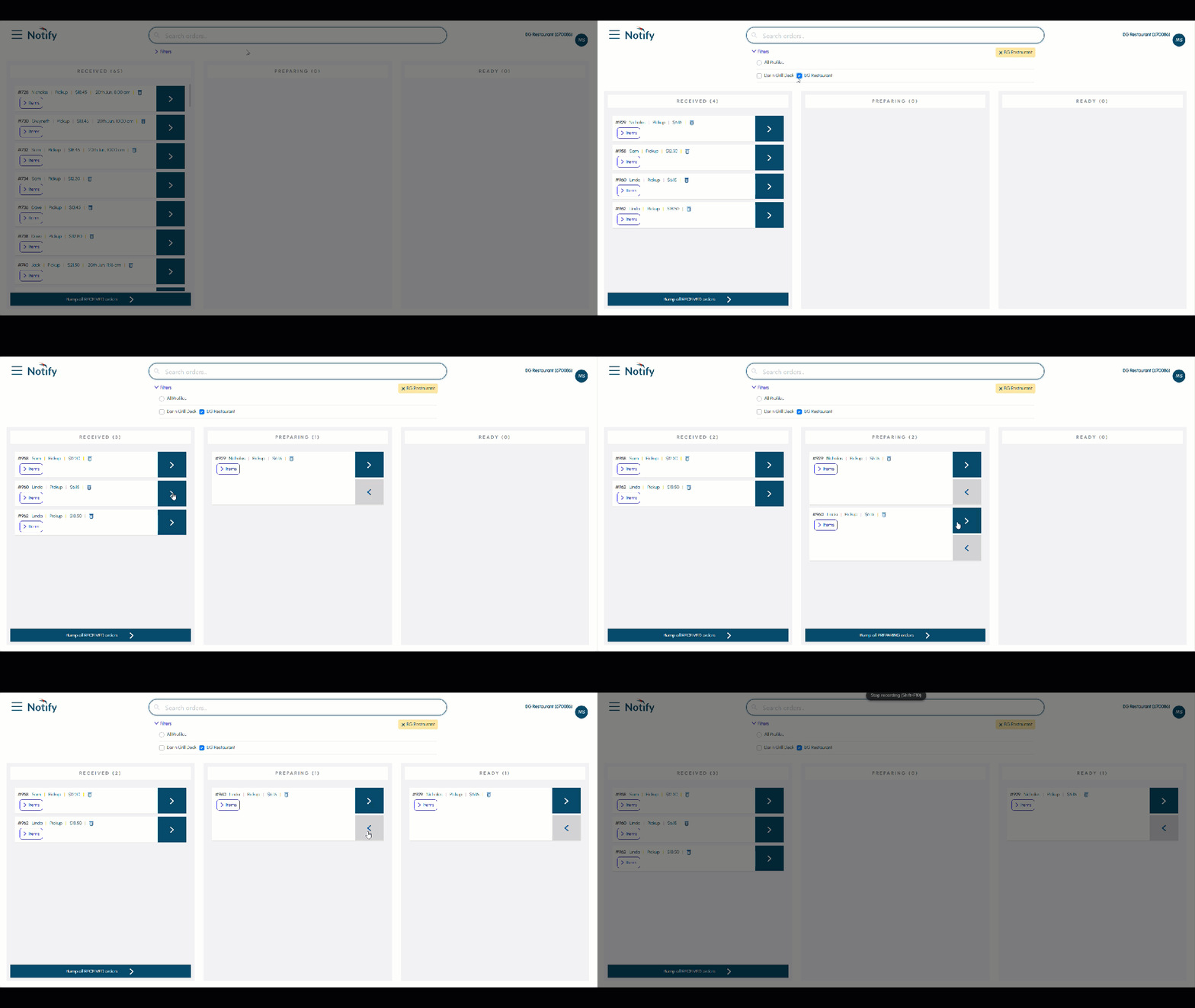
Orders/Sales can be bumped/moved as follows:
Individually ▲ ▼
- Select an order/sale listed in any one of the Order Processing Steps (columns).
- Select the:
- Right arrow to bump/move the order/sale to the NEXT processing step (that includes any Additional steps, if configured).
- Left arrow to bump/move the order/sale back to the PREVIOUS processing step.
Notes...
If an order/sale is selected in the last processing step (right most column) or in the last additional step of the last processing step and the right arrow is selected, a SMS notification (if configured) will be sent to the patron who submitted the order/sale. The order/sale will also be removed and will no longer be available to Notify.
Multiple ▲ ▼
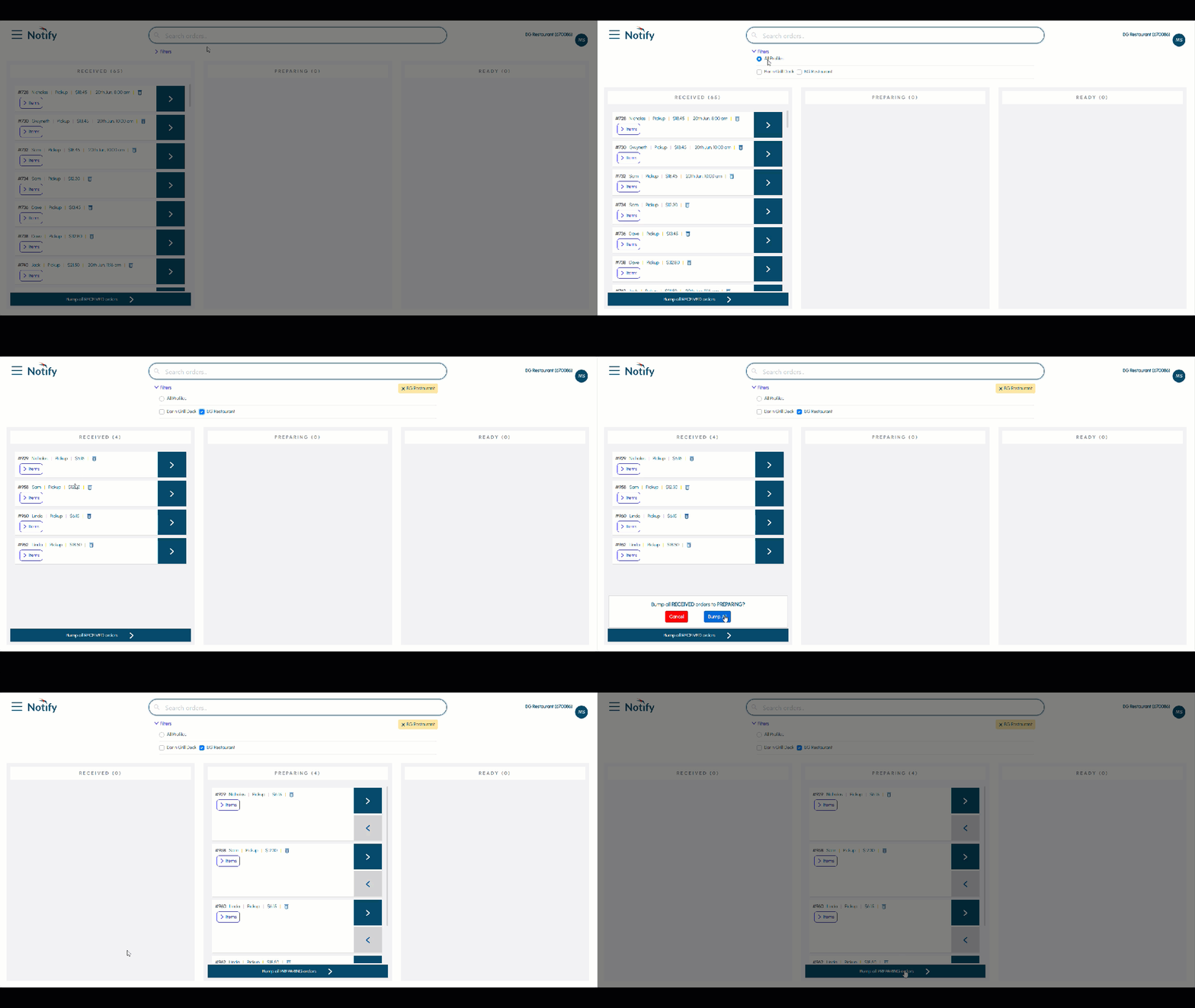
- Select the Bump all option displayed at the bottom of the processing step.
IMPORTANT
To ensure a Bump all option is displayed, ensure the Bump All option is enabled for the processing step in Settings.
- Once selected, a confirmation prompt will be displayed. Select the Bump All option to bump all the orders/sales listed in the processing step to the next processing step. Otherwise, select the Cancel option.
Notes...
if a filter has been applied, then the Bump All option will only bump those orders/sales that have been listed as a result of the filter.
End of article ▲