
This provides information regarding the EFT45 - Apollo peripheral in Touch.
Subjects ▲ ▼
About ▲ ▼
What Is Required? ▲ ▼
- Swiftpos v10.74+
- Ensure this peripheral has been added to the Touch terminal and configured appropriately. Refer HERE for more information.
What Is Supported? ▲ ▼
- Tipping - Refer HERE for more information.
- Reversals - Reversing transactions is only supported with the Visa, Mastercard, CUP, WECHAT, Alipay and PayMe card types. Refer HERE for more information.
What To Consider? ▲ ▼
- Sites must have a current Software Enhancement Licence to use this feature.
- Ensure an actual printer is assigned for all integrated EFTPOS printing. Do NOT use the <<Default Printer> option because the EFTPOS cannot see it.
When Is It Used? ▲ ▼
EFT45 - Apollo is recommended for use with WECHAT, Alipay, Octopus, PayMe and FPS Card types.
How To? ▲ ▼
How To Add A Tip? ▲ ▼
Tips in Touch can be added to an Order/Sale when using an Apollo peripheral as follows:
- Ensure all Items/Products have been added to the Order/Sale.
- Select the EFT Tips (#42) POS Key.
- Select the Order/Sale to which the tip is to be applied.
- Enter the amount being tipped.
- Enter the passcode at the passcode prompt.
- The Apollo device will process the transaction.
Notes ...
Only a tip receipt is printed in Touch. Apollo devices do not print receipts. Can only be completed on Visa, Mastercard or Cup transactions.
How To GET STARTED? ▲ ▼
- Review About and ensure the steps outlined HERE are addressed.
- Initially at the start ensure the Enable Event Logging is selected to ensure all logs can be reviewed. This can be unselected later when all is working as expected.
- Ensure the EFT/POS Receipt settings have been configured to print Receipts at Touch
receipt printer. - Ensure the Finalise (#2-30) POS Key has been added to a Keyboard Layout and configured appropriately, with specific attention being given to the Card Types option. Refer HERE for more information.
How To Make A Payment? ▲ ▼
Payments in Touch using an Apollo peripheral, can be partially or fully finalised by selecting the Finalise (#2-30) POS Key and then for:
- Alipay - On the Apollo device select the Change icon at the top right when the transaction appears and then select the QR code icon. Scan the patron’s Alipay QR code to complete the payment on the Apollo device.
- CUP (China UnionPay) - Tap, insert or swipe the card to complete the payment on the Apollo device.
- FPS - The Apollo device will display an FPS QR code, the patron will then need to scan it with their FPS App to complete the payment.
- Mastercard - Tap, insert or swipe the card to complete the payment on the Apollo device.
- Octopus - On the Apollo device start the Octopus App and then tap the Octopus card to complete the payment on the Apollo device.
- PayMe - The Apollo device will display a PayMe QR code, the patron will then need to scan it with their PayMe App to complete the payment.
- Visa - Tap, insert or swipe the card to complete the payment on the Apollo device.
- WeChat - On the Apollo device select the Change icon at the top right when the transaction appears and then select the QR code icon. Scan the patron’s WeChat QR code to complete the payment on the Apollo device.
How To Make A Payment When Offline? ▲ ▼
To make payments in Touch using an Apollo peripheral, when offline (also known as being in Contingency Mode), do as follows:
- Contact Global Payments to ensure the Apollo device can make Contingency Mode payments.
Notes ...
Once activated, Contingency Mode will remain active to the end of the trading day. To use it again the next day, Global Payments will need to be contacted again.
- Select the EFT Offline Mode (#712) POS Key.
Notes ...
It is recommended that this POS Key be given a caption other than EFT Offline Mode, as this means something different to Global Payments. For example, give it the caption Global Payments Contingency Mode).
- Enter the 6 digit approval code (provided by Global Payments) when prompted.
- Enter a 7 digit password (provided by Global Payments) when prompted.
- A notification message will be displayed confirming success or failure of the above.
- If successful, then the Apollo device has been placed in Contingency mode and can now be used as per normal. Refer HERE for more information.
Notes ...
Contingency Mode can be enabled on the Apollo device, but as there is not information in the transaction data sent back to Touch that Contingency Mode was in use, it is recommended not to enable it via the Apollo device.
How To Reverse A Payment? ▲ ▼
IMPORTANT
Reversing a payment transaction made using an Apollo peripheral can only be done when the following card types were used to make the payment:
-
Alipay
-
CUP (China UnionPay)
-
Mastercard
-
PayMe
-
Visa
-
WeChat
To reverse a payment transaction made in Touch using an Apollo peripheral, do as follows:
- Select the Reverse Transaction (#516) POS Key.
- Select the transaction to be reversed.
- Enter the 6 digit passcode at the passcode prompt.
- The Apollo device will reverse the selected transaction. This is called a VOID transaction.
Notes ...
This cannot not be done if a settlement has been completed for that transaction.
Screens ▲ ▼
Apollo Settings ▲ ▼
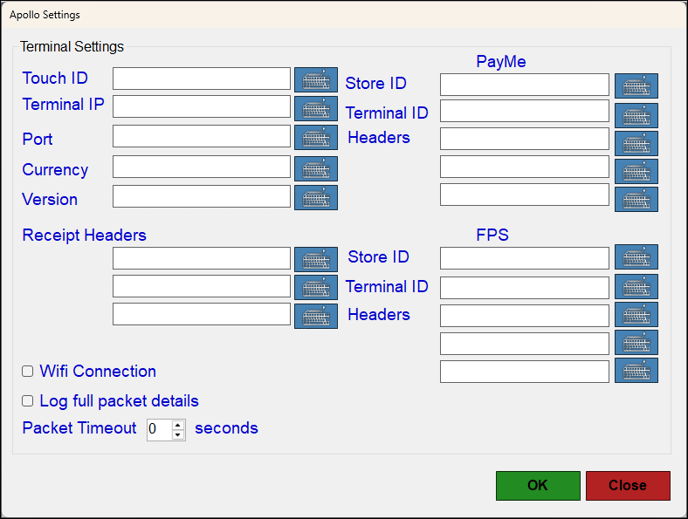
Terminal Settings Section
- Touch ID - Displays/Enter the identification number of the Touch terminal. Can be anything it is just used to identify which Touch is sending the requests.
- Terminal IP - Displays/Enter the IP address of the Apollo device.
- Port - Displays/Enter the number of the Port. It is currently either 3334 for TCP connections or 8080 for Wifi connections.
- Currency - Displays/Enter a 3-character currency code. This is sent to Touch to identify what currency to charge in.
- Receipt Headers - Displays/Enter the receipt headers to be displayed on the EFTPOS receipt printed at Touch. These details are not sent back in the TCP connection and need to be manually entered.
- Wifi Connection - Not in use. Still to be certified.
- Log full packet details - Select to ensure logging when troubleshooting issues. It is recommended that this only be selected when absolutely necessary, or when requested by Swiftpos Support.
- Packet Timeout - Displays/Enter the timeout for each individual packet that is sent to the Apollo device. 10-15 seconds is recommended, but depending on the LAN setup can be extended.
PayMe and FPS settings
These settings must be entered.
-
StoreID - Displays/Enter the Merchant ID for the PayMe and FPS applications installed on the Apollo device. Can be found on a receipt, if a manual transaction is put through on the Apollo device, but should be provided by Global Payments.
-
Terminal ID - Displays/Enter the Terminal ID for the PayMe and FPS applications installed on the Apollo device. Can be found on a receipt, if a manual transaction is put through on the Apollo device, but should be provided by Global Payments.
-
Headers - Displays/Enter the receipt headers for the PayMe and FPS applications. Similar to the Receipt Headers above.
EFTPOS Settings ▲ ▼
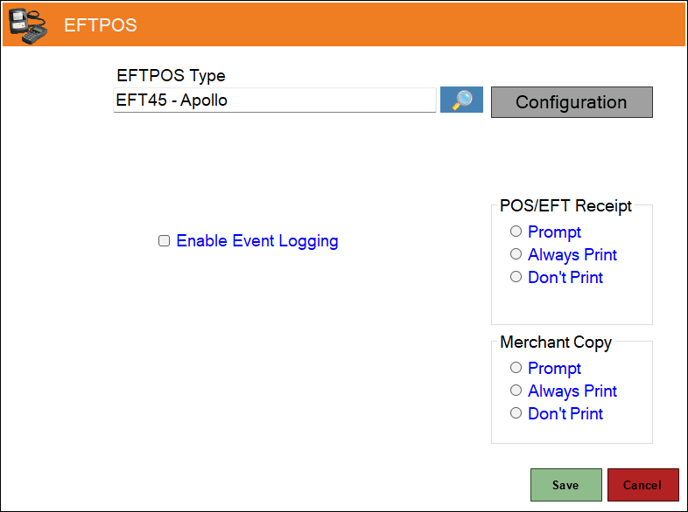
- EFTPOS Type - Select from the drop-down list the EFT45 - Apollo option. Refer HERE for more information.
- Configuration - Select to open the Configuration Utilities and Settings screen.
- Enable Event Logging - Select to enable. It is recommended that this is enabled when testing or when troubleshooting an issue.
- Enable Tipping - Select to enable.
- Don't Decrement Cash In Drawer - Select to ensure that Cash received as a Tip is held in a Tip jar or some other Tip vessel and is NOT added to the Cash Drawer. If unselected, it is assumed that the Cash received as a Tip is added to the Cash Drawer until distribution at a later date. Refer HERE for more information.
- POS/EFT Receipt - Select from one of the Print options available. Also, if a full receipt option is required, select the Full Receipt option.
- Merchant Copy - Select from one of the Print options available.
End of article ▲