
This outlines the How To Print A Tax Invoice For An Account using the Account Print Back (#47) POS Key. Refer HERE for more information.
How To? ▲ ▼
How To Print A Tax Invoice For An Account? ▲ ▼
- In Touch, select the Account Print Back (#47) POS Key.
- If the Prompt for Date Range has been enabled, then at the display of the Date Selection prompt below, select/enter the from/to date /time range required to be reported on.
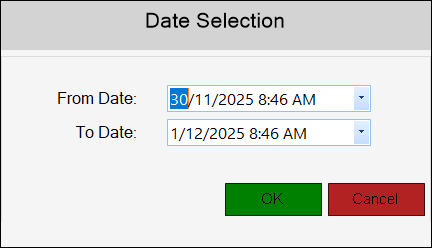
- Select OK to accept the date/time range selected.
- If the Prompt for Date Range has NOT been enabled, then the Tax Invoice printed will be based on the current trading day's date.
- The Customer Search screen will be displayed to locate and select a patron's Account.
- Once selected the following message will be displayed confirming the printing of the Tax Invoice.
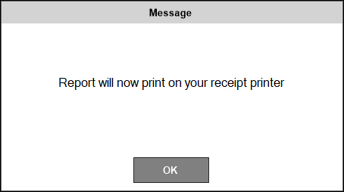
- Select OK to continue.
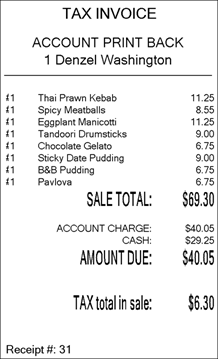
- The following is an example of a Tax Invoice printed from Touch.
End of article ▲