![Swiftpos_White.png]](https://help.swiftpos.com.au/hs-fs/hubfs/Swiftpos_White.png?height=40&name=Swiftpos_White.png)
This outlines the How To Configure An Alert for Touch.
How To? ▲ ▼
- Review About and ensure the steps outlined HERE are addressed.
- Select the Touch Alerts menu option from the Terminal Settings menu, to open the Touch Alerts screen.
- In the Touch Alerts screen:
- Select the Add New option in the footer section to open the Add New Alert screen and add a new alert.
- In the Add New Alert screen:
- Select from the Alert Type drop-down list the required alert. For example, Drawer Limit.
- In the Description field enter an appropriate name for the new alert. For example, Cash Drawer Limit Exceeded.
- Select OK to open the Alert screen specific to the alert added. For example, Drawer Limit Alert.
- In the Alert specific screen:
- Configure the settings as is appropriate for the new alert being added. For example, Drawer Limit Alert.
- Select the Add New option in the footer section to open the Add New Action screen and add a new action.
- In the Add New Action screen:
- Select from the Action Type drop-down list the required action. For example, Email.
- In the Description field enter an appropriate name for the new alert. For example, Email Manager.
- Select OK to open the Action screen specific to the action added. For example, Email Action.
- In the Action specific screen:
- Configure the settings as is appropriate for the new action being added. For example,
- Select Save to save the changes and exit the Action specific screen.
- Select Save to save the changes and exit the Alert specific screen.
- Select Save to save the changes and exit the Touch Alerts screen.
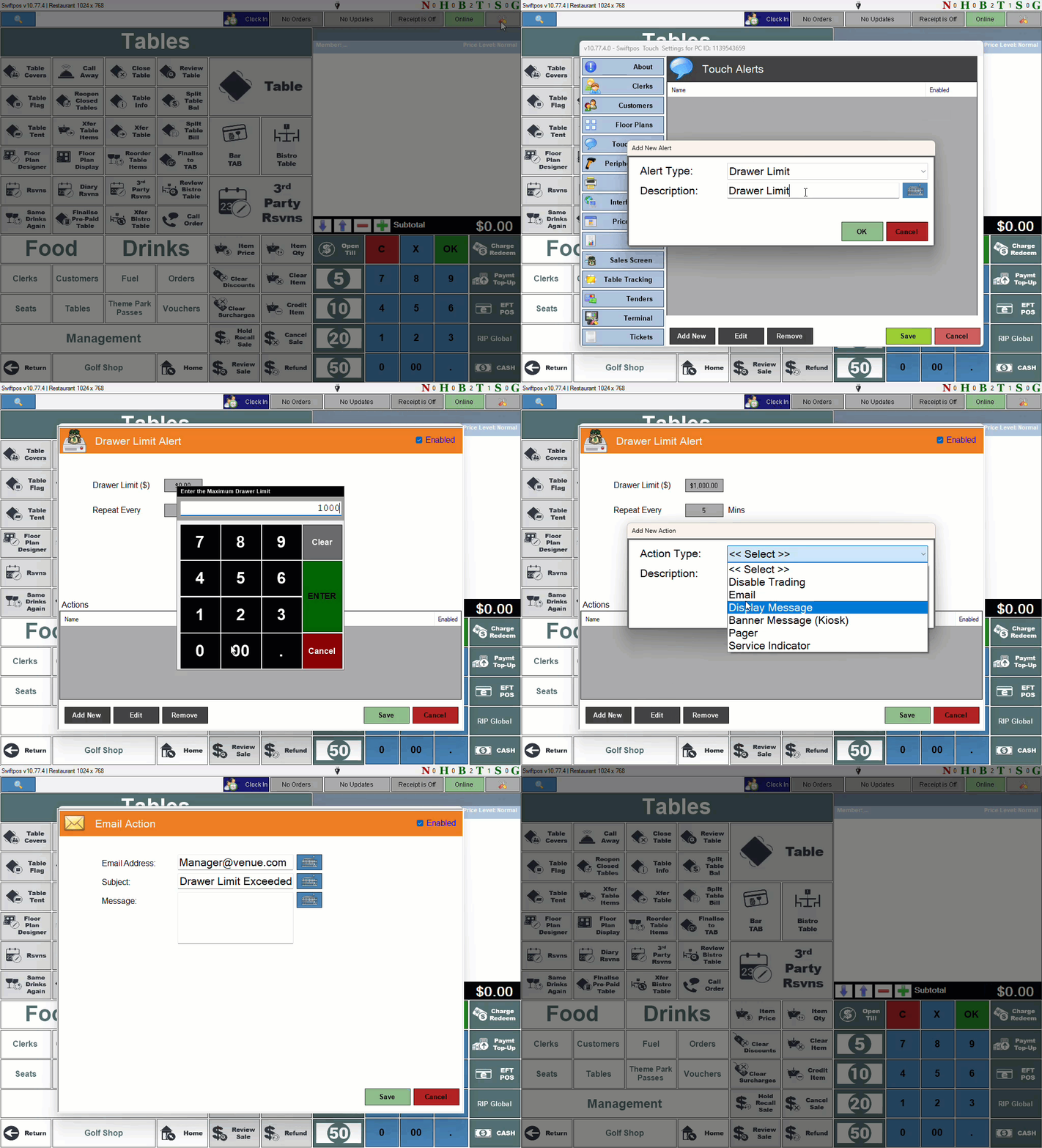
Example for configuring a Touch Alert for a Cash Drawer Limit
End of article ▲