
This outlines How To View Order History in Touch.
Subjects ▼
How To View Order History? ▲ ▼
This can be done via:
And/Or
Tools Menu ▲ ▼
In order to use this option, the Clerk/Staff Member will need authorisation to access to the Tools menu in Touch. If this is not possible, then it is advised to used the POS Keys solution outlined below.
- Select the Tools button from the Tool Bar in Touch to display the Basic Tools menu.
- Then select the right pointing arrow button, in the top right hand corner of the Basic Tools menu, repeatedly until the Table Tracking Tools menu is displayed.
- Select the 46 - View order history menu option.
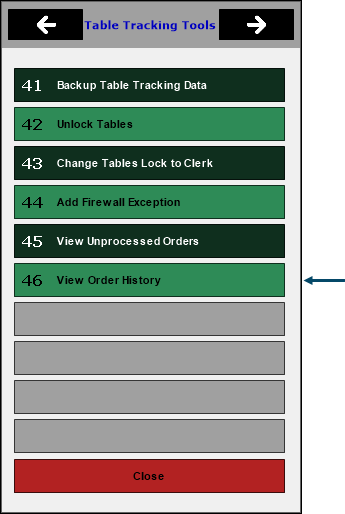
- Once selected, the Order History screen will be displayed listing phone/web orders.
POS Keys ▲ ▼
In order to use this option, the following POS Keys will need to be added to a Keyboard Layout in Back Office. To do this, do as follows:
- Add the Run Tools (#900) POS Key to a Layout in Keyboards.
- Ensure the Run Tools (#900) POS Key has the View Order History option selected from the Run Tool drop down list.
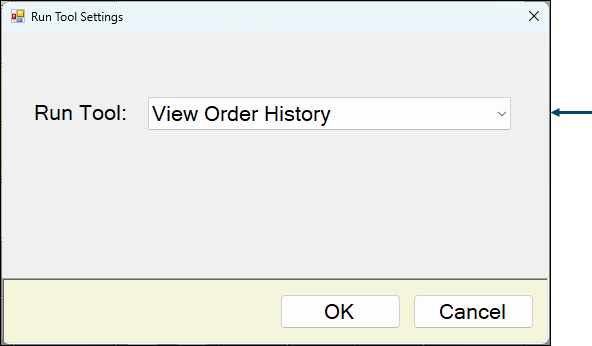
- Ensure the Caption of the Run Tools (#900) POS Key is renamed to something like View Order History.
- Ensure that any Clerk/Staff Security authorisations required to be in place are appropriately configured.
- Once configured, send a Full Update to all Touch Terminals to ensure the Keyboard Layout changes are accessible.
- Select the View Order History POS Key.
- Once selected, the Order History screen will be displayed listing phone/web orders.
End of article. ▲