![Swiftpos_White.png]](https://help.swiftpos.com.au/hs-fs/hubfs/Swiftpos_White.png?height=40&name=Swiftpos_White.png)
IMPORTANT
Touchmini v1 has reached it's end of life and will NO LONGER be enhanced/improved. It is now superseded by Touchmini v2.
This outlines How To Add The TouchMini URL As An App Icon to your device. Once a device has been registered, it's recommended to add the add the TouchMini URL as an App icon to the device's home screen for quick access.
Subjects ▼
How To Add The TouchMini URL As An App Icon? ▲ ▼
Do as follows for:
Android Devices ▲ ▼
- Android Devices:
- Open the browser (Google Chrome) on the device.
- Enter the URL that is appropriate for the Venue.
- Select the 3 dots in the top right-hand corner of the browser screen and then select the Install App option.
- At the Install app confirmation prompt, select the Install option.
- A TouchMini icon will be added to the Home screen so that the TouchMini URL can be quickly accessed.

IOS Devices ▲ ▼
- For IOS devices:
- Open the browser (Safari) on the device.
- Enter the URL that is appropriate for the Venue.
- Select the Share icon at the bottom of the screen.
- From the options available, select the Add to Home Screen option.
- At the confirmation prompt, either:
- Give the App an appropriate name (for example, swiftpos TouchMini) and select Done to add to add the App to the Home screen, OR
- Select Add to add the App to the Home screen with the default name (TM).
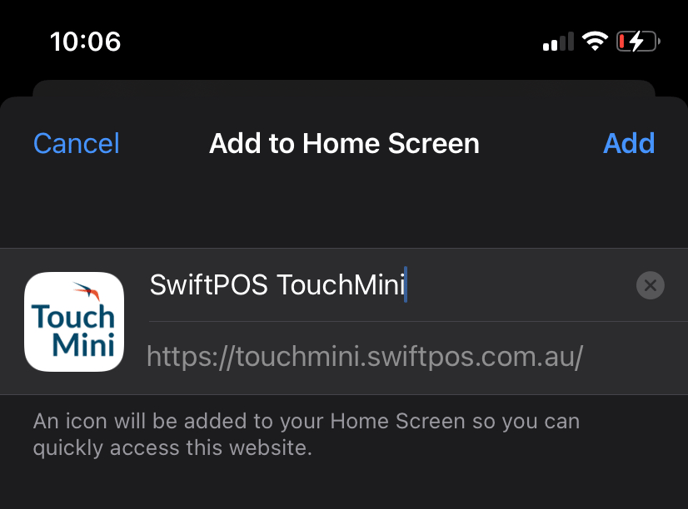
- A TouchMini icon will be added to the Home screen so that the TouchMini URL can be quickly accessed.
End of article. ▲