
This outlines How To Configure And Order Again in Orderaway.
Subjects ▲ ▼
About ▲ ▼
What To Consider? ▲ ▼
- When the browser's cookies are cleared in the browser used for a previous Order/Sale, the Order Again feature will NOT have a previous Order/Sale to retrieve, hence the option will NOT be displayed to the patron.
When Is It Used? ▲ ▼
Used when Venues want to offer patrons the ability to recall a previous Order/Sale and re-order. The benefits to Venues using this feature are:
- Improved offering for patrons when placing Orders/Sales.
How To? ▲ ▼
How To Configure For Order Again? ▲ ▼
To make use of the Order Again feature, Venues will need to:
- Ensure the Order Again option is selected in the Service tab.
How To Order Again? ▲ ▼
In Orderaway, do as follows:
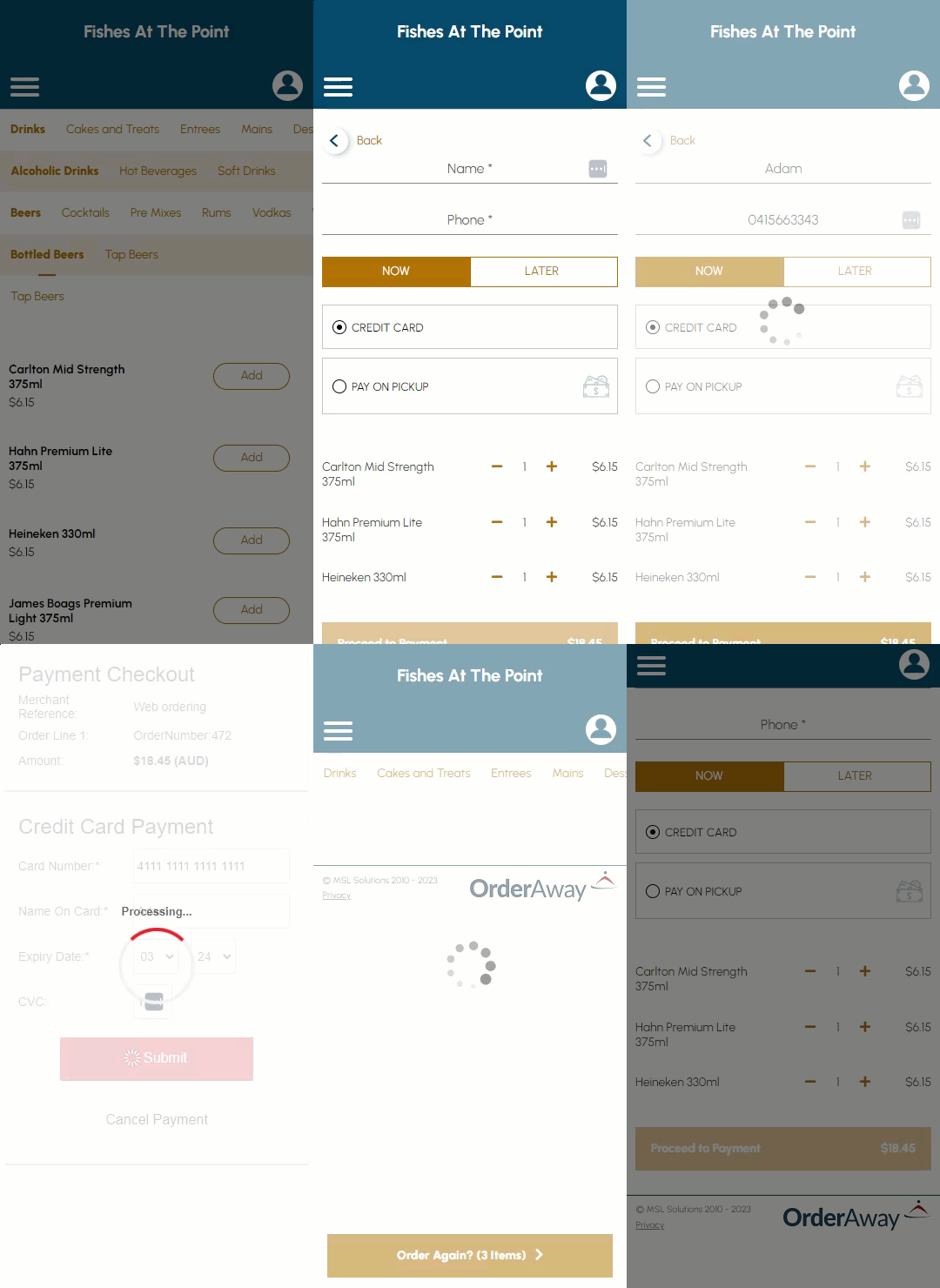
- Place an Order/Sale and then proceed to checkout and finalise the Order/Sale.
- Select either the Browse option or the Home menu option.
- When the Home menu is displayed the items previously Ordered will be selected and an Order Again option will appear at the bottom of the screen.
- To Order Again:
- Select the Order Again option to proceed to checkout.
- The previously Ordered Items will be displayed.
- To Add more items to the previous Order/Sale displayed in checkout, select the Back arrow in the top left-hand corner of the screen.
- Proceed with selecting additional items to add to the Order/Sale.
- Select the Checkout option to proceed to checkout when all items have been selected.
- To NOT Order Again:
- DO NOT select the Order Again option. If the Order Again option is selected by accident, then ensure all the items listed in checkout are removed first.
- Proceed with placing and Order/Sale as per normal.
- As soon as one item is ordered, the Order Again option will no longer be available and will change to a Checkout option.
End of article ▲