
This outlines How To Filter Items/Products in Orderaway.
Subjects ▲ ▼
About ▲ ▼
What Is Required? ▲ ▼
- The Filtering option must be selected in the POS tab for the selected Orderaway Profile. Once selected, select from the options available. For example, Allergens.
What Is Supported? ▲ ▼
- The Filtering option in Orderaway currently ONLY supports filtering based on Allergens.
How To? ▲ ▼
How To Filter Items/Products? ▲ ▼
- Once the Filtering option has been selected, a Filter Menu option will be displayed. For example:
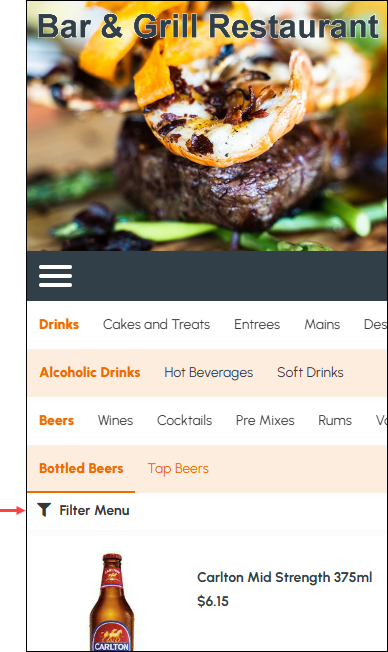
- Select the Filter Menu option to display the Filter Menu.
- Select from the filtering options available, the required filtering.
- Once selected close the Filter Menu.
- A number will now be displayed over the Filter icon, depicting the number of Filter options selected.
- Now when an Item/Product is ordered that contains one of the selected Filter options, the Item/Product will appear greyed-out, to visibly alert the patron that it may not be an appropriate choice. The patron can still order the greyed-out Item/Product if necessary.
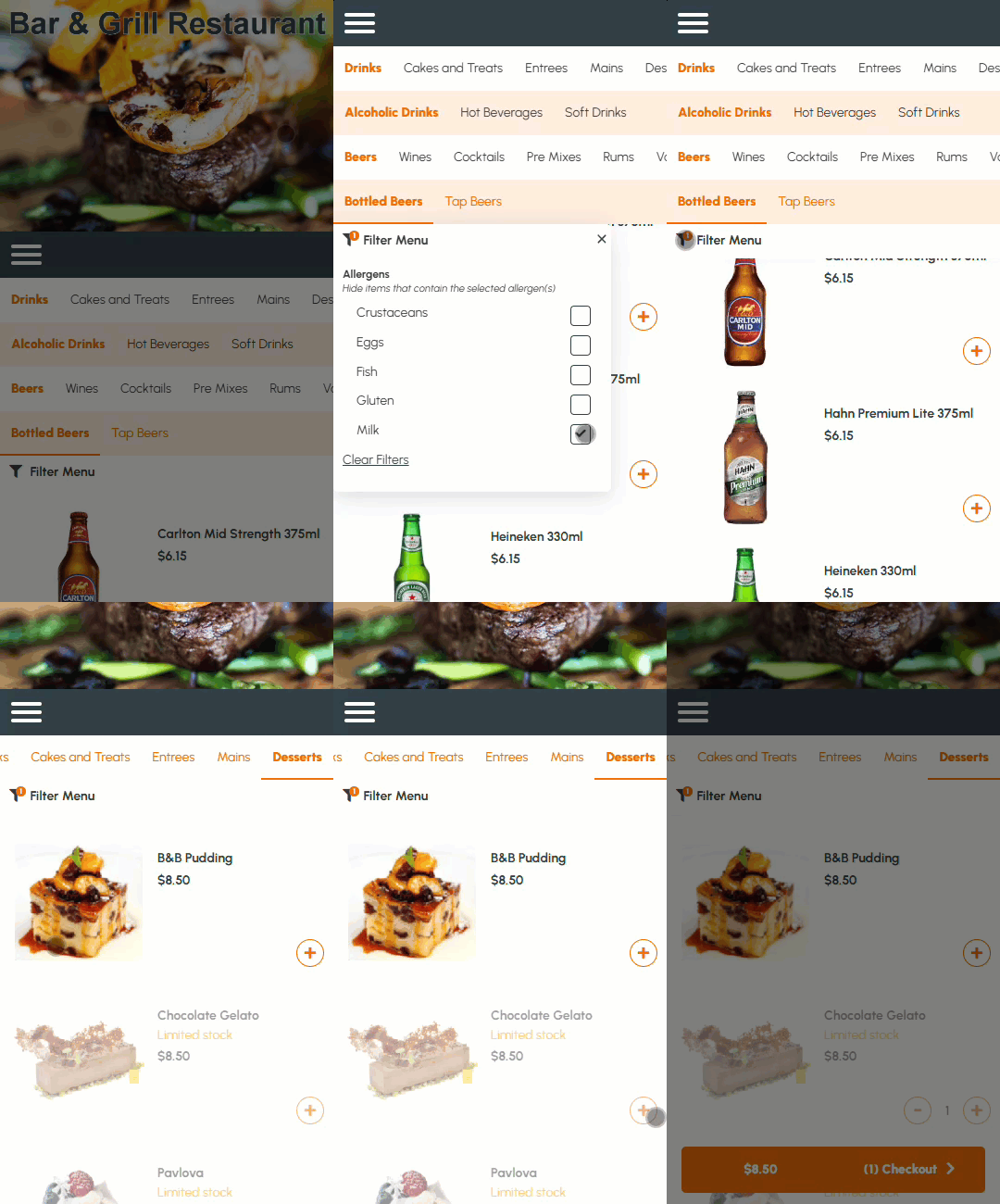 Example of filtering Items/Product based on an Allergen
End of article ▲