
This outlines the How To Bump An Item / Order in KVS.
How To? ▲ ▼
How To Bump An Item? ▲ ▼
In KVS, do as follows:
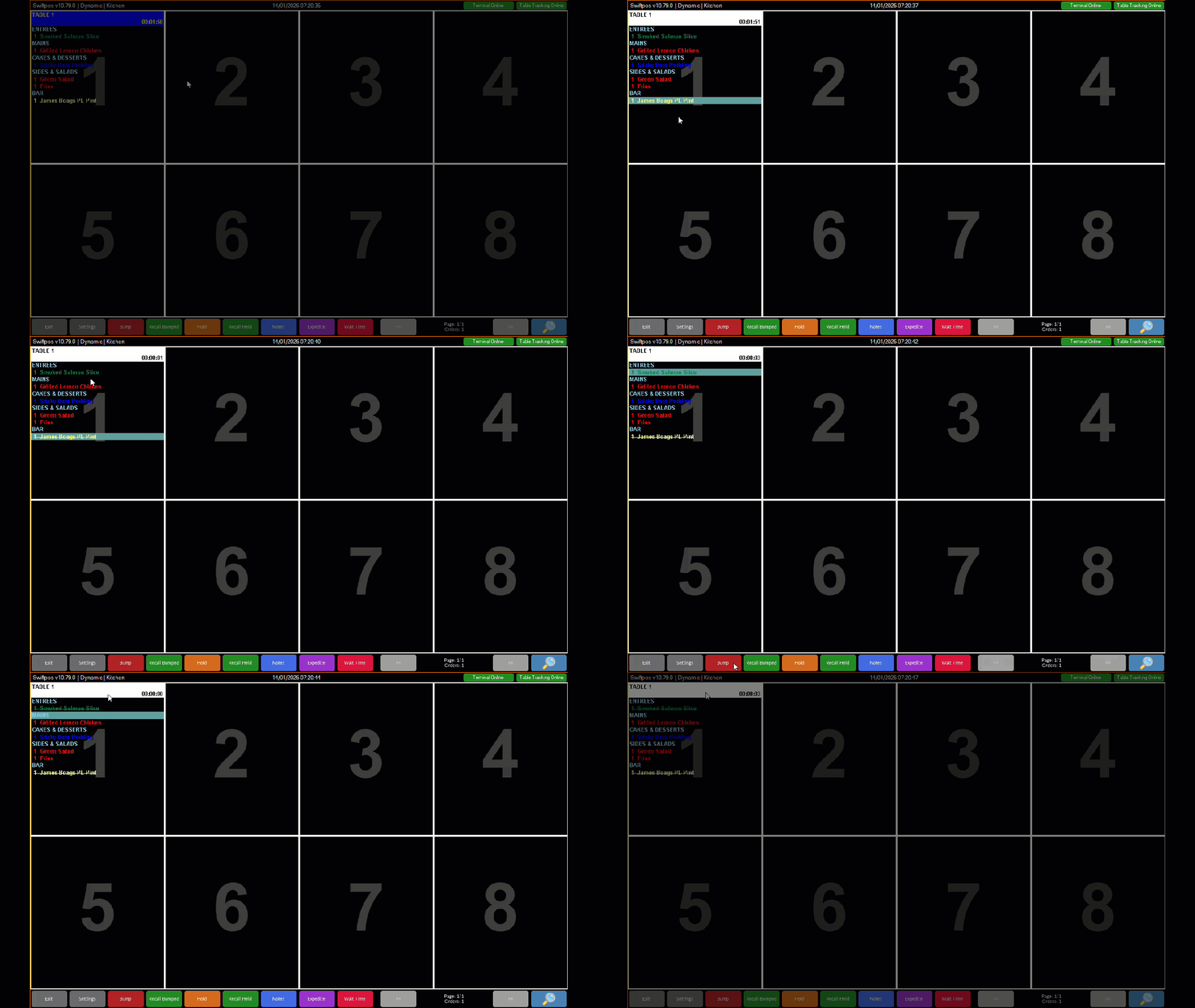
- Select an item from an order that has been prepared and can be served.
- Select the Bump option from the Toolbar at the bottom of the screen.
- The item will now be displayed with a line (strike) through it depicting that it has been bumped.
Notes ...
In the above example, the Bumped Lines option in the Show section of the Appearance tab is SELECTED.
How To Bump An Order? ▲ ▼
In KVS, do as follows:
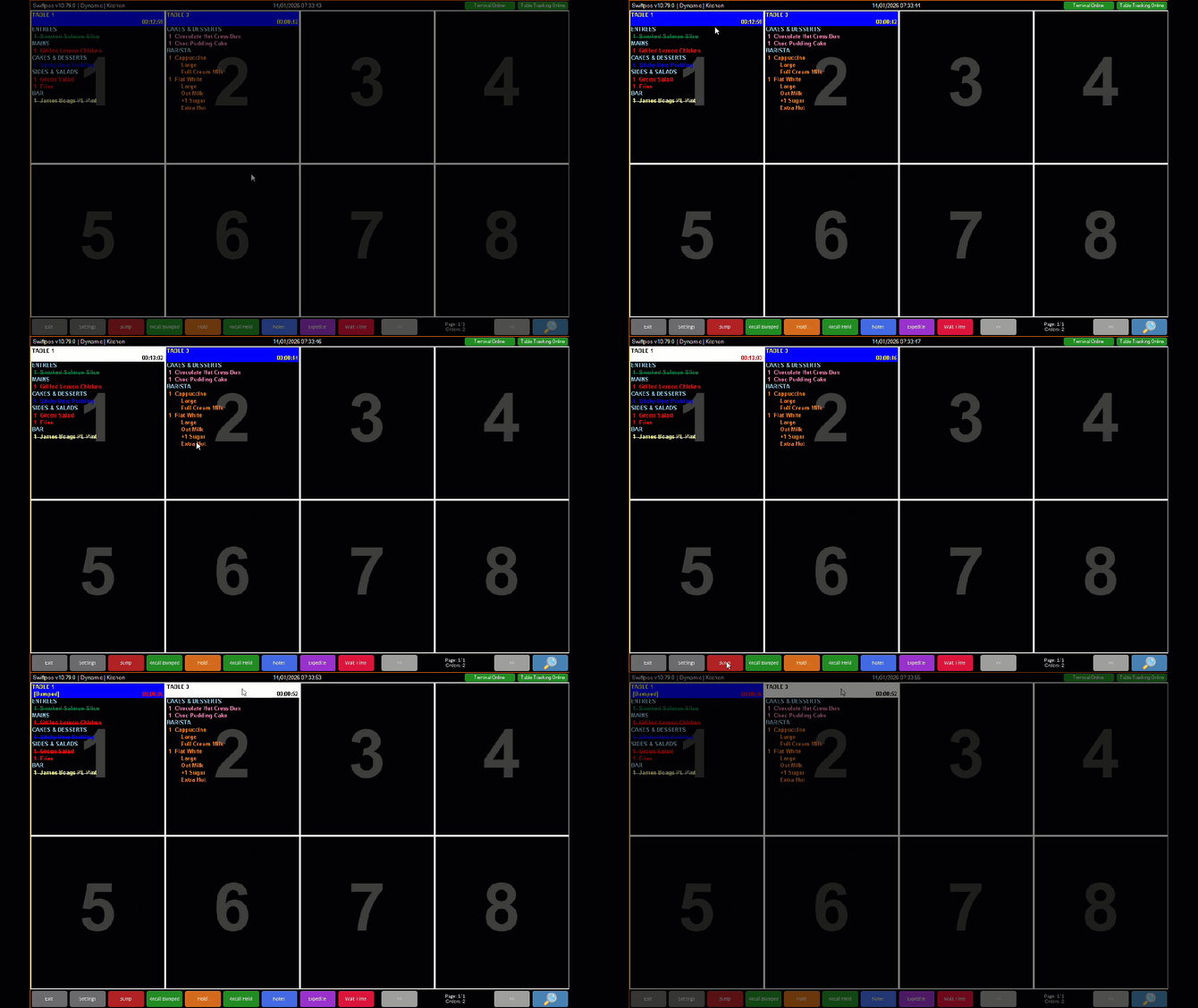
- Select an order that has been prepared and can be served.
- Select the Bump option from the Toolbar at the bottom of the screen.
- The order will now be displayed with a line (strike) through it depicting that it has been bumped.
Notes ...
In the above example, the Bumped Lines option in the Show section of the Appearance tab is SELECTED.
End of article ▲