
This outlines the How To Adjust / Set Available Serving Quantities for KVS.
How To? ▲ ▼
- In KVS:
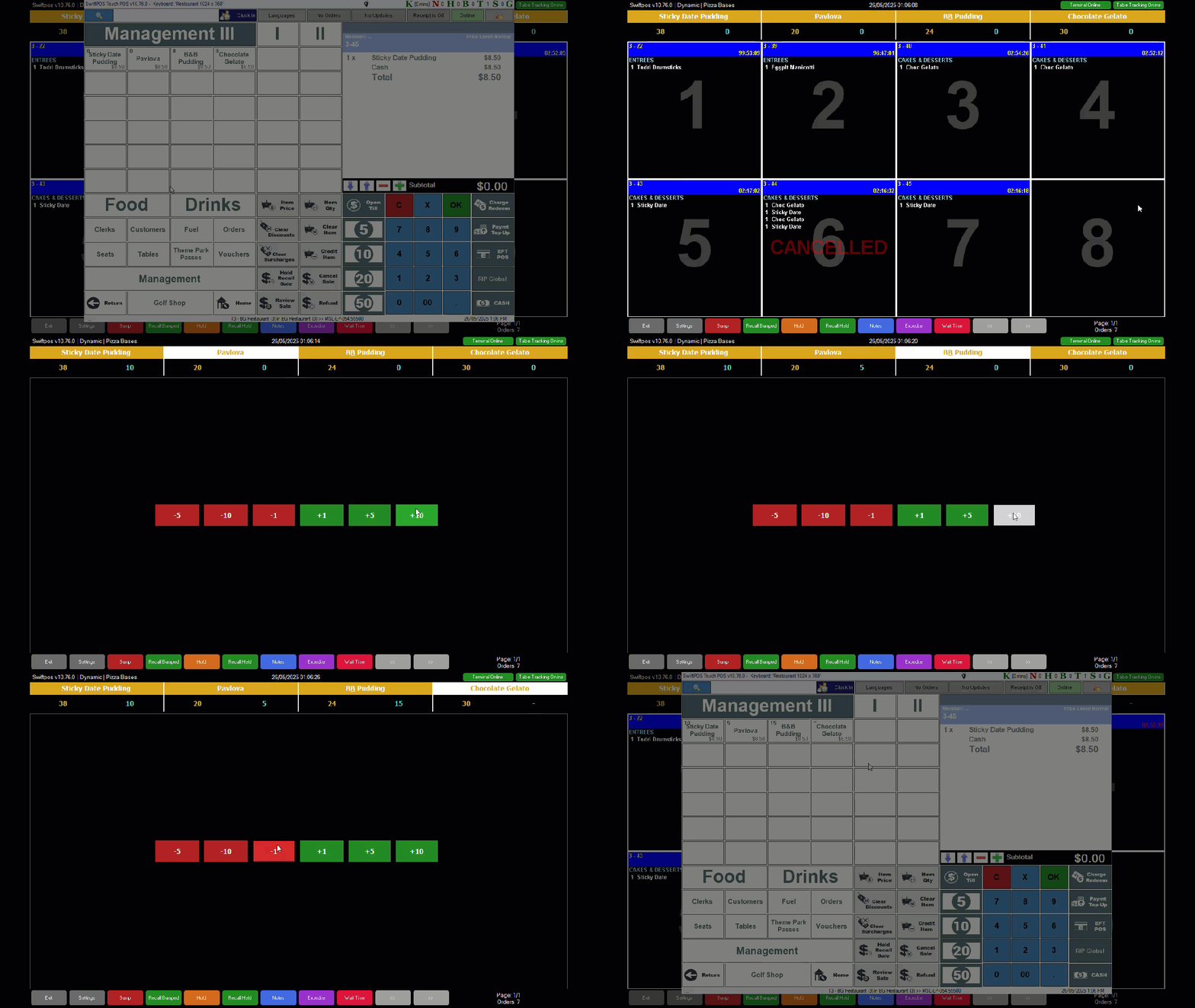
- Select an item/product by selecting the name. This will display the available adjustment quantities that can be selected in order to adjust the Available Servings quantity for the selected item/product.
- Select one or more of the adjustment quantities to ensure the Available Servings is correctly adjusted.
Notes ...
Available Servings quantities in KVS, will be monitored in Touch, regardless of whether the item/product is configured for Available Servings in Touch.
Also, if the Available Servings quantity for a selected item/product is adjusted to:
- Below zero, then there is no limit applied to the number of Available Servings available.
- Zero, then the item/product becomes unavailable to order/sell.
- In KVS continued ...
- Once adjusted to the correct quantity, select either the name of the:
- Another item/product to adjust it's Available Serving quantity.
OR - Select the name of the last item/product adjusted to return to the KVS screen.
- Another item/product to adjust it's Available Serving quantity.
- Once adjusted to the correct quantity, select either the name of the:
- In Touch:
- The Available Servings for the same Items/Products will display the adjusted quantity as was set in KVS. This will only occur if the Items/Products POS Keys have the Available Servings option selected against it.
- If the Available Servings are adjusted from within Touch, then KVS will immediately display the updated quantities.
End of article ▲