![Swiftpos_White.png]](https://help.swiftpos.com.au/hs-fs/hubfs/Swiftpos_White.png?height=40&name=Swiftpos_White.png)
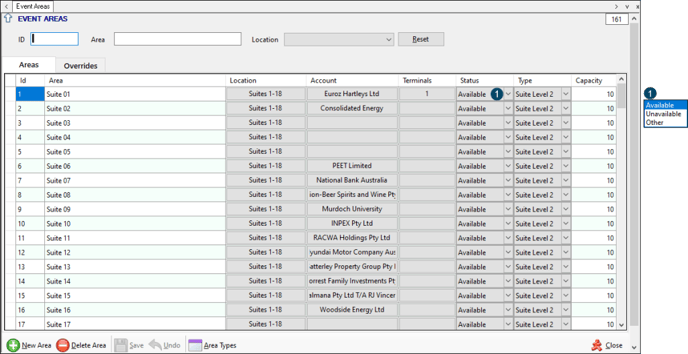
To access, select the Event Areas menu option from the Events menu in Back Office. Used to configure Areas that can then be associated with a Location.
Sections ▲ ▼
Header Section ▲ ▼

Provides filters to limit the number of Areas listed in the grid. The filters available are ID, Area and Location. Select the Reset option to clear all filter selections.
Grid Section ▲ ▼
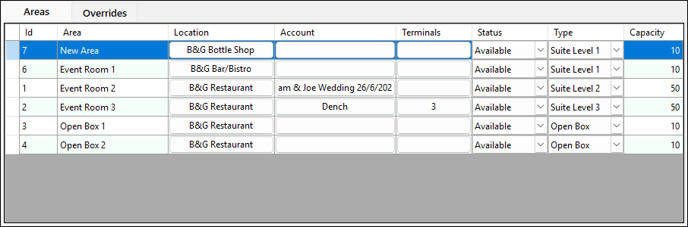
Lists the Areas returned as a result of the filters selected in the header, along with their ID, Area name, Location, Account, Terminals, Status, Type and Capacity.
Notes ...
Rows displayed in the grid can be sorted by toggle selecting the column headings.
Filters Section
Used to limit the number of rows displayed in the grid. The filters include the following types:
- Drop-Down Lists - The filter of this type is Location.
- Full/Partial Numbers - The filter of this type is ID.
- Full/Partial Texts - The filter of this type is Area. Enter a full or partial text, to search the available Areas and return only those that contain an occurrence of the text entered.
Grid Section
Displays a list of the Areas currently available, along with their ID, Location, Account, Terminals, Status, Type and Capacity.
Noteworthy
- Terminals - Select to select one or more Terminals from the drop-down list to ensure the selected Terminals are locked to the Area.
Notes ...
A Terminal can also be locked to more than one Area. That is a single Touch terminal or TouchMini device can service multiple Areas.
Footer Section
Notes ...
If an Area has already been assigned to a Session, then it CANNOT be deleted.
- Save/Undo - Select to save/undo the changes made.
- Area Types - Select to open the Area Types screen to configure/manage Area Types.
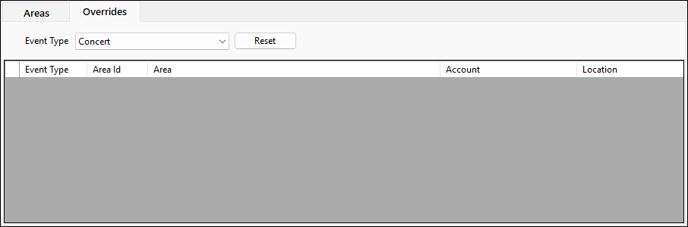
To be continued ...
Footer Section ▲ ▼

- New Area - Select to add a row to the grid to add a new Area.
- Delete Area - Select to remove the selected row in the grid and delete the Area.
- Save - Select to save the changes.
- Undo - Select to undo the changes made.
- Area Types - Select to open the Event Area Types screen.
- Close - Select to exit.
End of article ▲