
This provides information regarding the EFT47 - Verifone Cloud peripheral in Touch.
Refer HERE for Support information
Subjects ▲ ▼
About ▲ ▼
What Is Required? ▲ ▼
- Swiftpos v10.78.7+
- .Net 4.6.2
-
C++ 2015 redistributable
What Is Supported? ▲ ▼
- Surcharging
- Tipping
What To Consider? ▲ ▼
- Sites must have a current Software Enhancement Licence to use this feature.
- If a printer is connected, then ensure an actual printer is selected. Do NOT use the <<Default Printer>> option because the device cannot see it.
When Is It Used? ▲ ▼
EFT47 - Verifone Cloud is recommended for all EFTPOS devices using Oolio Pay.
Screens ▲ ▼
EFTPOS Settings Screen ▲ ▼
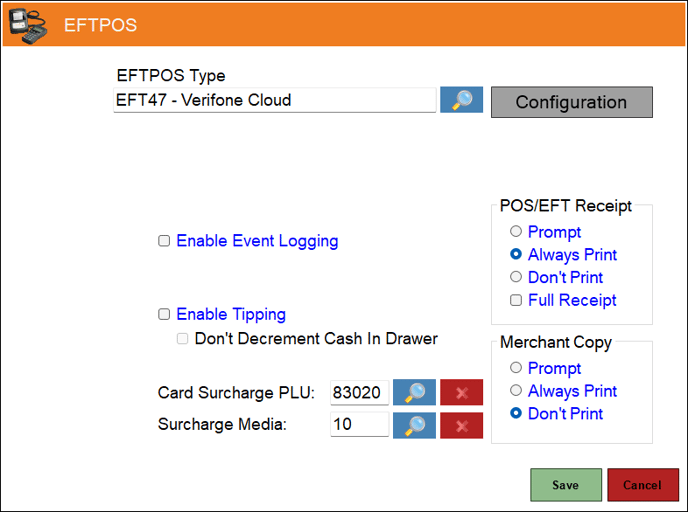
- EFTPOS Type - Select from the drop-down list the EFT47 - Verifone Cloud option. Refer HERE for more information.
- Configuration - Select to open the Verifone Cloud Settings screen.
- Enable Event Logging - Select to enable. It is recommended that this is enabled when testing or when troubleshooting an issue.
- Enable Tipping - Select to enable.
- Don't Decrement Cash In Drawer - Select to ensure that Cash received as a Tip is held in a Tip jar or some other Tip vessel and is NOT added to the Cash Drawer. If unselected, it is assumed that the Cash received as a Tip is added to the Cash Drawer until distribution at a later date. Refer HERE for more information.
- Card Surcharge PLU - Displays/Select the PLU to be assigned to the Surcharge.
- Surcharge Media - Display/Select the Media to be assigned to the Surcharge.
- POS/EFT Receipt - Select from one of the Print options available. Also, if a full receipt option is required, select the Full Receipt option.
- Merchant Copy - Select from one of the Print options available.
Verifone Cloud Settings Screen ▲ ▼
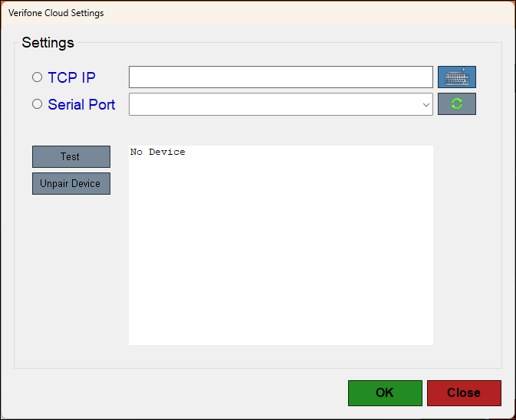
- Select either one of the following and select/specify the appropriate details:
- TCP IP - The TCP IP is collected from the Device. This can be done as follows:
-
Swipe down from the top of the device and press internet button, connect to Wi-Fi.
-
Select the connected Wi-Fi, scroll down to IP address and note the IP address.
-
Enter the IP address noted from the device.
-
Select Test to test.
-
- Serial Port
- TCP IP - The TCP IP is collected from the Device. This can be done as follows:
- Test - Select to test the device.
- Unpair Device - Select to unpair the EFTPOS device.
- OK - Select to save changes and exit the screen.
- Cancel - Select to exit the screen without saving the changes.
End of Article ▲