![Swiftpos_White.png]](https://help.swiftpos.com.au/hs-fs/hubfs/Swiftpos_White.png?height=40&name=Swiftpos_White.png)
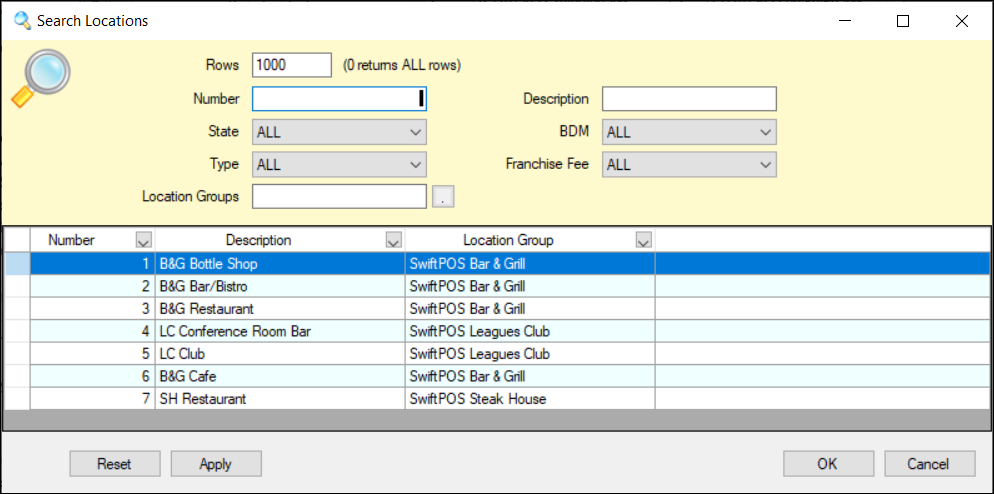
Used throughout Back Office to search for and select a Location.
Notes ...
By default, the Locations initially displayed in the grid will be those for which the currently logged in Clerk/Staff Member is authorised to access.
Sections ▲ ▼
Use the following filters to limit the number of Locations displayed in the grid. Locations can be selected by double selecting a row OR by selecting a row and then selecting OK.
- Rows - Displays/Enter the maximum rows.
- Number - Displays/Enter the number of the Location.
- Description - Displays/Enter the description of the Location.
- Location Sub Filters - Select from the drop-down list of available Sub Filters.
- Locations Groups - Select from the drop-down list of available Location Group (Venue).
Displays a list of Locations along with their Number, Description and the Location Group (Venue) they are associated with.
- Reset - Select to reset the filters entered to the default setting.
- Apply - Select to apply the selected filters and return the filtered Locations.
- OK - Select to save selection and exit.
- Cancel - Select to exit without saving the selection.
End of article ▲