
This outlines the How To Rename A Keyboard.
Subjects? ▲ ▼
About ▲ ▼
What Is Required? ▲ ▼
- A Keyboard must already exist.
When Is It Used? ▲ ▼
Used when the name of a Keyboard needs to be changed.
How To? ▲ ▼
How To Rename A Keyboard? ▲ ▼
In Back Office, do as follows:
-
Select the Keyboards option in the Touch Settings menu, to open the Keyboards screen.
- Select the Keyboards menu in the Toolbar.
- Select the Open Keyboard option in the footer section, to open the Touch Keyboards screen.
- Select the Keyboard which is to be renamed.
- Once the Keyboard is displayed, select the Rename Keyboard option from the Keyboard menu to open the Keyboard Name prompt. For example:
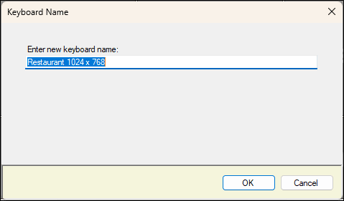
- Enter the new name for the Keyboard into the Enter new keyboard name field.
- Select OK to continue.
- Select Save to save the change.
End of article ▲