
This outlines How To Export / Import Keyboards in Back Office.
How To? ▲ ▼
How To Export Keyboards? ▲ ▼
In Back Office select the Keyboards menu option in Touch Settings, then:
-
Select the Keyboards option in the Touch Settings menu, to open the Keyboards screen.
- Select the Keyboards menu in the Toolbar.
- Select the Open Keyboard option in the footer section, to open the Touch Keyboards screen.
- Select the Keyboard to be exported.
- Select the Export Keyboard to File option in the Keyboard menu in the Toolbar, to display the Save As screen in File Explorer.
- In the Save As screen select a folder in which to save the exported xml file (Keyboard Export.xml) and select Save.
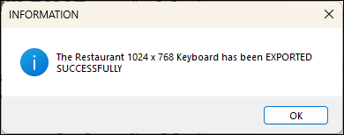
- A prompt will be displayed confirming the export. For example:
- Select OK.
How To Import Keyboards? ▲ ▼
In Back Office select the Keyboards menu option in Touch Settings, then:
- Ensure NO Keyboard is currently open.
- Select the Keyboards menu in the Toolbar.
- Select the Import Keyboard from File (No Products) option in the Keyboards menu in the Toolbar, to display the Open screen in File Explorer.
- Navigate to the folder that contains the XML file of the exported Keyboard (Keyboard Export.xml) to be imported and select the XML file. Refer HERE for more information.
- In the Touch Keyboards screen, select the Keyboard from those displayed in the grid.
- Select Done.
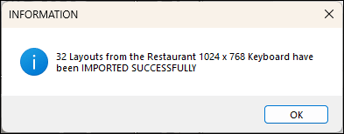
- The selected Keyboard will be imported, at the end of which a prompt will be displayed confirming the import. For example:
- Confirm the following:
- No Product POS Keys were imported.
- All Layouts and Multi Link POS Keys are linked correctly.
- All Fixed Layouts were imported and appear correct.
- The HOME Layout is set correctly.
- Add and assign Product POS Keys to the Layouts where appropriate.
End of article ▲