
This outlines How To Configure Ingredients/Nutrients On Product Labels in Back Office.
Subjects ▼
When Is It Used? ▲ ▼
Used when Nutritional information is to be included when printing Product Labels in Back Office.
What Are The Benefits? ▲ ▼
Provides patrons with additional Product information, thus facilitating patrons, the opportunity, to be more informed when choosing Products.
What Is Required? ▲ ▼
- Ensure Ingredients/Nutrients have been configured. Refer to How To Add Nutrients for more information.
- Ensure Ingredients/Nutrients information has been added to individual Products where required. Refer to How To Add Nutrient Information To A Product and How to Add Ingredient information to a Product for more information.
How To Configure Ingredients / Nutrients On Product Labels? ▲ ▼
To add Ingredient/Nutrient information to a Product Label, do as follows:
- In the Product Label Designer screen, select the New button to create a new Label design.
- Give the new Label a name in the Description field. For example, Product Price Ingredients & Nutrition Info
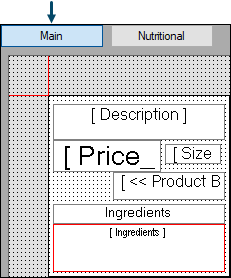
- With the Main button selected, for example, select the Add New Item icon to add the following items (as an example):
- With the Nutritional button selected, select the Add New Item icon to add the following items (as an example):
- Select OK to add the Nutrient.
- Select Save to save the changes.
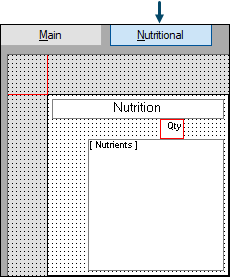
- Configure the design as required, that is the format, font size and placement of all the items added.
- Once the design of the label has been completed according to what is required, Save the changes and exit the Label Designer screen.
- Now, in the Product Labels screen, preview the new Label by adding a Product, that has both Ingredients and Nutrients configured, to the grid and selecting the Preview button. The label previewed, using the label design configured above, is as follows:
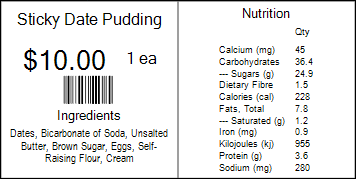
Example of a Product Label with Ingredients and Nutrition information printed.
End of article. ▲