
- Swiftpos Help Guides
- KVS
- How To
-
Installers / Links / Releases
-
API
-
Back Office
-
Cloud Back Office
-
Events
-
Events Portal
-
How To
-
KVS
-
Member Portal
-
Notify
-
Oolio Pay
-
Orderaway
-
POS Keys
-
Self-Service Kiosk
-
Self-Service POS
-
Swiftpos
-
Touch
-
Touchmini
-
Troubleshooting
-
Venue Hub
-
Venue Manager
-
3rd Party Integrations
- Account Management
- Business Intelligence
- Cash Management
- eCommerce
- Exports / Imports
- Front Office Systems
- Fuel Systems
- Gaming
- General Ledger
- Gift Cards / Promotions / Vouchers
- Membership / Loyalty
- Middleware Applications
- Payment Integrators
- Product Level Blocking
- Reservations
- Swiftpos
- Tab Management
- Time & Attendance
- Value Added Services
-
Uncategorized
- API
- Back Office Accounts
- Back Office Administration
- Back Office - Clerks
- Back Office - Data Export
- Back Office - Inventory
- Back Office - Members
- Back Office - Menus
- Back Office - Products
- Back Office - Services
- Back Office - Suppliers
- Back Office - Swiftpos
- Back Office - Terminal Sales
- Back Office - Touch Settings
- Back Office - Vouchers / Discounts
- How To
- KVS
- OrderAway
- Venue Manager
- 3rd Party Integrations
- Touch
- Cloud Back Office
-
Touchmini v1 (End Of Life)
Add / Edit KVS In Touch
KVS - How To
This outlines the How To Add / Edit KVS In Touch.
Subjects? ▲ ▼
About ▲ ▼
What Is Required? ▲ ▼
Prior to proceeding, ensure the following has been reviewed and addressed where appropriate:
- Venues will need to be registered for the appropriate number of KVS Pro Licences.
- Ensure a connection to a Table Tracking has been established at the Touch Terminal.
How To Add / Edit KVS in Touch? ▲ ▼
In Touch, do as follows:
- Add the Kitchen Video System option as a Peripheral to the Touch terminal the KVS is going to be added to. Refer HERE for more information.
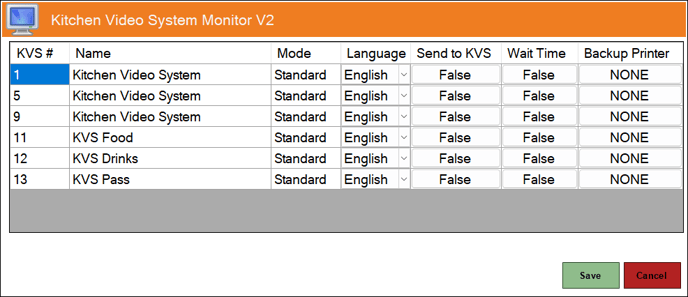
- Once added, the Kitchen Video System Monitor V2 screen will be displayed.
- Configure the settings, as per the Kitchen Video System Monitor V2 screen below, for the KVS Terminal in question.
- Select Save to save the changes.
Screens ▲ ▼
Kitchen Video System Monitor V2 ▲ ▼
Notes ...
The KVS Type terminals listed are sourced from the Table Tracking database. A Table Tracking Offline warning notification will be displayed if the Touch terminal is NOT connected to a Table Tracking database. Also, no KVS Type terminals will be listed.
- ID - Displays the KVS ID. A maximum of 32 is allowed.
- Name - Displays the name entered HERE.
- Mode - Displays the mode the KVS is currently set to. That is, either Standard or Journal mode. Refer HERE for more information.
- Language - Select from the drop- list the required Language for the KVS.
- Send to KVS - Set to True to ensure orders are sent to the selected KVS.
- Wait Time - Set to True to ensure the average Wait Time (K(20 mins)) is displayed at Touch.
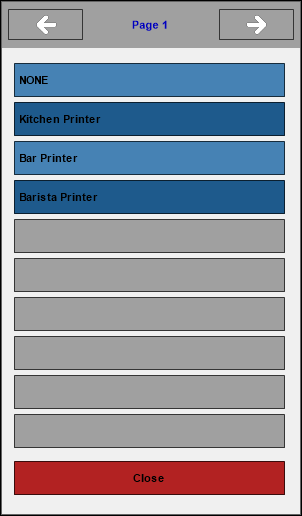
- Backup Printer - Displays the printer selected for the KVS to function as a backup when KVS fails. Select to open the prompt below, to select a printer from the available printers configured in Touch. Once selected, Orders will only print to the selected printer if KVS fails.
Notes ...
The Automatic Printing and Disabled settings configured for the selected Backup Printer will be ignored.
End of article ▲