
Subjects ▲ ▼
About ▲ ▼
What Is Required? ▲ ▼
- The appropriate Clerk Security Group permissions required to add and edit Surcharges in Back Office.
- A Surcharge PLU. Refer to HERE for more information.
When Is It Used? ▲ ▼
Used to create and configure Surcharges, that can then be applied to orders/sales. For example, a Public Holiday surcharge.
Example ▲ ▼
This allows user-friendly mapping strings to be added to an existing Voucher. Voucher numbers are generated by Back Office and are made up of 13 digit numbers with a prefix of 44. This number CANNOT be changed. There may be situations when a Venue wants to generate and print monthly Vouchers for an upcoming calendar year.
Example 1
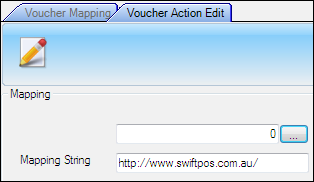
A user-friendly mapping string could be a URL that represents a barcode that gives a customer a special discount.
Example 2
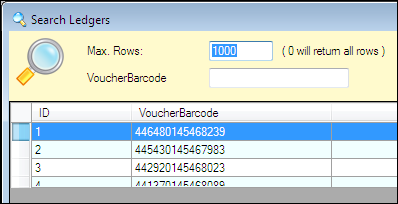
Select from the list of Vouchers that have already been created.
Example 3
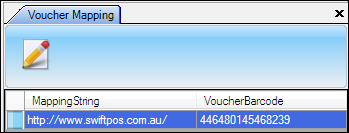
When the http://www.swiftpos.com.au/ data is scanned then it will look up the Voucher and treat is as if the Voucher's barcode was scanned.
Screens ▲ ▼
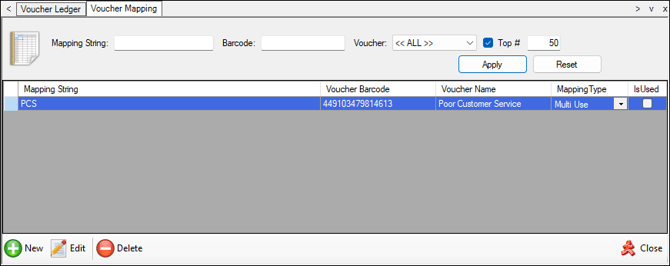
Voucher Mapping Screen ▲ ▼
To access, select the Mapping option in the footer section of the Voucher Ledger screen.
Sections ▲ ▼
Header Section ▲ ▼

Used to limit the number of rows displayed in the grid section. Once all filters have been selected, select the Apply option to apply them. Otherwise, select the Reset option to clear all filter selections.
Grid Section ▲ ▼
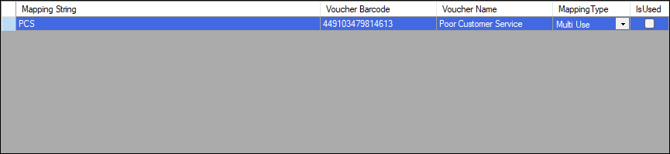
Lists the Vouchers Mappings returned as a result of the filters selected in the header section, along with their Mapping String, Voucher Barcode, Voucher Name, Mapping Type and Is Used indicator.
Footer Section ▲ ▼

- New - Select to add a new Voucher Mapping.
- Edit - Select to open the Voucher Mapping Edit screen to edit the selected row.
- Delete - Select to delete the selected row.
- Close - Select to exit.
Voucher Mapping Edit Screen ▲ ▼
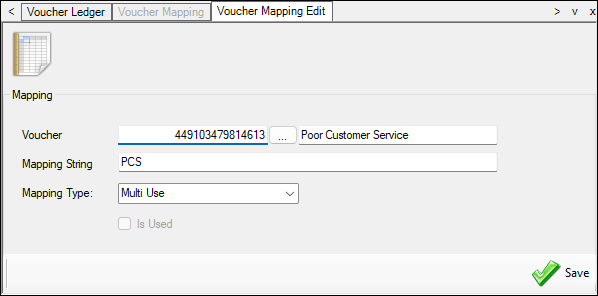
To access, select the Edit or New option in the footer section of the Voucher Mapping screen.
- Voucher - Select to open the Search Ledgers screen to select an existing Voucher.
- Mapping String - Displays/Enter a code/text to map to the selected Voucher.
- Mapping Type - Select either Multi Use or Single Use.
- Is Used - This option is only enabled when Single Use Mapping Type is selected. If a Single Use Voucher has been used, then a tick will appear here. If manually selected, this will ensure the Mapping currently displayed cannot be used.
Notes ...
This applies to the Mapping and not the Voucher. Multiple Single Use Mappings can be created for the same Multi Use Voucher. Thus, when the Mapping is used, it cannot be re-used.
End of article ▲