
This outlines the How To Expedite An Order in KVS.
How To? ▲ ▼
To expedite an Order in KVS, do as follows:
- Consider selecting the Show Expedite option to ensure that when an order is expedited, the text EXPEDITED is displayed in the background of the cell of the expedited order.
- Select a cell (NOT the first cell, as this order is already at the front of the queue) that is displaying an order and then select the Expedite option.
- Once selected the selected cell will be moved to the front of the queue. That is, to the first cell on the KVS.
- This order will now have precedence over all other orders.
- If second cell is selected an expedited, it will also be moved to the front of the queue. That is, the first expedited order will now be moved to 2nd place in the queue. and the second expedited order will now have precedence over all other orders.
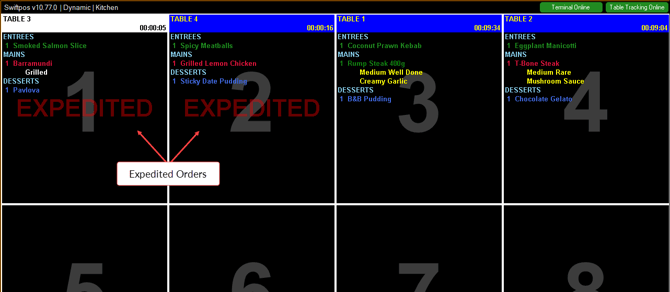 Example of expedited orders with the Show Expedite option selected.
End of article ▲