
This outlines How To Clear Frequent Shopper Offers using the Zen Global interface in Touch.
Subjects ▼
How To Clear Frequent Shopper Offers? ▲ ▼
To clear a Frequent Shopper Offers from a sale, do as follows:
- Select the Get Frequent Shopper Offers (Customer (#102) POS Key, to display the Customer Offers screen. If required, enter the Customer's Frequent Shopper ID, or scan the Customer's Frequent Shopper card.
- An Offer already applied to the sale will have the Clear button displayed in red.
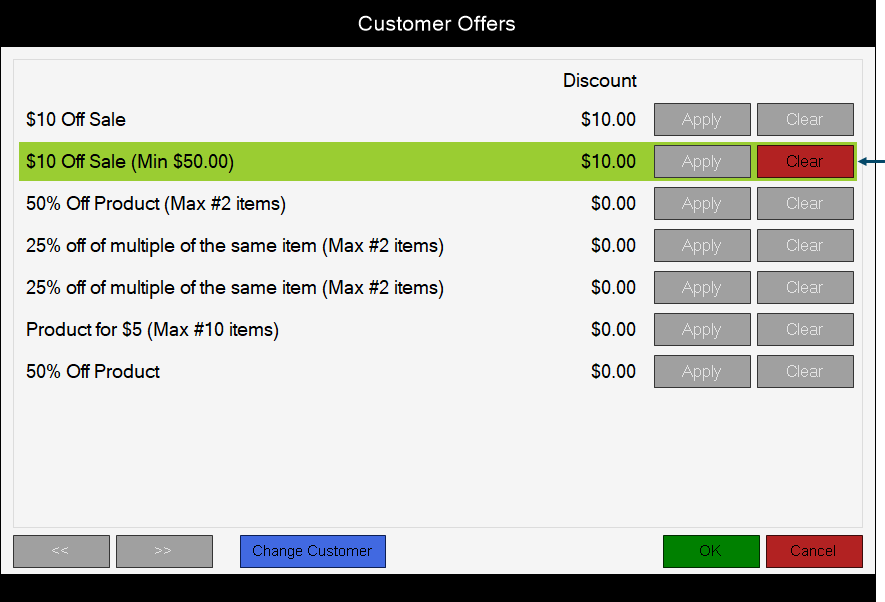
- Select the Clear button to clear the Offer from the sale.
- Offers that can now be selected will have their Apply button displayed in green.
- Select an Offer and/or select the OK button to save the change and return to the sale.
- Finalise the sale.
Notes ...
A Frequent Shopper Offer CANNOT be cleared in the sales grid, by selecting the item and then selecting the Clear (#2) POS Key. The following message will be displayed: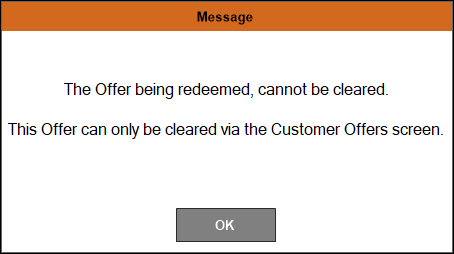
What Is Required? ▲ ▼
- A Frequent Shopper Offer must have already been added to a sale. Refer to How To Retrieve And Apply A Frequent Shopper Offers for more information.
End of article. ▲