
This outlines the information and the steps that are needed to familiarise oneself with the NetPOS Triple Jump interface.
Subjects ▲ ▼
About ▲ ▼
What Is It? ▲ ▼
Used for sending sales transaction data to the Triple Jump (TJ) message queue provided on Azure (Service Bus Topic).
What Is Required? ▲ ▼
- swiftpos v10.74.10+
- A NetPOS Registration that includes the Triple Jump interface.
How To? ▲ ▼
How To GET STARTED? ▲ ▼
Do as follows:
- Review About and ensure the steps outlined HERE are addressed.
- In Back Office
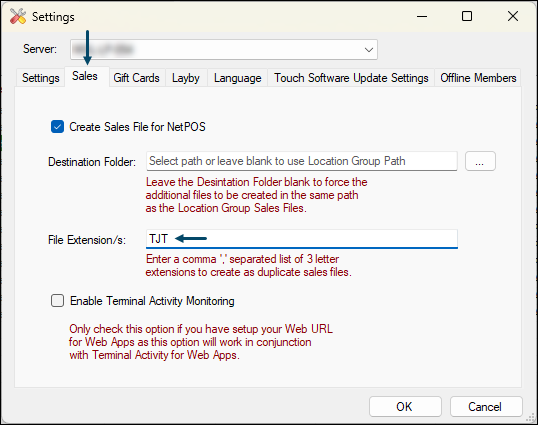
- Ensure a TJT file extension is added to the File Extension/s field in the Sales tab in Touch Settings > Touch POS Terminals > Tools > Options > Settings screen.
- In NetPOS
- Obtain the Venue's specific connections string from Triple Jump. Once received, enter it into the Connection String field in the NetPOS Triple Jump Settings screen.
- Select the Extract button, to retrieve the Venue's configuration. Once selected, the Triple Jump Settings screen will be populated with the configuration values retrieved.
- Configure the remaining settings as is appropriate for the Venue.
- Save the changes.
- Restart the NetPOS service.
How To Use It? ▲ ▼
Once configured, it is pretty much set and forget. Going forward all sale transaction data will automatically be sent to Triple Jump.
Screens ▲ ▼
Triple Jump Settings Screen ▲ ▼
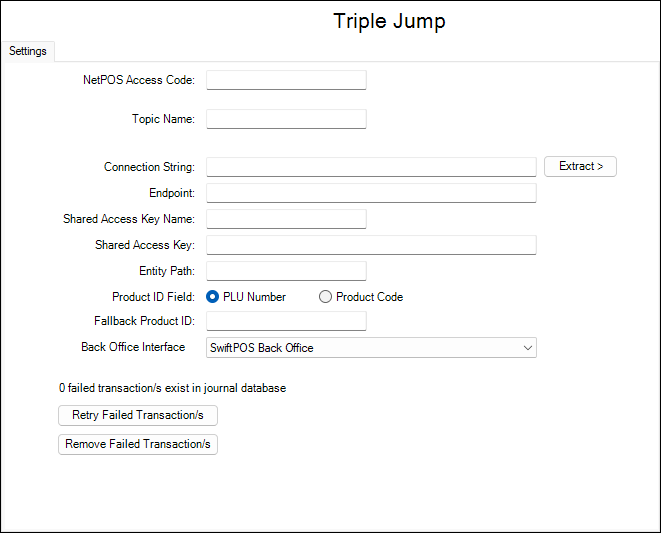
This screen is accessed from HERE and is used to configure the NetPOS Triple Jump interface.
End of article ▲